• Skip to main content
  • Skip to primary sidebar
  • Deals
  • Features
  • Guides
  • Chromebooks
  • Videos
  • Podcast
  • More +
    • Reviews
    • Unboxing
    • Upcoming Devices
    • Chromebook Plus
    • Chrome
    • ChromeOS
    • Chrome OS Flex
  • Search
  • Sign Up
  • Log In
Chrome Unboxed – The Latest Chrome OS News

Chrome Unboxed - The Latest Chrome OS News

A Space for All Things Chrome, Google, and More!

  • Deals
  • Features
  • Guides
  • Chromebooks
  • Videos
  • Podcast
  • More +
    • Reviews
    • Unboxing
    • Upcoming Devices
    • Chromebook Plus
    • Chrome
    • ChromeOS
    • Chrome OS Flex
  • Search
  • Sign Up
  • Log In

How To Set Up Fingerprint Unlock On Your Chromebook

July 19, 2017 By Robby Payne View Comments

Support our independent tech coverage. Chrome Unboxed is written by real people, for real people—not search algorithms. Join Chrome Unboxed Plus for just $2 a month to get an ad-free experience, access to our private Discord, and more. Learn more about membership here.
START FREE TRIAL (MONTHLY)START FREE TRIAL (ANNUAL)

It recently came to our attention that Samsung is now touting the ability to use the fingerprint sensor on your Galaxy phone to unlock your Windows device.

For Chromebook users, this is not a new thing at all. As a matter of fact, it’s been around for over 2 years in Chrome OS.

Xremove ads

We talked about the overall setup before, but we wanted to bring some attention to the feature again as the majority of Android devices these days have fingerprint scanners.

Once set up, you can get started with one click on your Chromebook as long as your phone is near and unlocked.

Featured Videos

Xremove ads

How To Get Going

First, make sure both devices are up to date. As this feature has been around for a few years, the likelihood that your Chromebook is that far out of date is not really an issue.

Your phone, however, will need to be on Android 5.0 or later. I wish we could say that was an afterthought too, but you know how those Android updates go.

Once that’s all settled, you go through this pretty simple setup.

Xremove ads
  • Go to Chrome OS Settings
  • In the Search bar, type Smart Lock
  • Click the ‘Set Up’ button
  • Your desktop will lock and you’ll need to input your PIN or password to verify it is you
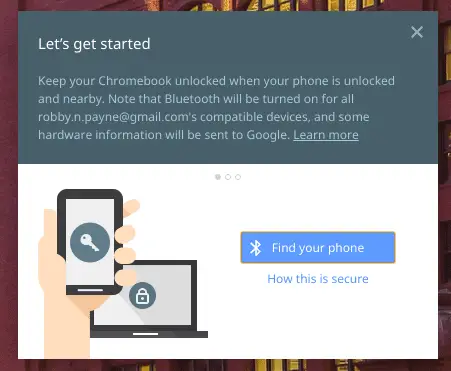
  • Then you’ll see a screen like this:


  • Make sure your phone’s bluetooth is on
  • Click on ‘Find Your Phone’
  • Once found, click ‘Use This Phone’
  • Then, ‘Try it Out’

 
That’s it!

You can now unlock your Chrome OS device with a fingerprint scanner on your phone. And, though it’s been around a while, this is still a very useful and handy feature. My only wish is that it would unlock the device fully and move off the lock screen without having to click or touch on the screen after being unlocked.

Xremove ads

However, if you have personal things up on your desktop, you wouldn’t want your Chrome OS device waking up every time you unlock your phone and are within proximity.

The better option? When Chromebooks like ‘Eve’ start hitting the market with fingerprint scanners built in, the definitive unlock method will become way more standard. Until that point, though, you can wave goodbye to passwords and PINs when it comes to unlocking your Chromebook.

SALE!! Order The Samsung Chromebook Plus On Amazon

Xremove ads

Filed Under: Apps, ChromeOS, Guides and How-To's

About Robby Payne

As the founder of Chrome Unboxed, Robby has been reviewing Chromebooks for over a decade. His passion for ChromeOS and the devices it runs on drives his relentless pursuit to find the best Chromebooks, best services, and best tips for those looking to adopt ChromeOS and those who've already made the switch.

Primary Sidebar

Xremove ads

Deals

The touchscreen Lenovo Chromebook Slim 3 is a steal at under $200

By Robby Payne
March 16, 2026

Google TV Streamer and Remote held in front of a wall-mounted TV

The premium Google TV Streamer 4K is back down to $80

By Joseph Humphrey
March 16, 2026

The best Chromebook deals today

By Robby Payne
March 16, 2026

Pixel Buds Pro 2 running

I still love the Pixel Buds Pro 2 and they are $60 off right now

By Joseph Humphrey
March 13, 2026

The Lenovo Chromebook Slim 3 is the one to get, starting at just $139 right now

By Robby Payne
March 6, 2026

More Deals

Xremove ads

Reviews

Acer Chromebook Plus Spin 514 Review: Kompanio Ultra power in a convertible

By Robby Payne
December 24, 2025

My review after 6 weeks with the Lenovo Chromebook Plus 14 [VIDEO]

By Robby Payne
August 11, 2025

One week with the best small Android tablet you can buy, and I’m sold

By Robby Payne
May 9, 2025

Best Chromebooks of 2024 [VIDEO]

By Robby Payne
November 28, 2024

Samsung Galaxy Chromebook Plus Review: Samsung is back! [VIDEO]

By Robby Payne
October 28, 2024

More Reviews

Xremove ads

Guides

This Chromebook trackpad shortcut is definitely not new, but is blowing my mind

By Robby Payne
March 11, 2024

How to reduce broadcast delay on YouTube TV to stop live spoilers

By Robby Payne
December 8, 2023

Windows PC keyboard and Chromebook

How to use a Windows keyboard with a Chromebook

By Joseph Humphrey
December 8, 2023

How reset and revert your Chromebook to the previous version of Chrome OS

By Robby Payne
November 29, 2023

My Chromebook Plus features disappeared: here’s how I fixed it

By Robby Payne
November 24, 2023

More Guides

TWITTER · FACEBOOK · INSTAGRAM · YOUTUBE · EMAIL · ABOUT

Copyright © 2026 · Chrome Unboxed · Chrome is a registered trademark of Google Inc.
We are participants in various affiliate advertising programs designed to provide a means for us to earn fees by linking to affiliated sites.

PRIVACY POLICY