
• Skip to main content
  • Skip to primary sidebar
  • Deals
  • Features
  • Guides
  • Chromebooks
  • Videos
  • Podcast
  • More +
    • Reviews
    • Unboxing
    • Upcoming Devices
    • Chromebook Plus
    • Chrome
    • ChromeOS
    • Chrome OS Flex
  • Search
  • Sign Up
  • Log In
Chrome Unboxed – The Latest Chrome OS News

Chrome Unboxed - The Latest Chrome OS News

A Space for All Things Chrome, Google, and More!

  • Deals
  • Features
  • Guides
  • Chromebooks
  • Videos
  • Podcast
  • More +
    • Reviews
    • Unboxing
    • Upcoming Devices
    • Chromebook Plus
    • Chrome
    • ChromeOS
    • Chrome OS Flex
  • Search
  • Sign Up
  • Log In

Chromebook Classroom: Have Some Fun With Your Students This April Fool’s Day

April 1, 2017 By Gabriel Brangers View Comments

Support our independent tech coverage. Chrome Unboxed is written by real people, for real people—not search algorithms. Join Chrome Unboxed Plus for just $2 a month to get an ad-free experience, access to our private Discord, and more. Learn more about membership here.
START FREE TRIAL (MONTHLY)START FREE TRIAL (ANNUAL)

April 1st is right around the corner and one thing is inevitable. Pranks will happen. Some light-hearted fun around the office can be a good thing when done in good taste and frankly, sometimes it’s just good to have a laugh.

Xremove ads

If you’re an educator, what better time to have a little fun with your students? April Fool’s Day is a perfect opportunity to pull a few pranks on your kids and maybe even learn a few tricks in the process.


Our good friend John R. Sowash has shared with us a list of harmless but hilarious pranks you can pull on your students and co-workers using a Chromebook. So, without further ado, here’s a couple pointers from John’s Chromebook Prank Guide for Teachers.

Featured Videos

Xremove ads

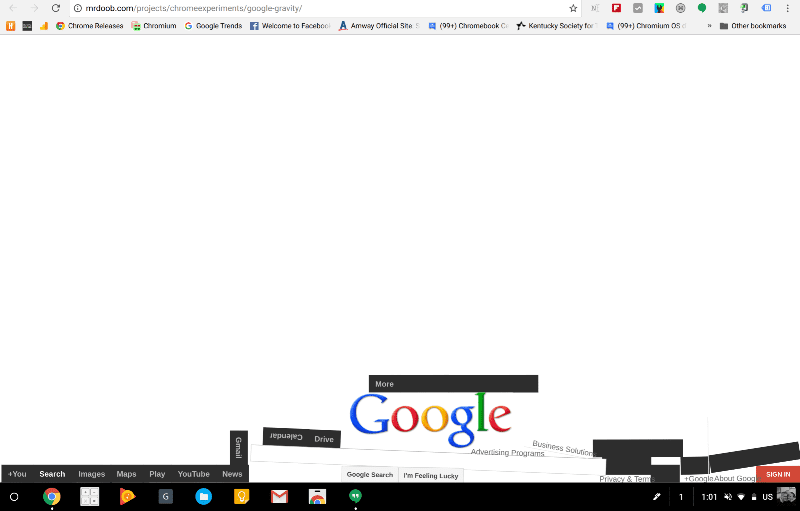
Google Gravity

This one is great to get a fellow teacher with or, if you happen to be buddies with your IT admin, you can prank the masses. Google Gravity is a Google homepage spoof that collapses into a pile as soon as the mouse is moves. If you can access an individual’s Chromebook, head to Settings>Advanced settings>On startup and select “open a specific page or set of pages.”

From there click “set pages” and add this url. https://goo.gl/zlCsbG Close the settings and the browser and wait. For other devices with the Chrome browser simply follow Chrome settings>Appearance>Default homepage link and add the link above.
Xremove ads

Prank Wallpaper

This one requires you to have someone on the inside in your IT department. Unless you are and admin, in which case this prank will be a breeze. Inside the Chrome Management Console you can push wallpapers to Chrome devices. If you’ve not done this before check out how here. I’ll wait. Ok, ready? Here’s a couple ideas to catch your students off guard.


Broken Screen-Find a high-res wallpaper of a shattered display and push it to a device or every device depending on how mischievous you’re feeling.

iPad/Windows– I love this one. Find an image that looks like a Windows desktop or iPad screen and throw that bad boy up there. That would put me in panic mode for sure.

Xremove ads

Prying Eyes-Get a good picture of a staff member peering suspiciously from a familiar locale and have it front and center to startle an unsuspecting user.

Nope

Robby covered this one last week but it’s worth another quick mention. Fake a phone call with one click on this extension. Not only will you be able to receive a call, the instructions from the other end will walk you through a hilarious set of reactions that will have onlookers thinking something drastic has happened.


For a full list of April Fool’s pranks check out John’s site, the ElectricEducator. While you’re there sign up for news and updates from the world of Education Technology.

Xremove ads

You can also find his book, The Chromebook Classroom, at the link below. Everything you need to know about the use, deployment and management of Chrome devices in today’s classroom.

The Chromebook Classroom on Amazon

Filed Under: All Stories, Apps, Chrome, Chromebooks, Guides and How-To's

About Gabriel Brangers

Lover of all things coffee. Foodie for life. Passionate drummer, hobby guitar player, Web designer and proud Army Veteran. I have come to drink coffee and tell the world of all things Chrome. "Whatever you do, Carpe the heck out of that Diem" - Roman poet, Horace. Slightly paraphrased.

Primary Sidebar

Xremove ads

Deals

The touchscreen Lenovo Chromebook Slim 3 is a steal at under $200

By Robby Payne
March 16, 2026

Google TV Streamer and Remote held in front of a wall-mounted TV

The premium Google TV Streamer 4K is back down to $80

By Joseph Humphrey
March 16, 2026

The best Chromebook deals today

By Robby Payne
March 16, 2026

Pixel Buds Pro 2 running

I still love the Pixel Buds Pro 2 and they are $60 off right now

By Joseph Humphrey
March 13, 2026

The Lenovo Chromebook Slim 3 is the one to get, starting at just $139 right now

By Robby Payne
March 6, 2026

More Deals

Xremove ads

Reviews

Acer Chromebook Plus Spin 514 Review: Kompanio Ultra power in a convertible

By Robby Payne
December 24, 2025

My review after 6 weeks with the Lenovo Chromebook Plus 14 [VIDEO]

By Robby Payne
August 11, 2025

One week with the best small Android tablet you can buy, and I’m sold

By Robby Payne
May 9, 2025

Best Chromebooks of 2024 [VIDEO]

By Robby Payne
November 28, 2024

Samsung Galaxy Chromebook Plus Review: Samsung is back! [VIDEO]

By Robby Payne
October 28, 2024

More Reviews

Xremove ads

Guides

This Chromebook trackpad shortcut is definitely not new, but is blowing my mind

By Robby Payne
March 11, 2024

How to reduce broadcast delay on YouTube TV to stop live spoilers

By Robby Payne
December 8, 2023

Windows PC keyboard and Chromebook

How to use a Windows keyboard with a Chromebook

By Joseph Humphrey
December 8, 2023

How reset and revert your Chromebook to the previous version of Chrome OS

By Robby Payne
November 29, 2023

My Chromebook Plus features disappeared: here’s how I fixed it

By Robby Payne
November 24, 2023

More Guides

TWITTER · FACEBOOK · INSTAGRAM · YOUTUBE · EMAIL · ABOUT

Copyright © 2026 · Chrome Unboxed · Chrome is a registered trademark of Google Inc.
We are participants in various affiliate advertising programs designed to provide a means for us to earn fees by linking to affiliated sites.

PRIVACY POLICY