• Skip to main content
  • Skip to primary sidebar
  • Deals
  • Features
  • Guides
  • Chromebooks
  • Videos
  • Podcast
  • More +
    • Reviews
    • Unboxing
    • Upcoming Devices
    • Chromebook Plus
    • Chrome
    • ChromeOS
    • Chrome OS Flex
  • Search
  • Sign Up
  • Log In
Chrome Unboxed – The Latest Chrome OS News

Chrome Unboxed - The Latest Chrome OS News

A Space for All Things Chrome, Google, and More!

  • Deals
  • Features
  • Guides
  • Chromebooks
  • Videos
  • Podcast
  • More +
    • Reviews
    • Unboxing
    • Upcoming Devices
    • Chromebook Plus
    • Chrome
    • ChromeOS
    • Chrome OS Flex
  • Search
  • Sign Up
  • Log In

Chrome OS 57: Enable PIN Unlock On Your Chromebook

March 28, 2017 By Robby Payne View Comments

Support our independent tech coverage. Chrome Unboxed is written by real people, for real people—not search algorithms. Join Chrome Unboxed Plus for just $2 a month to get an ad-free experience, access to our private Discord, and more. Learn more about membership here.
START FREE TRIAL (MONTHLY)START FREE TRIAL (ANNUAL)
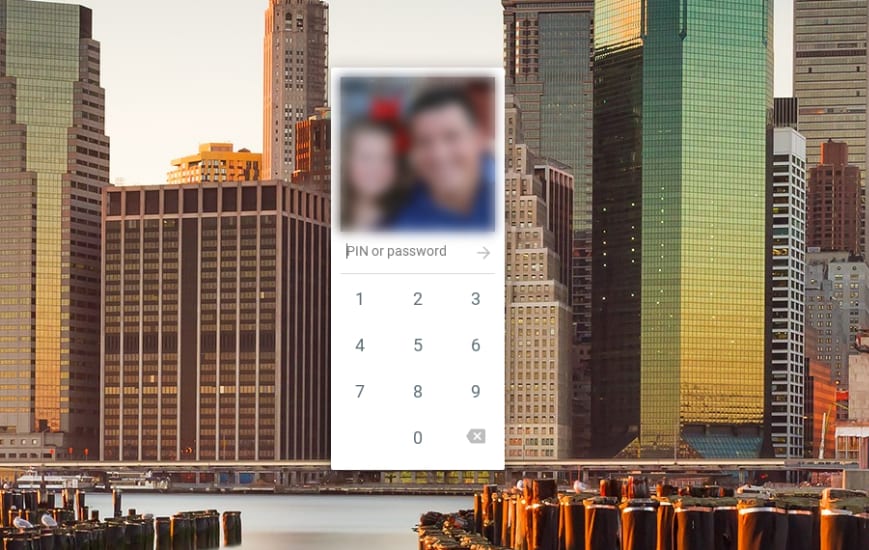
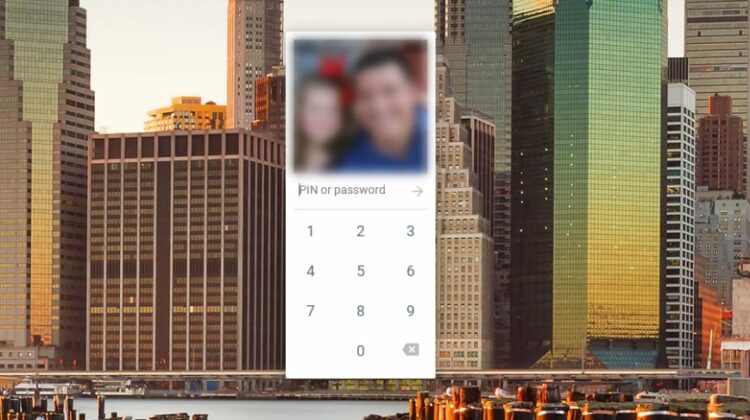
According to the Chrome Releases blog, when Chrome OS 57 rolled out, PIN Unlock became a thing on all Chromebooks.

The only problem? It is a bit tough to find.

Xremove ads

Though enabled, the place we would expect this setting to be found is not, in fact, where you will find it.


Around Chrome Unboxed, we’ve been using the Material Design settings off and on for months. In that settings menu (which we sure hope gets fully integrated soon), PIN Unlock is front and center and easy to get to.

Featured Videos

Xremove ads

In the standard settings menu, however, this setting was a bit tougher to find. I kept looking around the Smart Lock section, but found nothing. Convinced that it was around somewhere, I kept looking.

Usually, a simple search finds what you need. This didn’t work either.

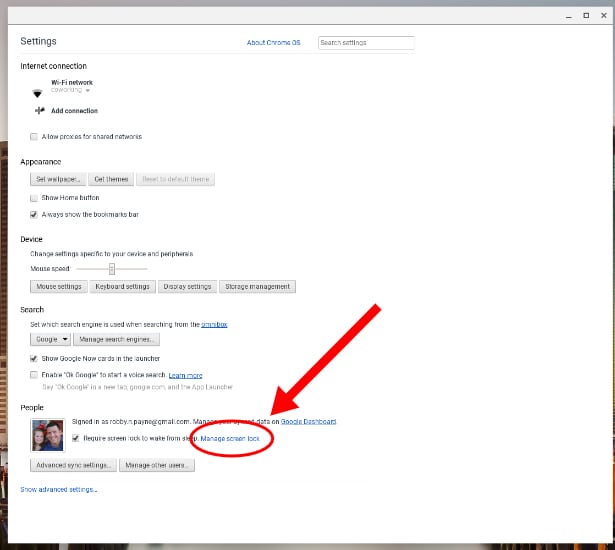
Eventually, I clicked on a link in the People section titled ‘manage screen lock.’ Makes sense in hind-sight.
Xremove ads

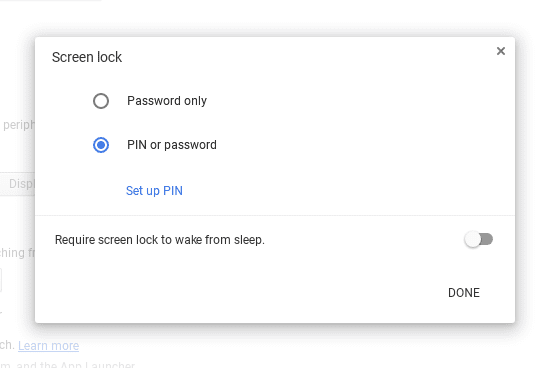
Once you click through, you’ll be met with a screen that ask you to confirm your Google password in order to change these settings. That’s a good thing. Enter it and proceed. You will then be met with this screen:
Xremove ads


Likely, you will be set to ‘Password only’. Simply select ‘PIN or password’ and then ‘Set up PIN’ after that. You will then see this screen:
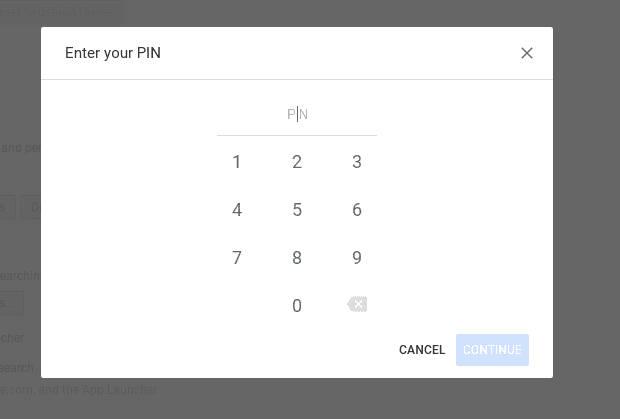
Simply enter your at-least-six-digit PIN, twice, and click continue. You will return to the screen lock pop up where you will now have the option to change your PIN. You can also select the ‘Require screen lock to wake from sleep’ option here as well. That is a very good idea to enable unless your Chromebook or Chromebox is home-bound all the time.

Xremove ads

An interesting note: after setup is complete, if you want to change your PIN, repeat the steps above and when you get to the pop-up with the option for Password or PIN, select ‘Password only’ and then re-select ‘PIN or password’. This will prompt you to reset the PIN. In my opinion, they should simply leave the ‘Change your PIN’ option there as you can’t get to this menu without the main Google password. But, that’s just my two cents.

Anyway, there you have it. Set up the long-awaited PIN unlock and, if you are like me, be relieved that you don’t have to use your very long Google Password every time your Chrome OS device falls asleep!

Filed Under: All Stories, Chromebooks, Chromebox, ChromeOS, Guides and How-To's, News

About Robby Payne

As the founder of Chrome Unboxed, Robby has been reviewing Chromebooks for over a decade. His passion for ChromeOS and the devices it runs on drives his relentless pursuit to find the best Chromebooks, best services, and best tips for those looking to adopt ChromeOS and those who've already made the switch.

Primary Sidebar

Xremove ads

Deals

Pixel Buds Pro 2 running

I still love the Pixel Buds Pro 2 and they are $60 off right now

By Joseph Humphrey
March 13, 2026

The Lenovo Chromebook Slim 3 is the one to get, starting at just $139 right now

By Robby Payne
March 6, 2026

The best Chromebook deals today

By Robby Payne
March 6, 2026

The fantastic $599 deal on the Samsung Galaxy Chromebook Plus has returned

By Robby Payne
February 25, 2026

There are some great Pixel 10a pre-order offers right now: Here are my 2 favorite deals

By Joseph Humphrey
February 25, 2026

More Deals

Xremove ads

Reviews

Acer Chromebook Plus Spin 514 Review: Kompanio Ultra power in a convertible

By Robby Payne
December 24, 2025

My review after 6 weeks with the Lenovo Chromebook Plus 14 [VIDEO]

By Robby Payne
August 11, 2025

One week with the best small Android tablet you can buy, and I’m sold

By Robby Payne
May 9, 2025

Best Chromebooks of 2024 [VIDEO]

By Robby Payne
November 28, 2024

Samsung Galaxy Chromebook Plus Review: Samsung is back! [VIDEO]

By Robby Payne
October 28, 2024

More Reviews

Xremove ads

Guides

This Chromebook trackpad shortcut is definitely not new, but is blowing my mind

By Robby Payne
March 11, 2024

How to reduce broadcast delay on YouTube TV to stop live spoilers

By Robby Payne
December 8, 2023

Windows PC keyboard and Chromebook

How to use a Windows keyboard with a Chromebook

By Joseph Humphrey
December 8, 2023

How reset and revert your Chromebook to the previous version of Chrome OS

By Robby Payne
November 29, 2023

My Chromebook Plus features disappeared: here’s how I fixed it

By Robby Payne
November 24, 2023

More Guides

TWITTER · FACEBOOK · INSTAGRAM · YOUTUBE · EMAIL · ABOUT

Copyright © 2026 · Chrome Unboxed · Chrome is a registered trademark of Google Inc.
We are participants in various affiliate advertising programs designed to provide a means for us to earn fees by linking to affiliated sites.

PRIVACY POLICY