


Support our independent tech coverage. Chrome Unboxed is written by real people, for real people—not search algorithms. Join Chrome Unboxed Plus for just $2 a month to get an ad-free experience, access to our private Discord, and more. Learn more about membership here.
START FREE TRIAL (MONTHLY)START FREE TRIAL (ANNUAL)
One of the oft-forgotten abilities of your Google smart speakers is the broadcast feature. Our family uses it all the time, but I tend to forget its usefulness in the office even though we have quite a few speakers littered about. If you’ve never used it before, the idea is simple: say “Hey Google, broadcast…” to any Google Assistant device and once prompted, you can speak a message that will be delivered to the speaker group of your choosing.
To be honest, though Google tries to get it right, there’s something a tad bit clunky about sending a broadcast only using a smart speaker and your vocal cords. When I utter “Hey, Google,” there’s a tendency for everything around me to light up and eagerly await my command. My phone, my Chromebook, smart displays and smart speakers are generally within earshot and Google has to try to decipher which one I want to interact with.
Because of this, I’ve grown to truly love summoning the Google Assistant on my Chromebook with a quick Everything Key + A (or Search + A) simply because I know exactly what device I need to interact with when I need it. Sure, the broadcast feature is the same basic thing on any Google Assistant device, but the tight control you get with a Chromebook makes it a far simpler task in my opinion.
Even better, when I want to broadcast something, I’m not always in a place where I can speak my message. When broadcasting from a Chromebook, I have the option to let Google give a voice that message if I choose to type in the message instead. That’s not really an option with a smart speaker or smart display.
How to quickly broadcast from a Chromebook
To give this a try, get in front of your Chromebook and summon the Assistant. There are actually a few ways to do this, the quickest being the Everything Key + A (or Search + A) key combo. Alternatively, you can hit the Everything/Search key and just start typing something like “broadcast to home.” When you do, the last search option will have an Assistant icon next to it. Click that and you’ll begin the broadcast.

Either way you get there, your next step will be to dictate a message or simply type it in. If you click the microphone icon on the top-right and speak your message, that is what will play over the speakers you indicated. If you type the message instead, the Google Assistant will speak your message for you.
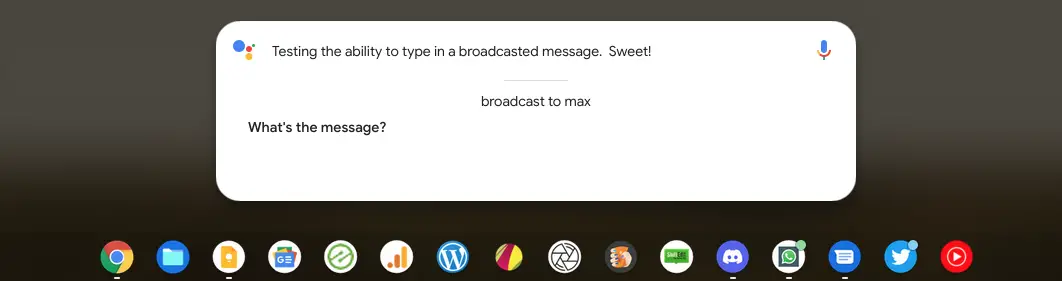
For the most cohesive experience, you can simply hit the Everything Key + A (or Search + A), type something like “broadcast to home. What are we doing for dinner?” and Google will do all of the above steps all at once.
Again, this isn’t wildly different from what you can do with just your voice on a smart speaker or smart display, but the amount of control you can have with the keyboard at your fingertips just feels more put together in my eyes. I’ve started using this feature on a very regular basis from my Chromebook and I think once you begin to try it out for yourself, you might as well.
SUBSCRIBE TO UPSTREAM
Get Chrome Unboxed delivered straight to your inbox
Upstream is our flagship, curated newsletter with the top stories, most click-worthy deals, giveaways, and trending articles from Chrome Unboxed sent directly to your inbox a few times a week. Join 31,000+ subscribers.

