

Support our independent tech coverage. Chrome Unboxed is written by real people, for real people—not search algorithms. Join Chrome Unboxed Plus for just $2 a month to get an ad-free experience, access to our private Discord, and more. Learn more about membership here.
START FREE TRIAL (MONTHLY)START FREE TRIAL (ANNUAL)
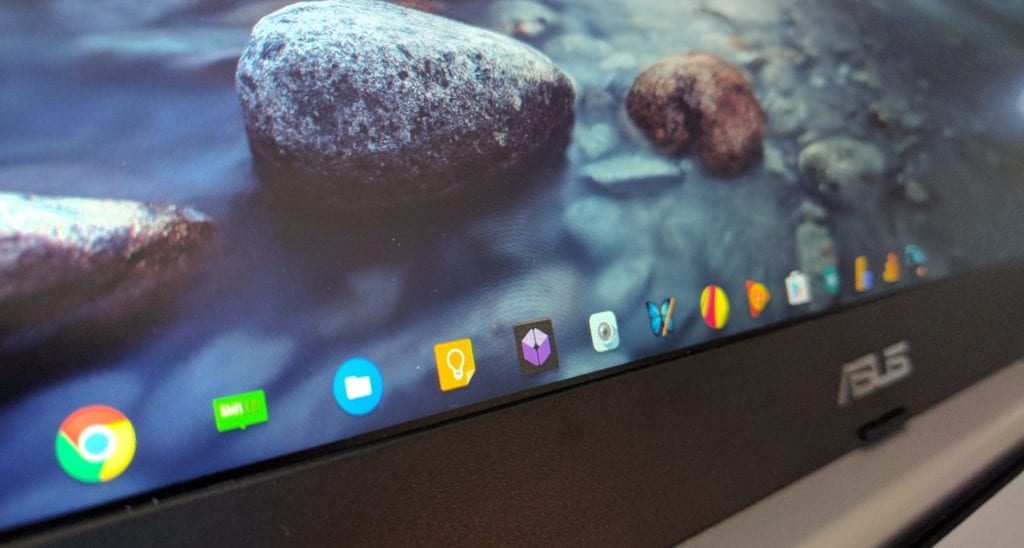 I’ve mentioned this in a couple reviews and other articles having to do with displays on Chromebooks, but I wanted to make sure that there was a quick article dedicated to one of my favorite new features of Chrome OS.
This change seems to be only applying to Chromebooks in the 13-inch range at this point, and it is a very welcome addition.
Now, a quick disclaimer: I’m not a display tech professional. There are many things I don’t fully grasp about displays. I know what looks good and what looks bad and a bit about why.
One of those bad things, in the past, has been the resolution scaling for Chrome OS. It has been hit or miss over the years, seemingly working on some and not on others.
Screen Resolution and Scaling
What I mean by this is Chrome OS didn’t scale multiple resolutions very well. In basic terms, scaling is the ability of the UI to resize elements on the screen without losing definition. If your display is full HD, you have 1920 pixels left-to-right and 1080 pixel top-to-bottom.
When the OS is told to render at this resolution, the display knows exactly what to do with that resolution. When you adjust that resolution down a notch to make things larger on your screen (fonts, icons, etc.), your next step is to 1536×864. Up until recently, this resolution did the trick and made things large enough to work with on 13-inch screens, but most fonts and screen elements were left fuzzy and low-resolution.
This is due to LCD screens having specific numbers of pixels unlike the CRT monitors of old. When the pixels rendered by the OS don’t match the number of pixels on offer by the display, things don’t render well.
With both Chromebook Pixels, though, this didn’t seem to be a problem. Those displays are 2560×1700. If those were using native resolution (which you can select if you want), things are literally too small to use. Text is so tiny that you couldn’t read standard size fonts without a bit of magnification.
Yet, out of the box, the Pixel actually selects a 1280×850 resolution as standard and labels it ‘best’. And, it is the best use of the pixels, to be honest.
HP’s Chromebook 13 G1 does this same trick with its 3200×1800 resolution being set as 1600×900 as the ‘best’ default. And on a 13-inch screen, it is the best UI experience I’ve had on a Chromebook.
So what is happening?
This is where Chrome OS scaling takes over. If the display was actually 1280×850, we would have a lower-res look to the screen. You’d see pixels and text wouldn’t be nearly as sharp. So, Chrome OS is using 4 times the pixels on its UI elements in this situation. So if a standard app icon in 1280×850 would be 50×50, when scaled, this icon would take up 100×100 pixels. The number of actual pixels and the number of effective pixels are not the same.
So now, in the space of 50×50 pixels, we have an element using 100×100 pixels. They take up the same space, but one has 4 times the pixels in the same space. Thus, it looks sharp but retains a size that is way more usable.
The same thing has to be done with every element of the UI. Fonts, icons, etc. all have to be treated this way. Thankfully, images and videos can circumvent this treatment and be shown at their native resolution in the middle of all this scaling madness.
What This Means For You
In the end, regardless of whether or not any of that makes sense, you can know that all this scaling technology allows a very important thing to happen. You can select other resolutions in addition to your display’s native resolution and still get a crisp, detailed experience.
Specifically for 13-inch Chromebooks, this has been a pitfall. 1080p natively makes everything very small on 13-inch devices, but there weren’t other options. Sure you could crank up the fonts, but that only effected certain things. You could zoom certain pages and parts of the UI, but that also felt like a stop-gap.
As of now, 13-inch Chromebooks come out of the box set to 1536×864 (the next step down for Chrome OS from 1920×1080). This is a 125% scale. Everything is 25% larger than if you viewed it on a standard 1080p resolution.
While we’ve had this option for some time, Chrome OS treats it like the Pixel and HP 13 G1, re-rendering elements for this resolution. The result is crisp, clear and beautiful. It’s not tough to show, but I’ll try. The images below are my QHD (2560×1440) screen scaled down to 1080p. You’ll see the elements are fuzzy and non-optimized. Below it is a screen grab from the ASUS C301SA in 1536×864. Though this is a notch down, just like the QHD screen, you’ll see things are crisp and clear, not fuzzy.
You can click each to see a full-sized version.
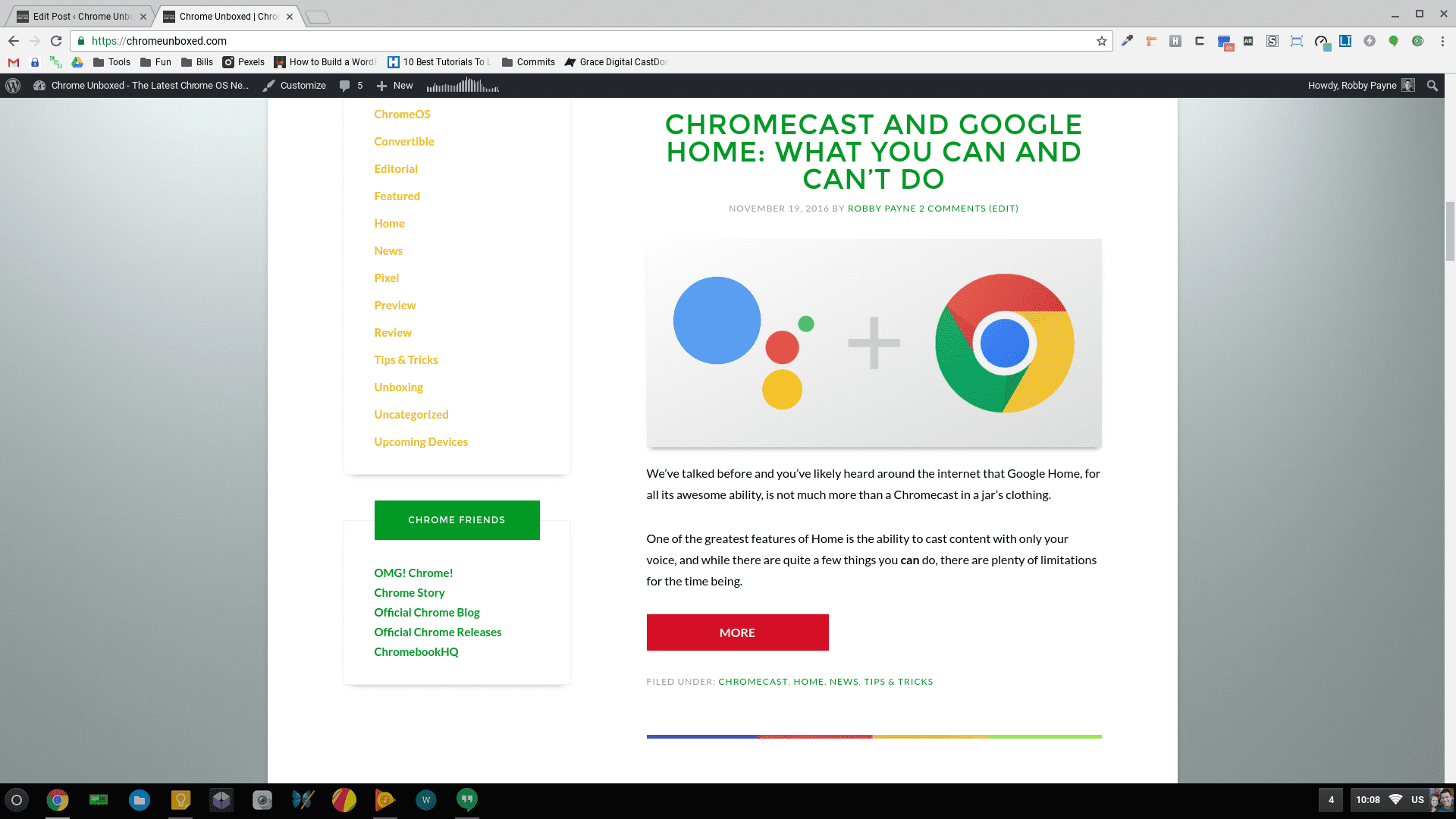
ASUS QHD Screen Scaled To 1080p
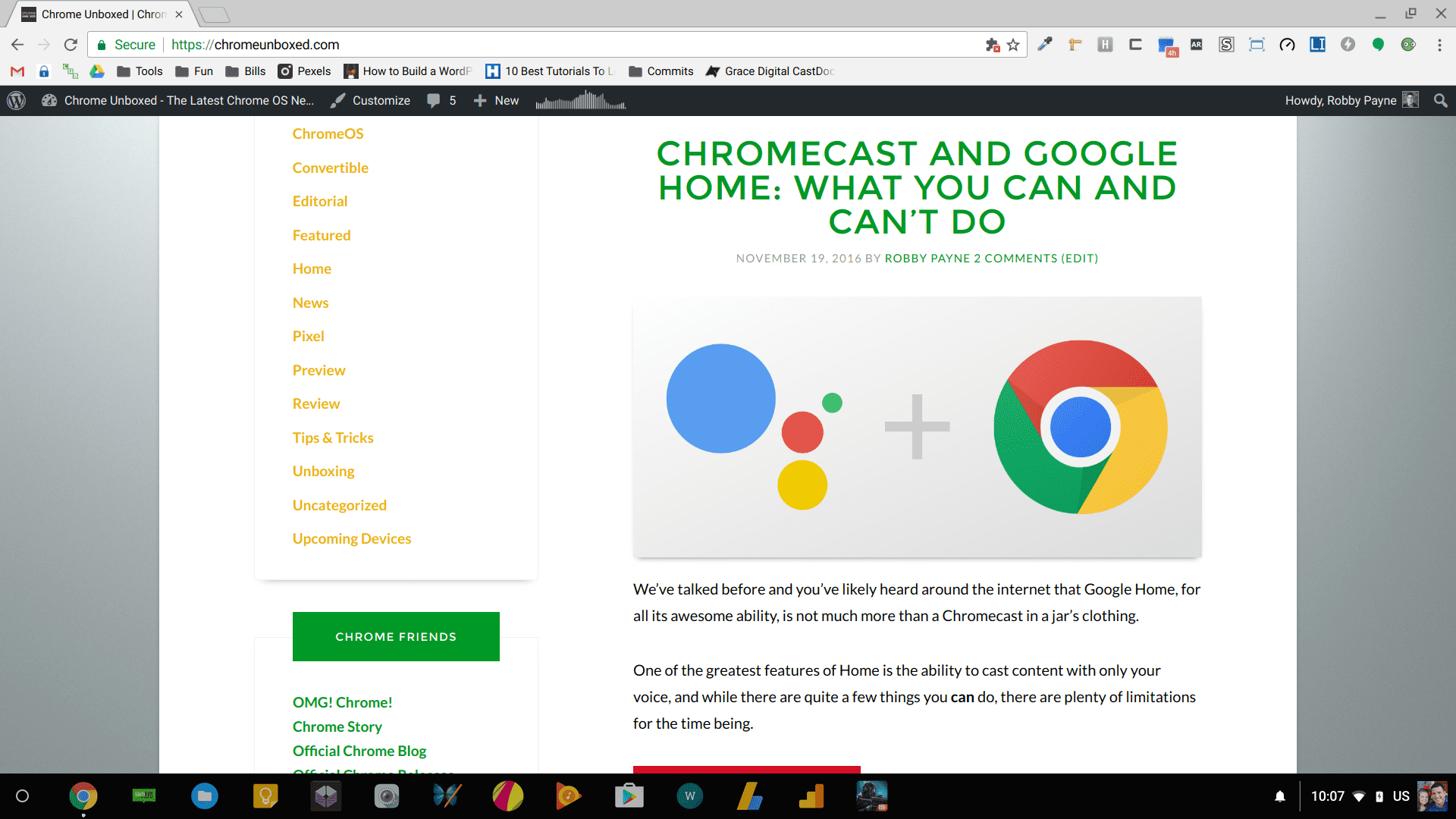
ASUS C301SA 1080p Screen Scaled to 1536×864
This single change has absolutely changed my attitude towards 13-inch Chromebooks. No longer is the resolution a hindrance. Instead, 1080p is now an asset that is being fully utilized to enhance the user experience.
To say I am pleased with this change is a massive understatement. I think this is the second most important adjustment to the OS, following the addition of Android Apps. It legitimizes the most popular screen size/resolution combo and makes the experience so much better.
Well done, Google. Well done.

