Up next in 10



This video is brought to you in part by NordVPN. Try it out and get 75% off a three-year plan for a limited time! Click here: https://chromeunboxed.com/nordvpn
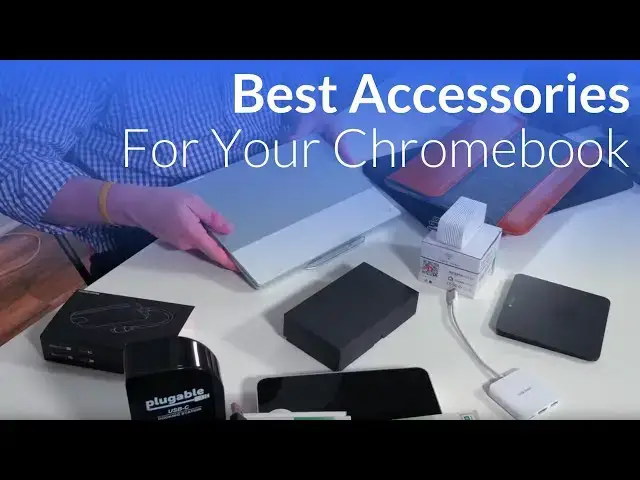
In this one, we take a quick look at some great accessories we've built up around the office. It's lengthy, but we wanted to cover lots of stuff for you to take a look at!
Without further ado, here are the links to all the items in the video:
Plugable Docks: https://fave.co/2KgYFCd
OWC Dock: https://fave.co/2MGpClJ
QacQoc Dock: https://fave.co/2KhCRpZ
Samsung Dock: https://fave.co/2ysCoLZ
Logitech T650: https://fave.co/2Kvy4S7
Leelbox Wifi Socket: https://fave.co/334u2Iy
Laptop Stand: https://fave.co/2KiGGev
Tamtoc Laptop Sleeve: https://fave.co/2MxRtV6
ASUS USB-C Monitor: https://fave.co/2KlPSit (newest version)
JAM Bluetooth Headphones: https://fave.co/2KbQ1EM
Sony Bluetooth Speaker: https://fave.co/2KhhZzh
BLU Yeti USB Microphone: https://fave.co/2ysOHYL
Show More Show Less View Video Transcript
0:00
Hey folks, Robbie Payne with Chrome Unboxed, and today we're going to answer a question
0:12
I get quite often, and that is, what do you carry around with you
0:17
What kind of accessories do you use with your Chromebook? All of the stuff you see on this table is mostly stuff I've used at one point in time
0:25
A lot of it's stuff I use currently right now in my day-to-day work
0:29
And so we wanted to kind of just go through a lot of this stuff. And I'll be straight up with you
0:33
Some of this stuff is stuff I've bought and we use, you know, like this mic we use for podcast
0:38
And some of this stuff is stuff that was sent to us. We got emails and people said, hey, can we send this to you and let you take a look
0:44
And so we'll make that clear. And we will include links to all of this stuff down below to where you can find it
0:51
And if it's something that looks good to you, you can go on Amazon, check it out, and maybe get that if it so interests you
0:58
So I'm going to kind of start over here and work my way across. Over here, you can kind of see we've got a ton of docks
1:05
And since Chromebooks have moved to USB Type-C in general, especially like the Pixelbook, the Asus Chromebook Flip, the Samsung Chromebook Pro and Plus
1:15
all only have USB Type-C. So that presents most users with a little bit of a problem if you want to use SD cards
1:22
or you want to plug in a USB flash drive or something like that
1:26
and you want to interface with something else. So there are lots and lots of docks
1:30
and there are ones that do tons of stuff, and there are ones that do a little bit of stuff, and everything in between. Let's start with the first docking station I've actually got out of
1:38
the box here. It's the USB-C pluggable docking station. This is their most expensive docking
1:43
station, but it's the one that's most capable. So we've got HDMI, we've got 4K HDMI out
1:49
you've got DVI out, you've got USB-C, you've got USB 3.0, three of them back here, another one on
1:57
the front, you've got another USB-C, you've got headphones, you've got microphones, you've got
2:01
everything you could possibly need. The cool part is it's one connection, boom, to your Chromebook
2:06
and you've got all these ports. This thing can live on your desk. The cool part about this one
2:10
is, and this other one from Plugable as well, and we'll talk about it in just a second
2:14
is that it actually has power input. So you would plug this in, it would stay on your desk
2:19
The best part about that is the USB-C that comes from it obviously is going to be able to charge your Chromebook
2:24
It's not going to take up an additional charger, so you don't need to go buy a second charger for your Chromebook
2:28
This one will provide all the power that you need. So this becomes your kind of one-stop shop for everything on your desk
2:34
whether you have peripherals or any of that kind of stuff, earphones, all that stuff gets plugged in through one docking station
2:40
Now, I will say they're not the prettiest thing in the world. There are some better looking docking stations, but it is supremely functional and works really, really, really well
2:49
The other cool part about Plugable is they've made docking stations that predate USB-C
2:55
And so, for instance, we've got the one over here that is USB 3.0 docking station
3:00
And it's very similar to this one as far as all the inputs and outputs and all that kind of stuff on it
3:06
However, it's using DisplayLink over USB. and what's really cool with Chromebooks is they already support this over 3.0 and 2.0. Now I will
3:15
say USB 3.0 because of the higher data speeds actually works better with these docks. So the
3:20
2.0 ports actually work. They just don't work as well as the 3.0. And so this is another example of
3:27
a much smaller, much more condensed version. This one particularly has a DVI plug on it and there
3:34
are of course pluggable makes adapters. So there's an adapter you could buy that makes it to HDMI or
3:38
makes it to DisplayPort or makes it to VGA, any of those things. Again, not really a looker and the
3:44
adapters that go on here aren't the most attractive things either, but you have a standard USB
3:50
instead of USB-C. So even on older Chromebooks without USB-C ports, you could actually use this
3:56
and get a display out and it works. It works just like hooking in an HDMI port or anything else
4:01
No drivers to install because the Chrome OS team has already kind of put that stuff in place. So
4:05
instead of I got to download this and install this and make all this stuff work, pluggable stuff
4:10
literally is pluggable. Just plug it in and play. So like right here, we've got a 2.0 adapter. This
4:16
one down here is the one I've got in my hand. And so whether it's USB 2 and most Chromebooks have
4:21
at least USB 3. So I would definitely say if you're going to use one of those, where this comes in
4:26
handy is you could, for instance, have HDMI out going to one because most Chromebooks have HDMI
4:32
or USB-C. So you'd have HDMI out going to one monitor, have your Chromebook, and then have one
4:38
of these guys doing HDMI or VGA or whatever to a third monitor. So you could have your Chromebook
4:44
an HDMI out over here, and a USB out over here, and have three displays running. We've done it
4:49
we've tested it, it works, and there's zero setup. You just plug it in, and it works. So it's very
4:53
cool. They offer all kinds of stuff, and they range anywhere from under $100 to over $200 for
5:00
the USB-C one that's very nice. But again, we're going to link all this stuff in the descriptions
5:04
Prices will change. We don't know when you're going to be watching this. So we're just going
5:08
to cover it and leave all that stuff in the description. Moving on, we're going to move
5:12
over to a company called OWC. This is their larger dock. They actually make a smaller one now that
5:17
we don't have it. Hopefully, we're going to get it soon. But it looks like it's about half this size
5:21
and it has fewer ports and fewer access parts on it. But it's considerably lower in price. I want
5:28
to say like half the price of this one is. It's somewhere in the $150 range. Again, these prices
5:32
are going to change likely by the time you watch the video. However, this one, again, gives you all
5:36
sorts of in-out. You've got SD card, you've got multiple USBs, you've got Ethernet, you've got
5:41
USB 3.0. Same setup here. So you plug the thing in, it acts as a hub for all of your stuff. So this
5:47
one kind of becomes, again, just like the pluggable, your one-stop shop. Everything kind of goes in
5:53
plugs in plugs out and it also has power in so its power can power your device Instead of having to have an additional uh go go and buy an additional power supply for your device This becomes that power supply The one you get with the Chromebook can just stay in your bag So uh there a benefit there too as well And I just have to say this one just
6:11
looks better. I mean, when it's sitting on your desk, um, the, the aluminum sides and the
6:17
we got fingerprints all over this one, but, um, it just, it just has a better look to it. If it's
6:22
sitting on your desk than the pluggable one, it's no more or less functional. It's just has a nice
6:26
look to it. This one we just received in, I have done some tests on it, and I have a couple comments
6:30
on it, but it's by a company, I hope I'm pronouncing this right, QAC, QOC, a Chinese company that
6:39
they sell this on Amazon, but they reached out to us and said, hey, you want to take a look
6:44
I will say of the docks that we have messed with, it is by far the best looking one. You can see
6:49
it's just really sleek. It's got that brushed aluminum, so it looks just really nice alongside
6:53
the Pixelbook. It just has that nice look to it. This one would be more of one I would probably
6:58
keep in a bag. It does have Ethernet, so if you're traveling, you're in a hotel, and the Wi-Fi is
7:02
acting weird, you can plug right into there. Again, Chromebooks handle that stuff with no issue
7:07
There's nothing to install. Plug this in there. Plug your Ethernet in there, and you're online
7:12
This one has three USB 3.0 ports. You've got a full-size and a small micro SD card slot on here
7:21
along with your HDMI output. Yeah, to be honest, this is probably one of the more attractive
7:26
looking docks that we have in front of us. It looks great with the Pixel with the white and the
7:32
brushed aluminum, and you get a lot of ports on this guy, and it's really, really tiny. I don't
7:36
have anything up here on the table that I can compare it to for size. Here's a good-sized
7:42
trackpad. You can tell the thing's pretty tiny, and it packs a punch here, so you get three USB
7:48
3.0 HDMI out. You get a full size and a micro SD card slot. You get ethernet so that you can plug in
7:55
if you're at a hotel and the Wi-Fi is acting wonky, and then you get your power pass through
8:00
So if you wanted to leave this hooked up at your desk, some of the angles are a little weird. I had
8:04
it plugged into the Pixelbook, and so some of the angles felt a little weird with the HDMI coming out
8:10
of the side, but you could leave it at your desk if you wanted to. But at its size, I would say it's
8:15
probably better suited to keep as a travel companion in your bag. But overall, I've been
8:19
really, really impressed with this. The one thing I did run into, and I will warn you about
8:25
there's something with Samsung's charger for the Chromebook Pro, and it could just be our charger
8:29
I don't know. But I want to let you all know this, as beautiful and as attractive as this is
8:35
for whatever reason, it would not pass through the proper charging to charge the Pixelbook or
8:39
the Samsung Chromebook Pro with that charger. But every other USB-C charger I plugged into this
8:45
it charged all the devices fine. So not really sure what happened there, but I wanted to make
8:50
sure you guys knew that that was a thing before you go and purchase one of these. But other than
8:55
that, it's a really good looking dock and a really good solution. So the last one, and we did a video
9:01
on this. Wow. Probably eight, nine months ago, Samsung gave us this when we went to the event
9:09
for the Chromebook Pro. And it has served me on a daily basis. Every single day I use this. This
9:15
sits at my desk. It is plugged in, or it plugs in to my Pixelbook when I set it down. And it gives
9:21
as simple as it can get, one USB, one HDMI, and then your power pass through. This doesn't do any
9:26
data or anything like that. So there's nothing fancy about this, but it looks good. It's small
9:30
and everything I need is plugged in here. If I ever need to extend something else, I usually just
9:35
plug it in the other USB-C. And so that goes on my desk, plugs in and acts as my extension to my
9:41
monitor literally every day since I've owned it. So I really like that thing. It's, it shows some
9:46
sign of wear and tear, but it is stood up to being in bags and moving desks and being plugged in and
9:52
out literally every single day. So it's probably the cheapest of the docks that you can get
9:57
Has less ports, but it's really awesome. So let's move on. One other thing that I think that's the
10:04
last thing that literally I use kind of on the desk as an accessory is the Logitech T650. Now
10:10
this is one that you're going to have a hard time finding. We'll post a link if we find it. You may
10:13
have to even go on eBay. I wanted to put it in here not because I want to pawn off old tech on
10:19
you all, but because this is one of the few remaining standalone glass trackpads that you
10:26
can get. And that's really unfortunate. And I'm not going to go into a long rant about that, but
10:31
it's a great trackpad. It's etched glass. It feels great. The click mechanism is great. I've had it
10:36
for a couple of years and it works really, really well with Logitech's little dongle. And so I'll
10:40
leave that plugged right in here and it's just ready to go when I need it. And the trackpad on
10:46
the Pixelbook is awesome. So why use a separate trackpad? Well, whenever you're standing at a desk
10:50
I use this as my input methods. I don't have any extra stuff around it because I like how clean it
10:55
looks. But a lot of times over the course of a day, kind of having your hand in here
10:59
forcing the trackpad to be right here in front of you all day can kind of really cramp things up
11:04
So if you work at a computer all day, it's kind of nice to have a mouse over to your right. And so
11:08
I use different mice and stuff like that. But this one is like my standout, my favorite thing to use
11:13
alongside a Chromebook. It's a huge, huge trackpad. It's super responsive. And they've continued to
11:19
bring those driver updates along as Chrome OS has continued to evolve forward. And so all your
11:24
normal gestures work exactly like they would on your trackpad on the device. And so if you can
11:31
find this, like I said, we'll post a link if we can find one and it may not even be good after a
11:35
while. But I wanted to point that out because nobody else is making these. I don't know why Microsoft doesn't make them. Literally the only trackpad you can buy anymore is an Apple one and
11:42
they don't work. They have all their custom stuff and it doesn't quite work that well with a Chromebook
11:47
And these are just fantastic. So if you can find one, I would buy it as soon as you can because
11:52
They're really, really awesome. So the next thing we've got here is from a company called Lealbox
11:56
Now, there are quite a few people that make things like this, but they reached out and said, hey, would you like to take a look
12:01
And given the fact that Google Assistant is now on Chromebooks well it on the Pixelbook for right now but eventually it going to be on all Chromebooks this is actually a Google Home compatible device
12:11
And what it does is very simple. You use their app, which is actually really, really well made
12:17
And there's instructions in the box when you get it. You use their app to basically set up a profile on this thing
12:23
It speaks to it and kind of gets it set up. And then you add that to your Google Assistant group of devices that you can control
12:31
And then you can name it and it basically just powers on and off. It's real simple sounding, but it actually comes in really handy if you have anything that's in a weird spot to turn off or on
12:40
And we've got a couple lamps that are in just oddball spots or just kind of out of reach for certain people
12:45
And so I've just installed them in a couple places around the office. And it's really nice at the end of the night when we're packing up to be able to click Google Assistant and say, turn off the big light
12:55
Immediately turns it off. It's pretty cool. And then I was able to share that device out with multiple people in the office
13:00
And they're able to do the same thing. So they can turn off stuff. I mean, you could set it to anything
13:05
Literally anything that you can plug in, you can turn off and on by the sound of your voice
13:09
And you put enough of these together, you could group them into groups. So you could group a whole room of lights if you've got lamps and stuff like that
13:16
And say, turn off the big room and boom, all your lights come down. Turn on the big room, all the lights come up
13:21
So a pretty cool little thing there. I know there's other companies that make them, but LeoBox has been really good for sending this over to us and letting us try it out, and we've really enjoyed using it
13:31
The setup process was easy, so I mean, highly recommend it there. Additionally, because it takes up quite a bit of space, there is a USB charger over here as well, so it's 2.1 amps
13:43
So it's not the huge ones that charge like laptops, but tablets and stuff like that, it'll charge that as well
13:48
So it can act as a couple things since it's taken up some extra space at your outlet
13:52
So another thing you notice the Pixelbook's not magically standing here is this stand by, I never know how to pronounce this, Coteetta, I think
14:05
Again, we'll link this down below and we'll make sure and say the stand, but I've never known how to pronounce it
14:09
C-O-T-E-E-T-A. I'm not sure what that is. But the cool part that I like a lot about this is I was looking for a clamshell stand that didn't cost, you know, $80 or $90
14:19
because I think that's ridiculous to pay for something that you set your laptop in
14:23
But there are times when I've had setups where I've had multiple monitors and I didn't want my Chromebook open
14:27
I just wanted to hook it in and set it somewhere. So it does that, and it does it quite nicely
14:32
You've got multiple sizes on the holder, so even something as thin as the Pixel, the Pixelbook, I mean, it wobbles a little bit in here
14:38
but you can kind of lean it back and it's got that safety there so that it kind of sits in place
14:43
But then additionally, you can actually lay the thing down and it becomes a laptop stand
14:49
And so it kind of gets the keyboard up and out of the way just a little bit and raises it up so that it kind of meets the height of your monitor on your desk
14:57
So I've really, really liked this. I've got a couple other ones, and this is the one I go to on the regular
15:04
Now, again, right now, currently, I'm using the keyboard trackpad on the Pixelbook, so I'm not using that
15:09
But I've used that for many, many days on end. Moving forward, this is a case from TomTalk
15:17
It was hard for me. Some of you have purchased a Pixelbook and you're looking for a case
15:22
And similarly, the Samsung Chromebook Pro and Plus have a little bit of an odd shape to them
15:27
They're a different size. They're 3x2. So it's hard to find stuff that fits them
15:31
This is actually made, I want to say, for the MacBook or the MacBook Air. I can't remember which
15:36
But I did a lot of work looking on Amazon to try to find something with internal space that was about the same size as this
15:42
And this came as close as I found. And the cool part is you've got kind of this faux leather out here in the gray
15:48
so it's attractive. You've got a pocket in the back, so I usually keep my Pixelbook pen kind of
15:53
slid right down in there. It's on my desk right now. And then it's magnetized here, so it closes
15:59
and stays closed, which is pretty sweet. Other than that, it's basically just like an envelope, super soft on the inside, and it fits the Pixelbook like a charm. It was a tad bit tight when I first
16:09
got it, but now, I mean, it just fits it in there perfectly. And added cool part here is that they've
16:14
cut away, not on this side over here, but over here, they've cut away just enough so that you
16:19
can actually have your access to your charging port. You can close this thing in here and charge
16:23
it and leave it sit. So you're not leaving it sat out while it's charging. It's been just a
16:29
fantastic case. I'm very, very satisfied with it. It's like 20, $25. And there aren't many pixel
16:36
book cases out there right now. The only other one I found on Amazon is a custom made like leather
16:40
pouch case that's similar to this and it's over $100. So you've probably already spent a grand
16:46
on this. You know, $100 on a case is a lot. So this looks like a case. This is not a case
16:52
This is actually a USB-C monitor and probably one of the cooler pieces of tech sitting on this
16:57
table right now. No offense, Pixelbook. Let me show you why. So this is a USB-C powered monitor
17:03
They actually have an upgrade to this one. And there is a USB 3.0 powered one as well. So if
17:10
If your device supports display link, which Chromebooks do, Macbooks and Windows do as well, you can actually use that one
17:17
It's an older version. This one is the USB-C model. So the case can roll up and also become the stand, which is pretty cool
17:27
But the best part about this device is that you have this one cable that becomes your source for both power and display
17:39
So because of what USB-C is capable of, all of that stuff can travel over one cable
17:45
So if you pop down in a coffee shop, something that's slim, I mean, I want to say this thing weighs a pound or less
17:51
It's super-duper light. I don't even notice it's in my bag. Plug this in, plug it into your display, or plug it into your Chromebook, and you've got a secondary display
18:00
It 1080p not the brightest thing in the world and that to be expected You powering it from your laptop So if it were super bright you would kill your battery really quickly but it does it puts a hit on your battery just a little bit but it it has been really awesome I carried this thing around with me for probably about a year
18:17
Like I said, there's an updated version of this. We'll link both of them below. The updated version comes with a case similar to this, but then it's also got a hole down here
18:25
which is really interesting. You can just slide any, like an ink pen in it. You can use your
18:30
pixel book pen. If you have a pixel book, you slide a pen in there and that acts as the stand
18:34
for it. So that's kind of cool. It takes up a lot less space. It's a lot less bulky than this particular setup is. And the bezels on that new one are much smaller and they run
18:42
similar in price. So my guess would be I haven't used the newer one, but I would say probably go
18:48
with the newer one. If you are looking to purchase one of these, there's somewhere just shy of about
18:52
$200. But if you work at a coffee shops and stuff like that pretty often, highly recommended. I mean
18:59
they're just great if you need a second screen. Now we're going to talk about some audio stuff
19:03
So I'm going to move front to back here. Chromebooks have Bluetooth. And again, I'm showing
19:09
you some stuff that I use on the regular. It's not to say that these are Chromebook specific accessories, just accessories you can use with your Chromebook. This is a set of Bluetooth
19:17
headphones. I don't think they make this particular version of this. They have an updated version now
19:22
but I've had these for just a little bit and they've been great. They sound awesome. If you're
19:26
not familiar, the company is called Jam. They make a lot of Bluetooth speakers and all that kind of
19:30
stuff, and they all sound really good. These headphones are no exception to that rule. They're
19:35
not the best-looking things in the world, but they feel pretty good. They collapse down, and they come
19:39
with a bag, and they're Bluetooth headphones, but they're over-ear, they're noise-canceling
19:44
and they're comfortable for long periods of use. The battery lasts for multiple days
19:48
They have an audio out, so you can actually hook an audio jack into them. If you're doing video
19:53
editing, you need that precise timing on your audio. Yeah, just highly recommend it. They've
19:58
been great, somewhere around $40 to $50 usually for those. The second one, we've talked about this
20:04
in a video before. This is the Sony Hear.Go, and it is their Chromecast-enabled speaker
20:11
and I use this literally every day. So this is part of my setup, and you can cast right to it
20:18
You set it up with your Google Assistant, and you can just, from the Chromebook, bring up Google
20:23
play music, start your music, hit cast, boom. You can put it in groups. So we have speaker groups
20:27
around the office where we can play to multiple speakers at once. It plays nice with all that
20:31
stuff and everything you would expect a Chromecast enabled speaker to do. And then it sounds really
20:37
awesome to boot. It's powered by a pretty good size battery. So it can go, I think like eight
20:42
hours or something like that on a charge of playback. I keep it plugged in just so it's on
20:47
and ready to listen when I'm ready to cast to it at all times. But Ben, just super, super happy
20:52
with this. I've got the Bose SoundLink Mini, and it's comparable in sound to that device
20:57
And I just like the fact that it's Chromecast enabled. So when it's on Wi-Fi, the fidelity
21:03
of the audio is better, and the flexibility you get with Chromecast audio is so much better than
21:07
Bluetooth. Similarly, this is a speaker from Jensen, and it has the same kind of situation
21:13
that the Sony does. Now, this one has to stay plugged in. It's not powered. It's the JSB 1000
21:19
but it's got stereo speakers that actually fire out the side. So as far as a room filling sound, this one does a really good job
21:27
It's got some pretty good bass response to it, and it's attractive and kind of stays out of the way
21:31
So this is another speaker we leave at another desk, and it just kind of stays plugged in, and it's just ready to go all the time
21:38
And so since it's plugged in, it's listening at all times that we can cast to it at any given time, and it just sounds really, really good
21:44
And last but not least, this is the Blue Yeti. A lot of you probably are familiar with this microphone
21:49
It is fantastic. I mean, you can actually do some serious recording with this guy
21:54
It's got a couple different outputs on it. So you've got your USB-C. Unfortunately, I think that's USB-A is what that connector is
22:01
Or mini. That's mini USB. There were so many that came before USB-C
22:06
So that's a little bit problematic. Sometimes not, you know, trying to find that cable. So you can plug it in via USB-C
22:11
That gives it its power. But it also allows it to transmit the audio digitally
22:16
So you can actually get some digital audio recorded right on your Chromebook
22:21
And again, just like with all this other stuff, you just plug it in and it works. Additionally, you have audio out, just standard microphone, headphone jack here
22:28
So you can actually listen and monitor as long as the application you're using supports that
22:32
Because the minute you plug this thing in to whatever you plug it into, phone or Chromebook
22:36
immediately that can become the output source. So you could run that into something to monitor with
22:41
Again, as long as the application you're using supports it, you can put it on a mic stand if you want
22:45
you have a mute switch on it you've got the output volume here but then around back you get some
22:51
really cool controls too you have a gain knob right here and you have four different modes so
22:56
it's got stereo it's got full surround mode and then it's just got where it'll record only the
23:01
front part as well so it helps kind of knock down some of that ambient noise it is a condenser mic
23:06
so you know you want to be able to record in a room that's that's quiet and set up for recording
23:11
because it's very sensitive. But you can record some awesome vocals, listen to our podcasts, for instance
23:18
and you can hear exactly what this thing sounds like. This is what we use to record our podcasts
23:22
And we run it either into a Chromebook or a phone, depending on the day and the setup
23:26
that we're using at the time. But again, it works, just plugs and plays with a Chromebook, no problems whatsoever
23:31
Hopefully you've seen from this video that there's a lot of stuff that simply just works with Chromebooks
23:36
And Chrome OS is very, very versatile when it comes to third-party accessories
23:40
They've included tons and tons of drivers for all sorts of different things that just work
23:47
And that's kind of the beauty of Chrome OS. So guys, thanks for watching. Hopefully you found something in here that is of interest to you
23:53
If you did, give us a thumbs up. Hit the subscribe button up here or right down below
23:58
And again, we've left links to all of this stuff down in the description. Until next time, we'll see you
#Computer Hardware
#Consumer Electronics