Up next in 10



Since the arrival of Chromebooks and Chrome OS, managed devices have always been a part of the landscape.
The ability to manage many devices remotely and with relative ease has long been a sustaining reason Chromebooks have fared so well in schools.
As Chrome OS continues its expansion into the consumer and enterprise markets, more features are becoming core to the Chrome OS experience.
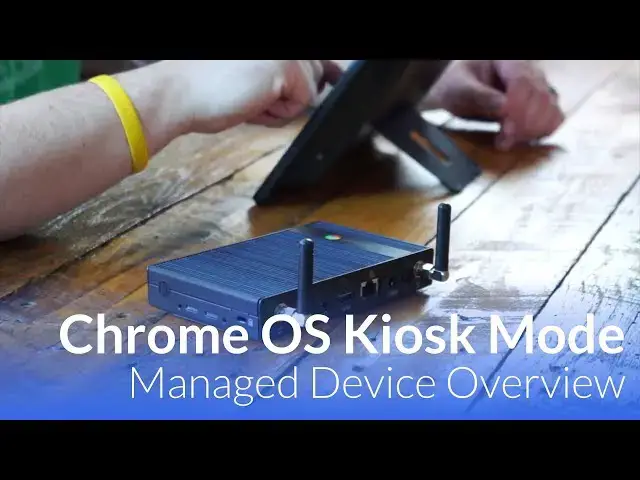
One of those features Google is spending some time and energy getting right is managed devices and kiosk mode.
Learn more and get started here: https://chromeunboxed.com/chrome-os-managed-kiosk
Show More Show Less View Video Transcript
0:01
[Music]
0:08
hey folks Robbie pay with chrome unbox
0:10
and today we're going to be taking a
0:11
look at Google's new initiative behind
0:13
purpose-built devices and the idea here
0:16
is really simple management devices and
0:18
Management Systems have been around
0:20
since Chrome OS pretty much and it's the
0:21
reason why they're doing so well in
0:23
schools but as chromeos expands into
0:26
different markets like consumer markets
0:28
and the Enterprise Google is really
0:30
focusing some attention on what it takes
0:32
to set up managed remotely managed
0:35
devices in Kiosk mode and so kiosk mode
0:38
just means the device is doing one thing
0:40
and one thing only and it's locked down
0:42
to that thing so imagine point of Sal
0:43
systems or interactive maps at at a park
0:46
or something like that Google wants to
0:48
make this really simple for small
0:50
business owners that don't want to get
0:51
into all the G suite and Enterprise
0:54
options that just need devices doing one
0:56
thing that they can manage remotely and
0:58
they're spending some time to get this
1:00
right and so we wanted to take a look at
1:01
it in case this could be a good fit for
1:03
you or someone you know small business
1:05
so let's talk about what's new kiosk
1:08
mode has been around for a little while
1:09
and managed devices as we talked about a
1:11
minute ago aren't really new either it's
1:14
really the ease of setup that Google's
1:16
worked on as of late we've taken this
1:18
new setup for a spin from start to
1:20
finish and can confirm the overall ease
1:22
of use in setting up chromos devices as
1:25
managed kiosks additionally the
1:26
introduction of android into all of this
1:29
has given even more functionality to
1:30
what Google is calling purpose-built
1:32
devices with Android apps for instance
1:34
you can have a Chrome OS device set to
1:37
only run square register or your choice
1:39
of other point of sale system at your
1:41
counter with minimal Hassle and maximum
1:43
control Google has worked closely with
1:45
aopen on two devices that are kind of
1:47
the torch bearers for this whole new
1:49
effort the aopen Chromebase mini and the
1:51
aopen Chrome box both powered by LG's
1:55
Rockchip 3288 the devices are made for
1:58
kiosk setups and aren't AR going to blow
2:00
anyone's mind with their performance but
2:01
they have heavy metal bodies and no F
2:04
specs and are both chromeos devices
2:07
built with things like interactive
2:08
displays and point of sale systems in
2:10
mind that we don't have a proper Chrome
2:12
OS tablet this new Chromebase is
2:14
basically a tablet with a stand and no
2:16
battery the Chrome box is pretty much
2:18
what you'd expect with covered power
2:20
buttons resistance to elements and
2:22
sturdy builds both devices are made for
2:25
public use at 32 gigs of internal
2:27
storage and 4 gigs of RAM they aren't
2:28
going to really Amaze anyone with their
2:30
spec sheet they're not that fast but
2:33
they are purpose-built devices they're
2:35
made for one thing one thing at a time
2:37
and they do just fine with those things
2:39
let's talk about the setup process apart
2:41
from a couple purpose-built devices
2:43
Google's really worked on the process
2:45
that it takes to get these things set up
2:47
let's remember kiosks and small point of
2:50
sale systems are devices likely to be
2:52
deployed in small businesses like coffee
2:54
shops or gift shops those small
2:56
businesses may or may not have use for
2:58
the full G Suite setup and using these
3:00
devices was really not possible without
3:03
that before fast forward to today
3:05
however and Google has made a simple way
3:08
for new users to have a Management
3:10
console set up in just minutes without
3:12
the need of Gmail accounts domains Etc
3:14
this setup process is referred to as the
3:16
purpose-built device management trial by
3:18
Google and it gets users set up and
3:20
working with two licenses for two
3:22
managed devices for 30 days and it's all
3:25
free Google provides a full walkthrough
3:27
as well and the process gets you into a
3:29
custom Google subdomain during the trial
3:32
if you choose to keep it you simply
3:33
become a paid customer continue using
3:35
your devices as you've configured them
3:37
if you decide you don't like it the
3:39
account and all the settings and files
3:40
are terminated after an additional
3:42
30-day grace period it's really that
3:44
simple no domains to set up no G Suite
3:47
No Enterprise accounts we step through
3:49
the process ourselves in about 15
3:51
minutes and we're up and running with
3:52
square register on an aopen Chromebase
3:54
mini in no time at
3:56
all so you may be asking yourself why go
4:00
to all this trouble just to set up a
4:02
couple Point of Sales Systems or
4:03
interactive maps and the answer would be
4:07
remote access to those units and control
4:10
over them from a remote location so you
4:13
may have just a few devices that you
4:15
have to manage but being able to do that
4:16
and manage those from One console that's
4:19
kind of the key here and you can reboot
4:22
these devices and you can add or remove
4:24
apps and and move things around and
4:27
power them down and remove users and do
4:29
all sorts of things from one centralized
4:31
location and that's kind of the reason
4:32
Google is trying to make this simpler
4:34
for users because in the end even for a
4:36
small business this is a really
4:38
effective way to manage your devices now
4:42
we're not including all the step by
4:43
steps and setting this up because
4:45
perhaps even by the time this video
4:47
comes out some small things may have
4:49
changed and in fact will change likely
4:51
within the next few months so by the
4:53
time you're watching this things may be
4:54
a little different so we've Linked In
4:56
the description below how to get started
4:58
with this and Google's done a really
5:00
really good job of laying out all the
5:01
steps and making sure that it's easy for
5:03
end users to get all of this stuff set
5:05
up so we would advise you to consult
5:08
Google on this and not this video CU we
5:11
don't really want to get into trying to
5:12
figure out how to keep up with all the
5:14
changes that Google may make just know
5:17
that Google's made it simple and their
5:18
changes are likely only going to make
5:20
things simpler and if you want to try
5:22
this out today right now you don't have
5:24
to have one of these devices we talked
5:25
about in the video you can use a
5:26
Chromebook or two that you have sitting
5:28
around take you go follow the link go
5:30
through the steps that we talked about
5:32
and you can actually set up and see if
5:34
this would be a working solution for
5:35
your small business guys we hope this
5:37
helps you a little bit or hope it helps
5:39
someone you may know that could use this
5:41
service down the road if you like this
5:44
video give it a thumbs up subscribe to
5:46
the channel guys until next time we'll
5:48
see
5:50
[Music]
5:55
you
#Business & Productivity Software
#Customer Relationship Management (CRM)
#Small Business