Up next in 10



Join our Patreon community for access to our private Discord, an ad-free website experience, and more! Start your free trial here ➡️ https://www.patreon.com/chromeunboxed
・・・・・・・
💲Shop the BEST Chromebook deals: https://bit.ly/41LPfWK
📹 HP Chromebook Plus x360 14c Review: https://youtu.be/HDIWKmsrxNI
📹 Chromebook Plus Features Video: https://youtu.be/sQnInfLL6ac
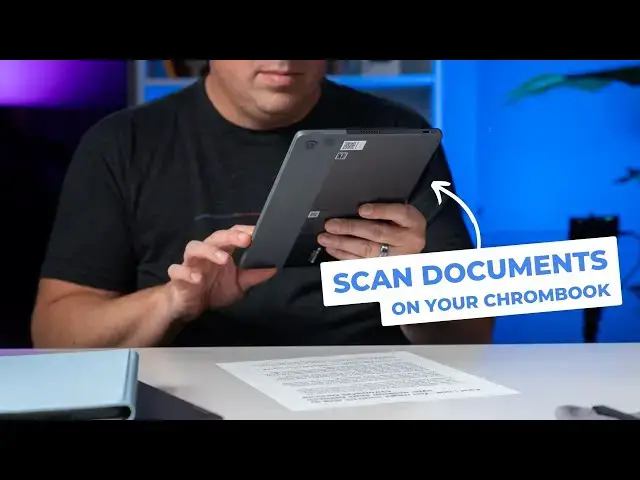
If you’ve ever been out and about and needed to mark up a physical document to send to someone quickly, what I’m going to show you today could prove very useful. Granted, most phones have a great camera on them and can scan documents with ease, but then you have to get that file moved and take a few extra steps that maybe you don’t have time for. Enter the Chromebook scanner function in the Chromebook Camera app.
📰 Read more: https://chromeunboxed.com/your-chromebook-can-make-for-a-handy-scanner-in-a-pinch-video/
📧 Join our newsletter: http://bit.ly/2WjCDm7
・・・・・・・
☕ Fueled by Fresh Roasted Coffee! Buy the special edition Chrome Unboxed bag here: https://chromeunboxed.com/coffee
Show More Show Less View Video Transcript
0:00
Did you know that your Chromebook's front facing camera can scan documents like this one right here
0:04
You may have because it's been around for quite some time. But recently, I actually was messing around with it
0:09
And there's some features in there that, I don't know, they may have been around for a while. I just have never really used my Chromebook in this way
0:15
And I thought it was really cool how it's handling all sorts of different scanning situations you may find yourself in
0:20
like when you're out and about and just need a quick document scan. So I want to show it to you real quick
0:25
So like I said, Chromebook has been able to scan documents for a while
0:33
And honestly, the cameras on a lot of Chromebooks are so crummy. The white balance is so bad that I've just, I've never even bothered with it, to be honest
0:39
And when it arrived in the camera app, I was kind of like, okay, I'll never, ever do that
0:44
Because Chromebooks now, just like with printers, work with scanners. So if you have a network scanner, go slap it in there and do that
0:49
But if you're out and about on the go and you just, you need to get a document, something like this
0:53
This is kind of like a fake document, just one of our articles. But if you needed a document scanned and you needed to be able to make some notes on it or something
1:01
and get it in an email, this feature actually comes in really, really handy
1:04
And I didn't realize this before, but it actually has a new feature where if you hold the paper up
1:10
not quite perfectly square with the camera, it'll actually deal with it pretty well
1:15
It can handle the skewing. If you do like crazy skewing, some of the focus is going to be off
1:20
But you don't have to hold it perfect. You just kind of get it on there. you'll see it outline it or I'll show it to you in a second and then you take the scan and you have the
1:27
document ready to share with somebody else so let's let's walk through how this actually works
1:31
so if you're out and about and you need to scan something like this into you know to get it over in an
1:37
email for somebody to see it or something you don't want to retype it and all that kind of stuff you just need them to see it really quickly that's what this is going to kind of be useful for now this is
1:44
a just a printout of a draft at some point that I done in Google Doc so I printed it just because it got a lot of letters on the page But what you hold it up to the camera and excuse my voice by the way I had allergy issues over the last few days
1:58
Didn't even have a voice like two days ago. So this is an upgrade, I promise. You get all four corners of the document in the screen
2:05
You don't want anything hanging out of frame. You can kind of see it's mapping along with that
2:09
You can hit scan on the track pad or you can just reach up and click the screen
2:13
You can see it handles the skew and kind of the mess. that I made of holding that piece of paper
2:18
You've got a document now that you can actually send over. But I'm going to try this again
2:23
I'll go with a little more of a heavy skew here. So I'm going to go kind of like that
2:28
Again, you still want to get your four corners in. And hopefully you could do a better job of squaring up your paper than I just did there
2:39
I mean, I was really far off. But again, you might be in a rush. You know, I just need to get this thing scanned
2:44
It did a pretty good job of squaring that up again for me. and I can even go in here and click the edit button
2:48
and I can kind of say, okay, that was even bowed. That makes it even more difficult
2:54
So I can go say, okay, here's kind of my corners. And if I want to get my fingers out of there, I'll make up a new corner
3:01
That bow in there. I'm going to bring that one in. Let's see what we get here
3:05
We're going to kind of go there. It's not great. You can tell it's kind of skewed a little bit
3:11
but it's a usable document. You could mark up and send out to somebody in a pinch
3:15
And that's what this is here for. It's not here for like precise document scanning
3:19
It's not going to do those things. And so you can save this as a photo or save it as a PDF and then obviously do whatever you need to do with it
3:26
And it works on any Chromebook. I mean, things are going to vary
3:30
This is a five megapixel camera. This is some harsh lighting. So there's, we kind of tested this in here
3:35
And this isn't the best setting to do this in. But like with sunlight I was having great success actually you know getting scans really quickly and then fixing it With a front facing camera obviously your fingers are probably going to be in it
3:47
So there's no real way around that unless, like if you have a convertible, you could pick it up and hold it
3:52
And that would still be awkward because the camera's facing away from you along with the screen
3:57
But you can kind of hold and look. I don't know. I think for this, this is just kind of on-the-go stuff that you would want to do if you didn't have access to an actual flatbed scanner
4:05
One thing of note, if you're on a device that has the Chromebook Plus upgrade like this one, this isn't a branded Chromebook Plus model, but it's got the Chromebook Plus features
4:13
So down here at the bottom, you see you've got your camera features. We've talked about that in a previous video
4:17
We've reviewed this in a previous video. We will link both of those things in the show, or at the show notes
4:22
I'm doing a podcast right now. We'll link both of those things in the description down below
4:27
But if you accidentally leave your improved lighting on, or if you bring your background blur on, let's see now
4:34
because you have to remember those things on Chromebook Plus, they affect the camera at a camera level
4:38
and then that passes on to the actual camera app. And so it doesn't matter
4:43
Your camera app is now seeing a photo that's trying to be blurred and with improved lighting
4:48
You can really kind of screw this up. So now if I've got my blur on, and I put this up here, you know
4:54
it's trying to blur the edges. It's doing a pretty good job. Oh, there goes. That's what it was doing to me today
4:58
because it sees my face. It wants to focus here first. If I hide my face
5:02
it kind of comes into focus. you're obviously causing yourself a lot of problems. So as a quick note, before you go to Skate in your document
5:09
open those camera settings if you have a Chromebook Plus model, turn off that background blur, turn off that improved lighting
5:15
and you'll have a much better outcome instead of trying to fight those things
5:19
Another cool thing you can do with a lot of Chromebooks, and you can do it with this HP here too
5:23
but it's kind of hooked up and I don't want to mess with it. So I going to get out this duet duet 3 And we jump into the camera app And I going to do the same thing here with this So you not missing anything on camera I going to go in here and my scan The nice thing about tablets with rephrasing cameras obviously is that I can really line this thing up
5:40
Come on, there it goes. And then if I want to mark this up
5:44
I can save it like as a PDF or whatever. We can click and open this in the Chrome OS files app
5:51
And now I can actually go over here and use my markup tool. And, you know, make marks on here, point to stuff
5:58
all that kind of thing. It's a handy tool. And again, I think this is one of those things is on the go
6:03
You're going to need to scan it. You know, write, hey, change this, do this, do this, do this
6:07
Boom. Send it in an email and you're done. And so for any U.S.I equipped Chromebook, you can now just use this scanning tool
6:15
and then use the pin to achieve something on the go that, you know, you may have to have
6:20
some extra equipment for if you were back in the office. So that's it
6:23
That's the Chromebook scanning app. And again, I know it's been around for a long time
6:27
So if you're going to go to that comments and tell me that, you know, the scanning app's been here for six months, I get it
6:32
Like there are still things that I come across on Chromebooks where I'm like, oh, mean, I just, I kind of ignored that for a long time
6:38
And so using it this week, I thought it was really cool. And I just wanted to make sure that everybody out there knows that you can do some cool stuff with this out and about on the go
6:46
And if you pick up something like a pen, USI 2.0 pen light from Penoval
6:51
you can actually jot stuff on that document that you create, send it out in an email and stay productive on the
6:57
to go, even when you don't have all those tools around you that you might need in the office
7:02
Guys, that's it for this one. If you enjoyed this video, give us a thumbs up, head down there, hit that subscribe button, and be sure to ring the notification icon as well if you'd like to be
7:10
alerted when we make future videos just like this one. Until next time, we'll see you
#Consumer Electronics
#Consumer Electronics