Up next in 10

Logitech Casa Pop-Up Desk: Unboxing & Impressions
Jun 5, 2024


Join our Patreon community for access to our private Discord, an ad-free website experience, and more! Start your free trial here ➡️ https://www.patreon.com/chromeunboxed
・・・・・・・
🛒 Buy the Logitech Casa Pop-Up Desk at Best Buy: https://howl.me/clUPHrzrRuy
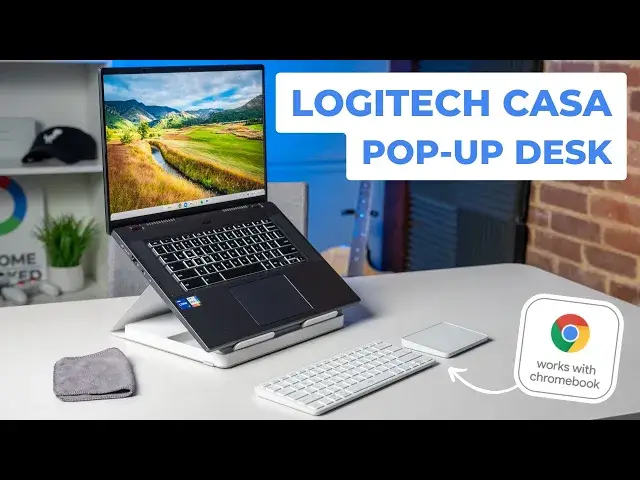
We've already talked quite a bit about the new Logitech Casa Pop-Up Desk here on Chrome Unboxed and on the Chrome Cast Podcast, but things are a bit different now: it's actually in the office. And in this video, we not only take a look at the design and quality of the components that make up the Casa, but also hook it up to a Chromebook, set up the pop-up desk, and give the whole thing a full spin.
📰 Read more: https://chromeunboxed.com/unboxing-and-trying-the-new-logitech-casa-pop-up-desk/
📧 Join our newsletter: http://bit.ly/2WjCDm7
・・・・・・・
☕ Fueled by Fresh Roasted Coffee! Buy the special edition Chrome Unboxed bag here: https://chromeunboxed.com/coffee
Subscribe to the channel: http://bit.ly/2xFuj6L
Follow us: https://www.instagram.com/chromeunboxed
Show More Show Less View Video Transcript
0:00
Right here I have a Chromebook that's actually been around for quite some time
0:04
It's the Acer 516 GE, if you're wondering. It's one of my favorites. It's one that I keep with me
0:08
But I bring it in this video because I'm going to use it with this that's underneath here
0:14
This is the new Hasa pop-up desk from Logitech. And this is a thing I think that's going to be super useful for a lot of people
0:23
It's basically what it says. It's a pop-up desk, keyboard, trackpad, laptop stand, all in one nice condensed package
0:29
that you can use with all sorts of laptops, but obviously with Chromebooks too because it is works with Chromebook certified
0:37
That's upside down for Joe. So I'm going to turn that over. Works with Chromebook certified. I'm excited
0:42
We've been excited about this device, this set of accessories that comes in this
0:46
So without any further ado, let's pop this box open and see what the CASA pop-up desk is all about
0:57
So let's hop in. I'm going to push the Chromebook over. there. And the reason I picked the bigger Chromebook partially is just like this is a device that I
1:05
keep in my bag all the time. But I also want to know if this laptop stand is going to hold up to a
1:09
16 inch Chromebook because if it can handle this one, it can handle all the rest of them. So we're just going to put it in the fire right off the bat. Very nice. So open it up and you've got
1:19
this nice lodgey band here and this whole my work, my life, my home thing that they've got going on
1:25
with this. The idea is simple here. In one condensed package, you base. You've been a very nice lodgy band here. And you
1:29
basically have the ability to pop up a desk. We did a video about this. I think we did two of them
1:35
actually about like having all of your work stuff to be able to set up kind of a desktop set up in a
1:40
bag. One of them we did near the pandemic for obvious reasons. People were trying to figure out
1:45
working from home because they were forced to. And then we, I think after that kind of evolved
1:51
we did another one where I'd kind of honed my setup and was trying to be better about working
1:56
remote a little bit more often. I'm going to be honest. I just didn't work
1:59
got that much for me. We've got a pretty nice office, so I just come here to the office to work most
2:04
times. I need to go work remote more often, and that's where this thing is going to hopefully
2:09
come in. Let's see. Nothing else in this box. This is probably just pretty standard paperwork
2:17
Yeah, nothing else in there. But very nice packaging. I will say off the bat here, this is
2:22
$179.99. It's available at Best Buy and through Logitex website. And that is important because
2:29
You need to think through this as three separate accessories. So if you're thinking of it as one accessory for 180, it's like, oh gosh, that's expensive
2:37
But we're getting a keyboard. We're getting a trackpad. We're getting a laptop stand
2:41
And we're getting the fact that they can all kind of settle into this one package that can slip into your bag or your backpack
2:48
So assuming that the keyboard and the track pad are good, I think the price is fine
2:55
You know, a nice keyboard. If you're a keyboard officiantado and you're buying like a gaming keyboard
3:01
you're probably fine with spending a couple hundred bucks on a keyboard. I think for most people to get a nice keyboard with good travel and clickiness and all that kind of stuff
3:09
you know, $70 to $100 is probably within the realm of reason
3:13
And then a wireless trackpad, unless you're a MacBook user, there's not a whole lot of options
3:18
And I'm pretty sure the magic trackpad, too, is like $130 or something like that
3:22
So take that down a notch because it's not a, a, bespoke item
3:27
This is made for Chromebooks, but it will work with Windows and everything too. You know, 60, 70 bucks, something like that for a nice glass trackpad, right
3:34
Feels pretty good. So now you're already up to, what, $140, $150
3:39
And then a laptop stand, you're just not going to get a good laptop stand for less than $30 to $50 either
3:43
So when you put them together and then say, okay, these all work together to fit in this handsome little case, then I don't know
3:50
I think the price point makes a whole lot of sense. again, assuming the keyboard and trackpad are good
3:55
So we're going to get into that here in just a second. But for the outside of this thing, it's, you know, think of like a hardbound book
4:04
I mean, it's what it looks like, right? I mean, look at this thing. It looks like a book
4:09
That's kind of what they're going for. I'd imagine if you were at home and you were using this as a setup, he slide this on the shelf
4:14
with some of your other books and stuff like that. Nobody would even know what this thing was
4:18
But conversely, it fits in a backpack, I would assume, pretty well. I set it on top of this
4:23
own book here and say like this is it this is all everything I need to work remotely
4:27
and you may be asking why do I need a laptop stand to work remotely we'll get into that
4:32
when we set the laptop stand if we've covered that in different videos talking about laptop stands
4:36
but we actually set it up we will get into that stuff so first up the it like a rubber band almost that kind of cool I thought this was going to be like elastic so that actually good because you going to be popping this thing off and on a lot So the fact that it like a rubberized material that good I guess you would go underneath like this Let see what happens Oh yeah So bonus This is again I feel like this is going to be a thoughtful thing At first when I flipped this over here I thought well it going to offset it But it doesn actually on a smooth surface like this It gives it a rubbery grip So
5:12
I mean, I think is locked into place. Let's see. Yeah, you could even do that number right there with it
5:18
If you were somewhere, you didn't want that. So I kind of just wrapped it around there. It tucked in nice and tight
5:24
Obviously, it slides now. I don't want that. So I'm going to go with the under method
5:30
That's what I'm going to call it. All right, so open it up. This is obviously the laptop stand part
5:35
A nice padding there for your device. Here we go. Here's a little bit of walk through
5:40
about what to do with all this stuff. I'm guessing that QR code probably has a video
5:45
to walk you through this stuff. Yeah, keyboard. Oh, look. So this is going to be magnetized
5:50
We'll try that out here a second. Turn it on and hook it up. You know, pretty straightforward
5:55
So first up, we've got this compartment here. So it looks like, yeah, C to C charger
6:03
I think both of these devices. So this does not come with the Logitech dongle
6:09
I freely assume that it would, I know that they can deal with drivers and all that kind of stuff a little bit better with their own silicon on that little
6:15
dongle. These are actually Bluetooth and so the fact that it's works with Chromebook and it's Bluetooth is pretty impressive
6:21
That means they've done their homework to make sure everything's compatible. But this will charge up the accessories
6:26
If they're like any other accessories, you know, you charge it once for maybe a couple months and come back later
6:32
But the idea being that you've got some spot here to put, you know, I don't know what else you'd put in there
6:36
Like some gum, toothpick. I don't know if a pen's going to fit in there
6:40
I don't have a pin around. If you had a small USI pin, you know, it'd fit in there
6:45
Let's see. There we go. Oh, Lodgy. Look at that. Grab that right out
6:52
Loggy pin. Aw. Womp, wamp, wamp. Not quite. So, yeah, it'd have to be like a weird small U.S.I pin
7:01
I bet you this one will. Which one's this? This is the HP. It fits right in there
7:06
So, I don't know, a handful of other accessories. So it's kind of cool if they provided it
7:10
It's like, we don't have anything else. What else they're going to give you in this spot? And then the other two spots, obviously, keyboard and trackpad here
7:16
So I'm not going to lie, the thing I'm most excited about here is the trackpad. So I'm going to bust into it first
7:22
And here's why I'm so excited about this. We don't have a track pad that's made for Chromebooks
7:25
That's not a thing. It's never been a thing. Bridge tried it a few years back
7:31
And then since there's no wireless track pads for Windows, really, that you can buy
7:37
there's just not been much. Logitech made a T650 trackpad years ago
7:40
it's worked with Chromebooks. It used to be something I used. I sold it off to a friend that needed it
7:47
And since then, the Apple Magic Trackpad's been the only solution, and it's just been kind of iffy
7:52
And so this is a Works with Chromebook wireless trackpad. So I wouldn't say anybody needs to go spend $180 on a wireless trackpad for your Chromebook
8:00
But if the rest of this is compelling and you've been interested in a track pad, then this is an option
8:06
So all glass on the top, all plastic down here. It looks like we've got a multi-swit
8:10
here we might have to charge this we might have to break away and give this guy a little bit of
8:15
juice because I'm just some LED lights down there Logitech generally gives you three
8:20
options to connect with Bluetooth to like three devices so we'll cut away here in a second and
8:26
charge this stuff up but nice edge glass this feels really great and look at this so I think we've
8:34
read something about this other than haptic track pads this is not something we see very often
8:38
which is the ability to click anywhere on this thing. How's this happening
8:45
I don't actually know what's going on here. Maybe there's like multiple springs or I don't know
8:49
Usually track pads. It's basically there's a hinge on the back and then a click mechanism up front
8:53
and you click it. It's kind of like a diving board kind of deal. Not the case here. So this can be sitting there
8:58
and you can just be moving around and click wherever you want. Ostensibly it works with Chromebooks
9:03
so it should work with all of our gestures and stuff. We're going to test that here in just a second
9:08
Yeah, this thing feels great. The glass feels really high quality. It reminds me of the T650
9:14
But yeah, that's great. Like I said, we'll need to probably juice that up a little bit
9:20
And then we got the keyboard. And this is another big question. So for $180 accessory, obviously, we need to make sure that the track pad's good
9:28
and the keyboard needs to be good This doesn need to feel like a cheap keyboard So Kasa keys Here we go Oh that a good keyframe Pretty quiet but ooh so clicky I wish there a way I could like show you all how
9:44
clicky. Oh, that feels so good. Let's see what kind of keys we got here. So you've got the Chromebook
9:50
They've got start, obviously, for Windows, but you've got the Chromebook circle there. So we're represented
9:55
So that's going to be your start key in ChromeOS if you want. You could
9:59
remap this guy because you can remap keys you remap this to your everything key for me that's
10:04
pretty important because I just have habit of using it all the time but then you know your basic
10:10
smattering of keys and they obviously had to go kind of down the middle with their function keys up here
10:15
so it looks like I'd be guessing that looks like an emoji key they've had that on some of their
10:21
other keyboards there's a screen capture key so we'll see if those kind of things work volume up and down
10:26
some of that stuff. So you're not going to get the Chrome OS function keys up here
10:31
So you need to know that going in. But overall, nice and rigid, that feels really good
10:38
Same thing. It doesn't look like this one's multimodal, though. Oh, yeah, it's on the keyboard
10:44
So there's three LEDs there. So same way. You can pair up between the two, you pair it up to three different devices if you wanted to do that
10:51
But most importantly to me was, does this feel like a keyboard I want to type on
10:55
and 100%. Man, this thing feels fantastic. I love that. And so last but not least
11:02
you got the case that holds all this stuff. Anyways, we saw on that thing, it's magnetic
11:09
Oh, yeah. I mean, it's not a super tough magnet. I wouldn't pick the whole thing up that way
11:13
but it just kind of clicks into place there. And then, as you can see on the side
11:19
once you put some weight on there, it's going to push it against that. Done deal
11:23
Let's see if it can hold it. Bring this around. drop that in there
11:30
No problem. Things not going anywhere. Very nice. And since it's sitting right here
11:37
I'm assuming this shot okay, this work. I'll bring more brightness up at least a little bit
11:42
So I'd said earlier I'm going to talk about why this matters because a lot of people look at laptop stands
11:48
and it's like, well, what's the point of doing that? Like, why not just leave the laptop down and just work on it
11:52
So I'm going to show you the difference in posture. So if I see, set this before me
11:57
A, when my hand goes to touch the track pad, I'm like this. Okay
12:02
I'm trying to get this for Joe over here. So if I'm squared up, I'm here every time I go to the track pad
12:08
You don't think about it too much, but you're like this all the time, versus having something out here that's a lot more neutral on your wrist
12:14
Secondly, if I'm here working, even with this big Chromebook, my overall posture is going to tend to be this
12:22
And you can probably tell pretty quickly this. versus this is no good
12:28
And so what this allows, this CASA pop-up is, carefully move it
12:35
I got that sticky foot going down. So now if I've got this in front of me
12:39
and I'm typing, typing, typing, and I look over, this thing's pretty close to eye level
12:44
So it's just going to encourage me to sit up in my chair and use my whole setup here in a much more ergonomic way
12:52
And so let's break real quick. to put some battery on these things and make sure that they are charged up and turned on and all that
12:59
good stuff and then we will get them hooked up and test a couple things we'll test these function
13:05
keys see what works we'll test to make sure our different multifinger gestures work on the trackpad
13:13
and yeah and we'll wrap this thing up all right so we got everything on and set up funny story
13:20
we got into this Chromebook I had it in the beta channel and for some reason the
13:25
track pad would connect but the mouse wouldn't move so had to then go and get this thing into
13:30
you know the normal stable channel where you should stay if you want things to work properly
13:35
and realize that earlier in the video when I was trying to get this LED light to pop on I'm
13:41
gonna do this and hopefully yeah you can see it down there now I didn't actually have the thing
13:45
turned on I thought that I did but I didn't so obviously on off switch is on the back and
13:50
then you can go into your pairing mode so with each of these if you you click it to select
13:54
it and then you hold it to go into pairing mode. I'm not going to do that because I don't want to
13:58
disrupt what I've got going on here. And I'm going to try to kind of talk with this over my shoulder
14:02
which you can see, obviously, the mouse is working. So we're going to open up just a Chrome window
14:07
So I can just show you all of the different gestures here. So we've got tabs open. So three-finger
14:13
tab swiping works just fine Three tap or swipe up to multitask works just fine Let do a desk So you can see that as well Four finger swiping works just fine
14:27
Obviously, let's go, sure, we'll go to the web store. Two-finger scroll works fine
14:33
Pinch to zoom works fine. Everything works fine is what I'm trying to get out here
14:37
So all the same features that you would have on your built-in track pad work just fine here
14:41
And it's working over Bluetooth. And there's no perceptible lag here. and it feels great. I obviously had to navigate around a little bit with this thing off camera before
14:53
And yeah, this is 100% workable. This feels great. I love this trackpad. This is really cool
14:59
And I don't have to look down on it to make sure my hands are staying in the right place. So if I want to click and my hand happens to be up here at the top of the track pad, it's no problem
15:07
It's not like there's any extra effort involved in clicking anywhere on this track pad
15:11
So it's a really cool design there. And then obviously the keyboard
15:16
works just fine. Hello. YouTube. Feels great to type on. So as I was kind of getting re-signed in from the power wash I had to do here
15:25
Yeah, that stuff all worked. And as I said, with the function keys here, so you've got a smiley there on F4
15:34
If I hit that, the emoji picker comes up, which is, I guess, interesting to have
15:39
I don't use emojis that often. This one is a dictation button
15:44
So it's a little like person with like waves on its face. So you can turn dictation on and you've got a dedicated dictation button
15:50
And we've talked about dictation on Chromebooks before in different videos. It's fantastic
15:55
It just works really well. If you just want to be able to talk and send an email with your voice
16:00
now you've got a button if you've got one of these. F6 here, you can see like there's a little camera on it
16:05
It just brings up the screenshot button, which is awesome. Then you've got Play Pause, Fast Forward
16:11
We're going to work exactly like you think. you've got a mute button. So you can see that's working there
16:15
Volume up, volume down. Work is expected. And then we've actually got a mic mute switch here all the way on the insert key
16:23
And you can see that's working as well. So handy in a meeting or something like that
16:27
If you just need to meet that mic, click that button. No big deal. And then you've got a dedicated delete key
16:32
If you should be function, yeah. So you can use that as your lock as well
16:37
So, I mean, other than that, it's a standard keyboard and a standard track pad
16:42
now with this setup, as we talked about earlier, you're nice and ergonomically set
16:47
You've got a great keyboard, even if the Chromebook you happened to buy, didn't come with a
16:51
great keyboard. And you got a great trackpad, even if the Chromebook you bought didn't really
16:55
come with a great track pad. You've got these now, and you've got this laptop stand that gets you sitting up nice and straight and tall and working. If you're going to be in front of the
17:03
screen for a few hours at a time, this is a really handy tool. I don't know how often this is
17:08
going to go on sale. This thing just came out. It's just become available. But I think at $180
17:12
If you were to price out, A, you can't find this. This isn't a thing anywhere else, and it's never been a thing as long as we've covered Chromebooks
17:20
So that probably drives up its price a little bit. But, you know, if you get a keyboard this good, I mean, you're probably going to have to get in, like, the MX range to get a keyboard that feels as good
17:30
This thing is fantastic. I'm really happy to type on this. And then a keyboard stand, and then a place to put all that stuff, or I'm sorry, a laptop stand
17:38
And a place to put all that stuff, like, you're going to spend this amount of money or more
17:42
to do it and then it's all going to be disparate stuff that doesn't go together and you've got to find a place to
17:46
put it in and all that stuff but instead what you could do is buy this guy and break this thing down
17:54
when you're done working and then you know put it on the shelf or drop it in your bag and your whole
18:04
desktop is kind of taken care of I like this thing a lot obviously having used it very often and
18:11
the cool part is we're just about done reviewing Chromebooks, Chromebook pluses
18:16
And this is the first unboxing type video we've done in forever because there's just not
18:19
been a lot of new Chromebooks. And this is a device that I can't wait to actually start using at the desk to kind of have
18:25
a Chromebook up near my monitor and have this keyboard and track pad out on the desk
18:30
at least for a little bit until some new Chromebooks show up that I've got to start reviewing
18:34
But I'm almost done with that reviewing process. I'm very excited to replace reviewing Chromebooks with spending a little bit of time with
18:41
this Logitek Casa pop-up desk. But guys, that's it for this one. If you enjoyed this video
18:46
give us a thumbs up. Head down there. Hit that subscribe button. And be sure to ring the
18:50
notification icon as well. If you'd like to be alerted when we make future videos, just like this one
18:54
Until next time, we'll see you
#E-Books
#Computer Hardware
#Desktop Computers
#Laptops & Notebooks
#Consumer Electronics
#Consumer Electronics
#Consumer Resources
#Product Reviews & Price Comparisons
#Gadgets & Portable Electronics
#Virtual Reality Devices