Up next in 10



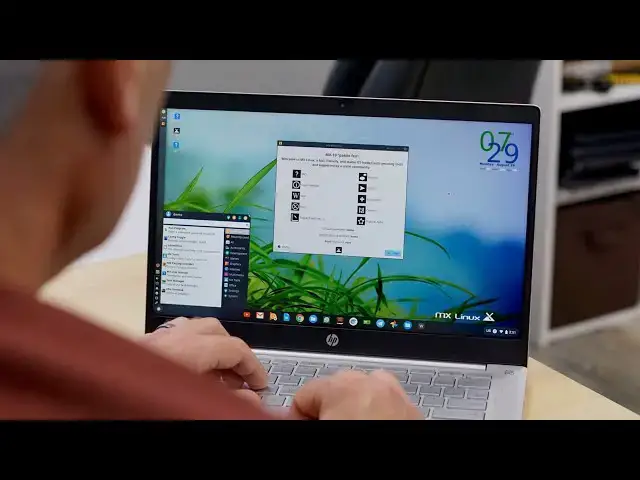
We've had a lot of requests for a walkthrough of installing a Linux distro on Chrome OS. So, we decided to go with the most popular distro out there. MX Linux is a Debian-based Linux distribution with a medium footprint and a user-friendly interface. Installing it on a compatible Chromebook is simple and the OS works quite well inside the VM. See below for download links and terminal commands.
MX Linux download - https://sourceforge.net/projects/mx-linux/
Install Virtual Machine Manager on your Chromebook(run this command in your Linux terminal) -
sudo apt install qemu-kvm libvirt-clients libvirt-daemon-system bridge-utils virtinst libvirt-daemon virt-manager -y
Note: you will need to check your Linux kernel version in the Linux container. You will need to have kernel 4.19 or higher for this to work properly.
Read more: https://chromeunboxed.com/mx-linux-installing-the-1-linux-distro-on-a-chromebook-video/
Join our newsletter: http://bit.ly/2WjCDm7
・・・・・・・
Shop Chromebooks on CHROME SHOP: https://chrmshop.com/
Subscribe to the channel: http://bit.ly/2xFuj6L
The Music We Use - PERFECT for YouTube: http://bit.ly/31W6PYP
Show More Show Less View Video Transcript
0:00
[Music]
0:00
hey what's up everybody today we are
0:02
talking linux apps and i don't mean
0:04
linux apps that come
0:05
on your chromebook we're going to look
0:06
at installing a full distribution of
0:08
linux a recent update to the container
0:10
on chrome os
0:12
has allowed some devices to leverage
0:14
virtual machines and cue
0:15
emu and stuff so we're going to take a
0:17
look at exactly how to do that
0:19
so let's dive right in
0:21
[Music]
0:25
alright guys let's get started all right
0:29
for starters you're obviously going to
0:30
need a chromebook that supports linux
0:32
apps uh we'll have a link down on the
0:33
bottom to show you a list of devices
0:35
that are
0:36
compatible uh if you just want to check
0:38
real quick all you have to do is go to
0:40
your chrome os
0:41
settings and on the left side there
0:43
should be a thing that says linux beta
0:45
if it's there you have linux apps no
0:47
problem
0:48
we're going to go ahead and turn that on
0:50
click next
0:51
now under here you're going to see disk
0:52
size you're going to need to set that to
0:54
at least
0:54
25 to 30 gigs just to make
0:58
room for the linux distribution that
0:59
we're going to use and then any other
1:01
apps that you may want to
1:02
want to install your username you can
1:04
set it to whatever you want so
1:06
we'll do chrome unboxed here click
1:08
install
1:09
and that's going to take just a minute
1:11
for linux to set up and then once it's
1:13
done
1:14
we're going to start installing the
1:15
pieces that we're going to need to use
1:16
to run
1:17
the actual linux distribution we're
1:20
going to do
1:21
mx linux today we've done this a few
1:23
times here in the office we've done
1:24
elementary os
1:25
popos that did manjaro the other day
1:29
distro watch rates mx linux as the
1:31
number one linux
1:32
distribution on the market it's debian
1:35
based so it should work really well with
1:37
chrome west because that's the same
1:38
thing that's running in the container
1:40
and once we get this installed you can
1:42
actually tinker around with it and just
1:44
find
1:44
iso files of whatever distro you want
1:47
and try it out to see if it works
1:49
so now that our terminals up and running
1:51
we're going to run a couple of commands
1:53
just to make sure
1:54
everything is up to date so we'll do
1:55
sudo apt update
1:57
that's going to let us know if that
1:59
there are any upgrades available and
2:01
there are so you'll do sudo apt
2:03
up grade and then if you do a dash
2:06
y it will automatically click yes for
2:09
you or you can just hit enter and click
2:10
yes when it gets there
2:12
that's going to take just another minute
2:14
and then we will move on to the next
2:15
step
2:17
if you haven't checked it out already
2:18
there's multiple articles on the website
2:20
that list how to do this and then each
2:22
one it shows the commands on how to
2:24
install the virtual machine manager
2:27
and if you feel like you're worried
2:28
about breaking something
2:30
don't worry about it the linux container
2:32
is separate from chrome os
2:34
and if something doesn't work you can
2:36
literally turn off linux delete all of
2:38
the files and start over from scratch
2:40
like it never happened so this is going
2:42
to take another minute or so to finish
2:44
and then
2:45
once it's done we'll move on to
2:47
installing the virtual machine manager
2:49
all right all our updating is done is
2:51
now now we can move on to the next step
2:53
once this is finished and your terminal
2:55
is installed you'll have a new folder in
2:57
your file manager and it just says linux
3:00
files and that's exactly what it is
3:01
these are files that are created by
3:03
linux applications and if you need to
3:05
access other files on your device
3:07
you can drag them directly into that
3:09
folder
3:10
or you can give access to your downloads
3:12
folder when we're doing installations
3:14
like this i like to put my files in the
3:16
linux folder that way there's no
3:18
path conflicts or anything like that so
3:20
today we're going to install
3:22
mx linux so you can find the uh the
3:24
current stable version on sourceforge
3:27
we'll put a link down in the description
3:28
to
3:28
show you how to grab that all right so
3:30
you're going to download that it's going
3:31
to take a couple minutes because this is
3:33
an iso image so it's almost two gigs
3:35
it's a
3:36
operating system compressed into an
3:38
image so it's going to go to your
3:39
downloads folder
3:40
drag that over to your linux folder and
3:43
give that a minute to transfer over and
3:46
while that's doing that let's go ahead
3:48
and get
3:48
our installation of our virtual machine
3:50
manager started
3:52
it's going to install a few different
3:53
files this works off qemu
3:55
and kbm it's nested virtual machines and
3:58
all that stuff
3:59
virtual machine manager is actually the
4:01
application the user interface we're
4:03
going to use
4:04
to install and run the image
4:08
for linux desktop now how this works
4:10
it's actually taken a portion of your
4:12
hard drive
4:13
and it's going to dedicate that for the
4:15
linux distribution so you're actually
4:17
going to have a full version of linux
4:19
running
4:19
on a portion of your hard drive the
4:22
virtual machine manager
4:23
allows chrome os to look at
4:28
that distribution so it's treating it
4:30
like an off-site
4:31
host but it's just running here on your
4:33
device so
4:34
think about remote desktops and things
4:36
like that very similar situation it's
4:39
just the other operating system happens
4:41
to be running on the same machine that
4:42
you're using
4:44
so we can install all of the files that
4:46
we need in one fell swoop and i've got
4:48
the command in here it'll be in the
4:50
article we'll have it down in the
4:51
comments below you're going to open your
4:53
linux terminal
4:54
up and you're going to copy and paste
4:57
this command
4:58
into your terminal and hit enter and
5:01
that is going to install
5:03
everything that we need to run the
5:04
virtual machine manager alright guys our
5:06
installation is done and you should have
5:08
a virtual machine manager
5:10
in your app door if you can't find it uh
5:12
scroll down until you see a folder that
5:13
says linux files any of your linux
5:15
applications or files are going to be
5:17
in there i have my pin to the shelf here
5:19
just so i know where it's at
5:21
so what we're going to do is we're going
5:22
to create a new virtual machine now the
5:25
first time you do this you may get an
5:26
error saying there's no connection
5:28
available to fix that just go to
5:31
file add connection and change this from
5:34
qemu
5:34
kvm to qemu kvm user session and click
5:38
connect
5:38
that will create your local user session
5:40
for you we already have one started here
5:43
so we're going to
5:44
click this icon to create a new virtual
5:46
machine
5:47
we're going to do local install media
5:49
because we're using a local iso image
5:52
go next and go to browse and then browse
5:55
local
5:55
and if you moved your mx linux or
5:57
whatever iso you're using over to your
5:59
linux folder it should show up right
6:01
there
6:02
double click that now unless it's a
6:05
major
6:06
distro that's recognized in here it's
6:08
not going to detect
6:09
that distribution automatically so
6:10
you're going to deselect automatically
6:12
detect
6:13
and then just start typing generic and
6:16
we're going to use generic default
6:17
it should work for pretty much any linux
6:19
distribution you use
6:21
go ahead and click forward now depending
6:23
on your device
6:24
you're going to want to allot as much
6:26
ram and cpu as you
6:28
can afford to let go of this is an i7
6:31
with 16 gigs so we're going to go ahead
6:33
and give it
6:34
quite a bit of memory and then
6:37
says eight cores which is kind of cool
6:39
because in the past when i've done this
6:41
it only let me do four cores because
6:43
hyper threading doesn't work
6:44
on crostini and all that but whatever so
6:47
it's going to let me use eight cores so
6:48
that's what i'm going to use
6:49
so we'll click forward and then it's
6:51
going to ask you to a lot in amount of
6:53
disk space you'll see you have 33 gigs
6:55
available because that's based on the
6:57
amount we set when we set up linux
6:59
so i'm going to go ahead and give it 25
7:00
gigs then
7:02
click forward and you can leave all this
7:05
as it is and then click finish
7:07
now the virtual machine is going to fire
7:08
up and it's going to start installing mx
7:11
linux on that partition that we created
7:13
this is going to take a few minutes but
7:15
if you're familiar with linux
7:16
distributions you'll know what to do
7:18
it's going to walk you through the the
7:20
installation process just like it would
7:22
with
7:22
windows mac or any other linux distro
7:26
out there
7:26
so we will just go ahead and select
7:29
install
7:30
and we're going to go through the
7:31
installation process all right so here
7:33
we are guys this is a really cool thing
7:35
about iso images is
7:36
most of them will actually run directly
7:39
from the image so instead of actually
7:40
installing it on bare metal on your
7:42
device
7:43
it's running from that image so you can
7:45
kind of poke around and see what you
7:47
think about it that way if you decide
7:49
mx linux isn't the distro for you you
7:51
can just delete the virtual machine
7:53
and start over with a different
7:54
different distribution if you decide you
7:56
like it you can actually
7:58
most of these distributions the live
7:59
image will have an installer button on
8:01
the desktop like this right here
8:03
you'll just click that it'll go through
8:05
the actual bare metal installation of it
8:07
you'll get your keyboard set up your
8:09
username and all that stuff
8:10
and then you'll have a dual booting
8:12
device
8:13
per se right there in your hands and you
8:16
can
8:17
change and swap up any linux
8:18
distribution you want
8:20
we've actually installed windows 10 on
8:21
one of these and it works really well
8:24
you don't have to worry about network
8:25
connectivity um the link the virtual
8:28
machine inherits uh the internet from
8:30
chrome os
8:31
uh you are going to run into some issues
8:33
when you're trying to share files with
8:35
chrome os and things of that nature so
8:36
just
8:37
think of this as a completely separate
8:39
operating system they are not
8:41
they're not working in tangent with each
8:42
other if you just want to try out linux
8:45
or you just need linux on a device for
8:47
whatever reason
8:48
most of these pre-built distros come
8:49
with stores built in so you can go in
8:52
there and install the chromium browser
8:53
so
8:54
you can have more of a native chrome os
8:56
feel if you want
8:57
but that's it guys you can install this
8:59
distro or one of
9:01
dozens if you want we'll be tinkering
9:03
some more over the next few weeks to see
9:05
what else we can try out and see which
9:06
one works best
9:08
if you guys have any suggestions or
9:09
there's something you'd like to see drop
9:11
a comment below or shoot us an email
9:12
because i'd love to give it a try
9:14
until next time guys if you like this
9:16
video give it a thumbs up
9:18
don't forget to hit that notification
9:19
bell down at the bottom because we're
9:20
going to be doing more and more
9:22
of these command line videos and we want
9:24
you guys to get alerted when we put one
9:25
out so
9:26
until next time we'll see you
#Software
#Operating Systems