Up next in 10

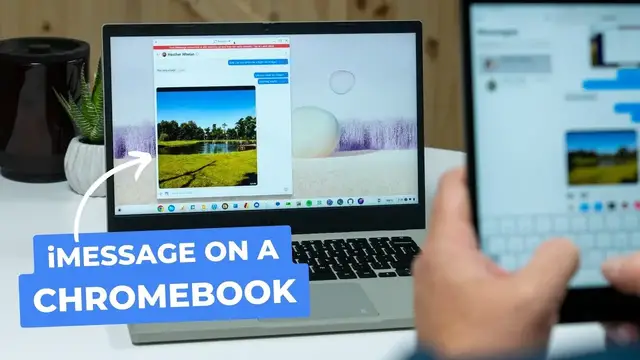
I'm Using iMessage on a Chromebook!
Oct 17, 2023


Join our Patreon community for access to our private Discord, an ad-free website experience, and more ➡️ https://www.patreon.com/chromeunboxed
・・・・・・・
If you're an Android user with friends or family on iPhones, you're probably well aware of the "blue bubble, green bubble" frustration that comes from the incompatibility between Apple's iMessage and Android's SMS/MMS/RCS messaging. It is a deeply-entrenched issue that primarily persists in the US; but companies like Beeper are stepping up to offer actual solutions. In the past week or so, I finally got my invitation to try out Beeper's iMessage claims for myself, and, much like you'd expect, I immediately wanted to see if it would work on my Chromebook. And it 100% does!
👉 READ MORE: https://chromeunboxed.com/yes-i-have-imessage-working-on-a-chromebook-with-beeper-for-android-video/
📰 Join our newsletter: http://bit.ly/2WjCDm7
・・・・・・・
Fueled by Fresh Roasted Coffee! Buy the special edition Chrome Unboxed bag here: https://chromeunboxed.com/coffee
Shop Chromebooks on CHROME SHOP: https://chrmshop.com/
Subscribe to the channel: http://bit.ly/2xFuj6L
Follow us: https://www.instagram.com/chromeunboxed
Show More Show Less View Video Transcript
0:00
If you're someone who uses an Android phone and you have friends or family members who likely use iPhones
0:05
you probably know all about the whole blue bubble, green bubble thing. I think even people that don't deal with it, like I don't deal with it too often on a daily basis
0:12
still know all about the whole green bubble, blue bubble thing. And it comes down to iMessage on iPhones, and that being a problem when Android users send their SMS, MMS texts in the midst of an I message thread
0:25
And I'm not going to get into all the reasons why that needs to be corrected or how it could be corrected
0:30
why I think Apple should do something to correct it because that's a whole different video
0:34
But there are other companies that are trying to fix and mend this problem, this messaging
0:39
problem that mainly just exist here in the U.S. And Beeper is one of those companies
0:44
And though their software is invite only for the time being right now, I got my invite
0:50
I got it installed on my phone. And I actually went ahead and tried the ChromeOS install as well
0:56
And guess what? It works really, really well. So I want to show you what it looks like to be able to send and receive eye messages natively on your Chromebook
1:08
So a quick bit about Beeper. I don't know much about them as a company, to be honest with you
1:13
I've heard about them for a while. They've been around for over a year at this point. And their main selling point is, hey, we've put together all of your messaging platforms into one thing
1:21
which is kind of nice, I guess, if you're looking for something like that
1:25
But their main thing is they are offering iMessage. to Android users and Windows users and different OSs can take advantage of iMessage
1:35
And while I don't think most Android users or ChromeOS users really want to use iMessage as a
1:39
daily driving messaging platform, I know that I don't, it would be nice when it's necessary
1:46
to be able to use and answer and respond to iMessages when you need to
1:51
And so for me, that's what Beeper comes down to. Yes, it has the ability to basically take all of your stuff and put it in
1:58
one place. So if you look at, let's go to Beeper's website real quick, you can pull in
2:03
you can see right there all your chats in one app that's kind of their stick. And, you know
2:07
I was able to go through and set up. I'm going to kind of show you some of this stuff here in a second. But set up WhatsApp, Facebook Messenger, you can add Twitter messaging, Slack, Discord
2:18
I message, obviously your SMS text messaging stuff and Google RCS chat. They're kind of working
2:24
through all the kinks there. And for each one, it's no different than like, say, WhatsApp. I want to
2:28
add WhatsApp to my Chromebook. You scan and add it as a device that can kind of receive and send
2:33
WhatsApp messages. So for most of your messaging setups, it's a hub in that way. You know, you log into
2:39
those things and you say, yeah, I want to give beeper permission to send and receive those messages
2:44
And that stuff works fine. In general, let me open up my beeper window here. In general, you know
2:49
it works like you would think. So I've got this here and it's just one big thread showing me all
2:54
these contacts that are, you know, sending me messages. And basically, I can click into any of these
2:59
so I'm clicking into Joe. And that's a WhatsApp message there with Joe. I can send and receive that
3:08
But for me, that's not really the point. I don't want on my messages crammed into one app. It gets a
3:13
little confusing, frankly. And, you know, they do a good job with these little icons down the side
3:17
kind of showing you where the message came from. But I find this to be a little bit overwhelming
3:21
And what we really wanted to show you today is you know the fact that I message works the way that they saying it does Now I do want to put a quick caveat on this In order for this to work this means that your ICloud Apple account has to be signed in on an Apple device somewhere
3:39
So I have an iPad here on the table with me, but you don't even have to have an iPad
3:44
You just need an ICloud account or an Apple account of some sort. And you can log in and do this
3:49
What that means is that even though Beeper is saying everything's, encrypted on both sides and they can't read any of your messages and nobody else can read your
3:57
messages. Your account's being logged in on a Mac Mini or something like that somewhere on a server
4:04
rack. And if you're uncomfortable with that, I would say this isn't for you. But for me, when I look at it
4:11
I'm like, well, I have to trust at the end of the day that WhatsApp and Facebook and Twitter and
4:16
Gmail and basically any other messaging app are doing what they say they do. They're encrypting things
4:22
where they can't see it, I have to trust them with that. Because even though it may not be living
4:26
on a Mac Mini somewhere on a server deck, it's living on a server somewhere. Those messages are
4:31
And so I just have to trust and you have to decide whether or not you trust Beeper with your
4:36
information that way. Now again, everything seems to be well encrypted. But at the end of the day
4:41
you've got to trust that because there's no way for IMessage to work apart from an Apple device
4:46
It's not like there's a service in the cloud that works or else this wouldn't even be a problem
4:50
to begin with. And so I did want to put that out there before anybody goes and tries this
4:54
And if you do manage to get an invite and want to try this out, you need to know that going
4:59
in that you're going to go through and sign in and kind of be up and running
5:02
And once you are, you need to know where your information is kind of going through. But I did want to show you this actually working because you basically can go, let me pull up
5:11
this here, you go to download or beeper.com forward slash download, choose ChromeOS
5:18
And boom, right there, there is one script. So you do have to, in order to get the setup
5:22
process. If you don't want to mess with the Windows machine or Apple or any of that stuff
5:26
you do need to enable Linux apps on your Chromebook, which is we're not doing a full
5:32
how-to tutorial here because I've got to sign into a lot of stuff. And because this isn't
5:38
fully rolled out yet, this all could change. And some of these steps might change by the time
5:43
this is publicly available. So we didn't really want to make this a full how-to video
5:47
But if you go down here to the developer section in your settings, Linux development environment
5:52
If you didn't have it turned on already, there'd be a button here to enable it. I can go in here and make some changes to my settings
5:57
But once you do that, it takes a couple minutes. It turns itself on. And then you have the Linux environment available
6:03
Once you do, if you go down here and just search for terminal, you'll see right there
6:09
There's your terminal. And once you go in there, click into your terminal, you're just going to paste in what they gave you here
6:17
So you take this entire thing and paste it in like that
6:21
Hit return. and I'm not going to do that because I've already done that. And after like two minutes, the Beeper app will pop up, the desktop application
6:29
Now, it's not installed necessarily. So it's not something you're going to come back to and use on a regular basis
6:37
That's why we'll talk about the Android app here on the Chromebook in just a second
6:41
But basically, that'll get you started. So it'll give you all the things. You choose which things you want to sign into
6:46
And so for me you know I did WhatsApp and my messages and obviously I did I message But after this video done because I just wanted to show you that you know it does it does actually have all of your apps or all of your chat apps in here if you want them So like again I got Discord going here I got WhatsApp Um those are the main things
7:04
I talk in. So that's what you're going to see most of. Yeah, Discord WhatsApp and then I message up here
7:08
at the top. Once you have all those things installed, you can leave them if you want. I'm going to go take all of them off and basically let Beeper just be my I message client for my Chromebook when I need it
7:18
Because I don't need it that often. Most of the time, the messages that come to me with, iMessage it's fine it's a one-on-one text thread it's not a big deal like we're not i'm not using it as my
7:27
main messenger but i mean if you really wanted to lean into it with some of your iphone toting
7:31
friends you could do that here and so what i've brought in here is a friend of mine a former
7:36
colleague and she's an iphone user and so i just prompted her and asked her if you know
7:41
we're going to be filming can i can i pin you because i want to show you that this is working like it's
7:45
it's fully functional so i've got the beeper chat here i've got the i message chat here and
7:51
And I've got Beeper also pulled up on my Android phone. So it feels a bit like Wolf from the office if you get that reference
8:00
And so she is waiting for me. So I'm going to say, yes, and do you mine
8:09
I also ask, and can you confirm a blue bubble? Now, you'll see, while we're waiting for her to respond
8:18
up at the top, your iMessage connection still warming up. They say it could take 48 hours for that all work itself out because I don't have a phone
8:26
and a phone number like an iPhone connected to IMessage. So I don't know what all that means
8:31
It's just, it's been working just fine for me. So I've confirmed this with my brother
8:35
I sent him some texts back and forth and he said, you know, Blue Bubble, but I'm going to have
8:39
her confirm right here on camera. But as you can see, right here, you can see the messages that I just sent are right there
8:46
in Blue Bubbles on iMessage. They're also right here in the beeper app
8:52
And boom, she just responded. And you can see right here, got it, and see the message is a blue bubble
8:57
And you can see that on the screen recording. And you can see it here on the iPad
9:02
And so it's working exactly as you'd expect. Now, I'm going to go and see, since we're on camera here
9:09
I'm going to send her, I'll try sending her an image here
9:13
I don't have any images on here. So I'm going to do a screenshot real quick. get a whole screen grab
9:19
because with iMessage if I send a full screen grab for instance from my phone in a text message
9:26
it's going to come up all blurry and funky from SMS to iMessage
9:31
so I'm going to send this and ask her real quick and you send me
9:43
a high res image So we're going to let her come back on that
9:48
So that'll kind of be the last thing I'll show you here. But the idea being, instead of being stuck with, like
9:52
I can't send you a photo because you're an iPhone and I'm an Android, if I send you that photo, it's going to look crappy
9:58
Like Google's worked around this. They've created like quick shortcuts for Google photos to send to iPhone people
10:03
But they're all crappy workarounds, to be honest. And again, I'm not going to get off on this whole tangent of, you know
10:09
why Apple should just put RCS and I message. But they should. You know, they should make that an option
10:14
And they are just, they're not going to. anytime soon until they're forced to, I don't think
10:18
And so this is a really cool way for interacting with people who have iPhones and it being a little bit less janky than all the other workarounds that we had to do
10:29
So, you know, emoji reactions that we have now and RCS messaging, we can send thumbs up and it'll do stuff and work with the iPhone and somebody sends a thumbs up
10:38
We don't get a message that says they send us a thumbs up, but that's Google having workarounds in place to make RCS and IMessage kind of work better together
10:47
So she replied back, yes, very sharp, so that looks cool. Hopefully she'll send an image here in just a second
10:53
But ultimately, what this means is on your Chromebook, because this is the Android app basically of beep where I'm running over here
11:00
you could ostensibly go through and get rid of all these other apps
11:03
because I don't mind having WhatsApp going and Discord. In my mind, like WhatsApp is more like social stuff
11:10
and Discord is more work-type stuff. And I kind of have those things siloed
11:14
But then I can have this open if I need to. or if somebody texts me and I get the notification on Beeper from an I message that's been sent to my phone
11:23
I can just open that app up on my Chromebook and interact with them there. And it's a really cool thing to know that with a couple quick setup steps, I mean, it's not difficult
11:33
You can have this up and running again once, if you can get your invite
11:37
Hopefully Beeper is going to have this rolled out soon. It's going to be available. Once it is, this is a viable option if you would like to be sending and receiving I message
11:45
messages on your Chromebook. And again, it works. It's very simple to set up
11:52
I don't know that it's going to get any simpler than this, but some of the steps might change, but it's a working non-janky way that you can communicate
12:00
with some of your Apple friends that refuse to send messages in anything other than I-Message
12:05
So one final thing before we close up here. She did finally respond with a high-res image
12:12
It's a, I don't remember the file type. It's a really strange H-I-E-C or something
12:15
something like that. I had to upload it to Google Photos, but you're able to download it once you
12:19
click in here, click the download button it downloads, and I was able to open it up in Google Photos
12:25
and while she was sending me the image, I actually saw the notification that she was typing while
12:30
she was responding. So I was excited to see that that works because it wasn't working yesterday
12:35
and that's just part of the modern messaging thing. You know, you want to be able to see when people
12:39
are typing back. You want to see when they've seen your message, and you want them to be able to see
12:43
when you've seen their message. And so all that stuff seems to be working. And some of the features may show up more as, you know, this error about it, you know, warming
12:51
up goes away from me in the next few days. But overall, it's really cool to see the fact that we can use an IMessage client, basically
13:01
on a Chromebook right now. And, you know, you use Linux to set it up and you use Android to deliver the application
13:08
And it's just neat to see all of it kind of coming together and working pretty well from what I can tell right here on a Chromebook
13:13
Chromebook. So if you do have iPhone or iOS toting friends and you'd like to be able to communicate
13:19
with them a little bit more seamlessly, this is a way to go about doing that. You can get on Beeper's
13:24
wait list and hopefully the app will just be generally available pretty soon. But guys, that's it
13:29
for this one. If you enjoyed this video, give us a thumbs up, head down there, hit that subscribe button
13:33
and be sure to click the notification icon as well. If you'd like to be alerted when we make future
13:38
videos just like this one. Until next time, we'll see you
#Consumer Electronics
#Consumer Electronics
#Email & Messaging
#Text & Instant Messaging
#Voice & Video Chat
#Mobile & Wireless
#Mobile Apps & Add-Ons
#Intelligent Personal Assistants