Up next in 10



👉 Join Chrome Unboxed Plus for access to our private Discord, an ad-free website experience, ad-free podcast, exclusive giveaways, and more! Start your FREE TRIAL here: https://chromeunboxed.com/join/
・・・・・・・
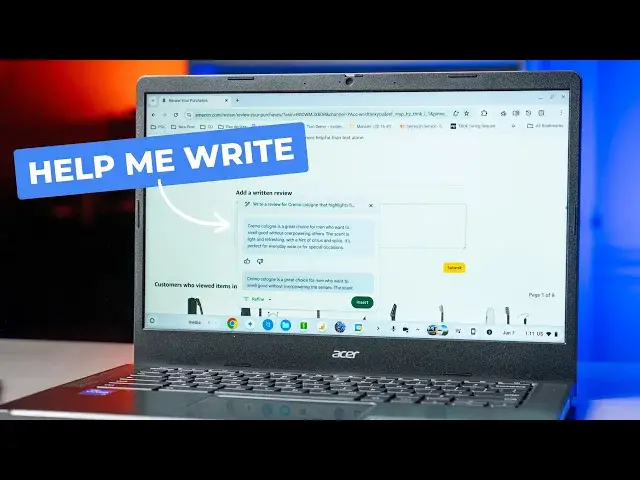
Of the new features that were unveiled at Google’s latest Chromebook event, ‘Help me write’ is likely the one most people are talking about. With all the AI jargon going around these days, it can be easy to misunderstand how some of these new tools actually work, so we wanted to clarify a few things to help some of you know when it is time to fully take advantage of a new feature, and when it probably isn’t the right place to do so.
📰 Read more: https://chromeunboxed.com/understanding-how-and-when-to-use-help-me-write-on-a-chromebook/
👉 Get 12-months of Gemini Advanced on older Chromebook Plus models: https://chromeunboxed.com/how-to-get-perk-12-months-of-gemini-advanced-with-older-chromebook-plus-models/
📧 Join our newsletter: http://bit.ly/2WjCDm7
・・・・・・・
☕ Fueled by Fresh Roasted Coffee! Buy the special edition Chrome Unboxed bag here: https://chromeunboxed.com/coffee
Subscribe to the channel: http://bit.ly/2xFuj6L
Follow us: https://www.instagram.com/chromeunboxed
Show More Show Less View Video Transcript
0:00
Of all the new stuff that showed up in ChromeOS 125 to kind of go along with Google's new
0:05
announcement of all the new Chromebook Plus models and all the new Chromebook Plus features
0:10
probably the most talked about one and maybe the most anticipated of these new features is
0:17
Help Me Right. It's something we've been talking about since October of last year when they first
0:21
announced Chromebook Plus to begin with. And it's finally here. And we've had a few questions
0:26
about how it works, like when you should use it and when you should use a different tool. So we just kind of wanted to go a little bit deeper into this particular part of ChromeOS
0:34
125 for Chromebook Plus in this version of ChromeOS and beyond. But before we get into that, I wanted to talk to you really quickly about our enhanced Chrome
0:49
Unboxed Plus community. And so we've had this type of community off and on for the last few years
0:55
but we've really kind of changed things up now. And we're super excited about it
0:59
We're seeing all kinds of growth and lots of new people in there. Great discussion
1:04
All sorts of benefits from being a part of Chrome Unbox Plus
1:08
You can find out more about it at Chromeunbox.com forward slash join. But we're doing stuff like exclusive giveaways, AMAs with the ChromeOS team
1:16
You get an ad-free experience on the website. You're also getting an ad-free podcast
1:21
It's two bucks a month. And I'm telling you the community is vibrant and awesome
1:25
So if you haven't yet, go check it out. I think it's something a lot of you would be very interested in
1:31
And again, it's just a community that's growing and is just a fun thing to be a part of
1:36
So real quick, before we get in on the Chromebook, like, what has helped me write
1:40
If you haven't seen this before, if you've maybe just kind of heard about it, the idea is pretty simple
1:44
And we've seen it a little bit in, like, in Chrome on other platforms. And you've probably heard this term used in some of Google's other services
1:52
We're going to get to that in a second. But the idea is where you are right in flow, right
1:57
regardless of what website you're on or what you're doing at the time
2:03
Chromebooks now, if Chromebook Plus has this feature called Help Me Write, you right click into a text field
2:08
and immediately you have the option to help you create small snippets of text
2:13
to rephrase things. I'm going to show you all those features that go along with this
2:19
but that simple idea, the simple way to say it is this is a way for you
2:24
when you need to write shorter text snippets, whether it in X or Facebook or you writing a review on Amazon or something You can quite get the words right or you just don like the way it sounds This is a tool to help you do that without having to go open Gemini or go open chat
2:38
GPT or something like that. It's right in line. It works. I want to show it to you and then show you Google's other versions of this same tool that work
2:46
in some of their other services and some of the confusion that's come up because of that
2:50
So let's just hop in here. So first up we have X pulled up here
2:55
and so if anything weird pops up in my feed, apologies ahead of time
3:00
You never know. It looks like apparently biggest burn in television history with Alex Trebek is playing right there
3:05
So say I want to go in here. Let's just use that. Yeah, that's a good thing to do
3:10
I want to write, I don't know, a tweet about Jeopardy and how much I like Jeopardy
3:16
I'm not quite sure what to say. So I'm going to right click in here. Boom. Help me write pops up immediately
3:21
And so I'm going to click in here and say, let's see, write
3:25
a tweet. We still call them tweets even though it's X. That makes sense, right
3:30
Write a tweet about Alex Trebek and, oh, we'll do the SNL parody
3:40
SNL parity with Will Ferrell. Just see what it comes up with. That was right off the cuff
3:48
There we go. SNL is so funny. Love Alex Trebek parody. I spelled his name wrong
3:52
NBC, not sure if ever left, it's hard. Will Ferrell? Okay, you get the gist
3:58
A handful of options here. But now I can click into Refine. I can have it rephrase
4:03
I can emojiify it. Let me just do that real quick, so you can see, it just adds a bunch of emojis where
4:08
you know, this isn't a great tweet, I guess, for emojis. But, you know, if it was something about, I don't know
4:15
a phone or writing something, you know, would use pencils and all that kind of stuff
4:19
Let's go, I want to formalize. formalize this. Let's be real formal about this. The current episode of S&L is absolutely hilarious
4:27
The Alex Trebek parody with Will Ferrell was particularly enjoyable. Very formal
4:32
Anyway, you get the idea. So there's multiple ways we can change. We can shorten this
4:37
That was already pretty short. And now you got it down to just one sentence. So there's a handful of ways you can do
4:43
stuff. Say, though, I'm going to go to my profile here. And I'm actually going to grab
4:49
I'm trying to find a longer tweet here. Someone grab this tweet here and then go into the post
4:58
I going to put that there and then just hit rephrase And so I got to select my stuff here Sorry There we go Now go rephrase And oh it because I have a link in there
5:11
Sorry about that. So, rephrase. And so you see my original tweet there
5:18
And then you've got some other options. You can thumbs up, thumbs down the stuff that you like and help the model learn a little bit better about what you do and don't like
5:28
But you get the gist. here. This is going to give you a way to quickly write a short snippet of text. And what that does is that
5:34
leads directly into someone thinking, well, this would be great for email, right? This would be an
5:39
awesome tool for me to use to send just a quick email reply. So now I'm in my email. I'm in
5:46
Gmail here. And I'm like, oh, okay, I need to write, let's see, I need to write an email about
5:54
I need a new coffee mug for my desk. Well, I go in here, I go, cool, I'm going to do that
5:59
Where is it? Where's the help me write thing? Well, of course, it's not there because Gmail already has helped me write built in
6:05
So if we go down here to the bottom, you can see right there, help me write. Click into it
6:09
Same exact thing pops up here. Help me write an email asking for a new mug for my desk
6:23
See what it comes up, but that's an absurd thing to ask it. But hi there, I'm writing to request a new mug for my desk
6:28
My curd mug is chipped and cracked and I'd appreciate a replacement. Thanks
6:33
Just don't click send with your name and brackets there that would look kind of dumb
6:38
But you get the idea here. And so now I'm going to go over to Google Docs
6:43
Help Me Right is right there at the top. Again, you got to have Gemini and be paying for this kind of stuff
6:49
And what's really cool with Chromebook Plus right now at ChromeUnbox.com, we'll put a link in the description
6:55
Remind me, put a link in the description. we'll put a link in the description to the article that helps you even if you've got a device prior to all these new announcements
7:03
you can still snag one year of Gemini advanced it comes with Gemini in like docs and Gmail and all that stuff
7:10
but I'm going to hit help me write let's see um let me click in there first a letter to my mom for mother's day
7:24
Don do this Make sure and write your letters please I don know why that popped into my head but that what popped into my head There you go You going to get a hallmark card here So what going to happen Yeah And so obviously you know we can refine this This is AI after all So we can click in here and make some custom things
7:43
Can you make it more poetic? And again, it's Gemini. It's the Gemini model that's kind of being infused into these spaces
7:53
But the main point I wanted to get to here, look, it wrote a poem. It could be good
7:58
I'm not going to spend the time to read it. But the point is here, is this is inflow
8:02
It's right in line. But if you don't know what you're doing with it
8:06
some people's first instinct would have been to go to Gmail, to go to docs, a place where they can write
8:11
and try to pull up, help me write, to help them write something
8:15
And it wouldn't work. And then you're like, oh, crap, why I'm not getting this? I don't understand why this isn't working
8:20
This is why. It is meant for places where Google hasn't already put Gemini
8:25
and AI models into their stuff. So, I mean, WhatsApp, Google messages
8:30
Actually, I think messages might have some AI stuff built in. So it's either going to be, you know, the Chromebook, letting the Chromebook do this stuff
8:37
which has helped me write as built onto ChromeOS. So it's anywhere you have a text field that already isn't taken up by Google's own AI stuff in their products
8:47
But, you know, you can use it wherever you want to. Anywhere you need it
8:51
You need to write an Amazon review. You need to write whatever. You can use, help me write anywhere that, you know, AI isn't already there
8:57
And so it's wildly helpful. And again, once you kind of understand, how to use it and what you can do with it, it's becoming more and more a thing that I'm starting
9:05
to rely on. And not so much to create content as to maybe just spice it up a little bit, to rephrase
9:11
something to maybe like, I got too off the cuff. Let's formalize that a little bit. Let's
9:15
let's change the tone of that particular tweet or that particular message. I'm getting ready to send
9:20
And I think those types of AI are wildly helpful. And there are things that Chrome OS is getting
9:26
right, that Google's getting right with Chromebooks right now in AI. It's something that can be
9:30
delivered very easily, very quickly, right where you are, right in flow of what you're doing
9:35
I love it. I'm hoping this video helps you make the most of this new feature
9:39
I think it's something a lot of us that use Chromebooks are going to find a lot of worth and value in
9:44
But guys, that's it for this one. If you like this video, give us a thumbs up, head down there, hit subscribe, and be sure
9:49
to ring the notification icon as well. If you'd like to be alerted when we make future videos just like this one, until next time
9:55
We'll see you
#Internet Software
#Social Network Apps & Add-Ons