Up next in 10



THIS WILL WORK ON ANY CHROMEBOOK - INCLUDING THE ARM VERSIONS!
Sponsored by NordVPN. Try it out and get 75% off a three-year plan for a limited time! Click here: https://chromeunboxed.com/nordvpn
Shop Chromebooks on Amazon: https://fave.co/2OuedYL
・・・・・・・
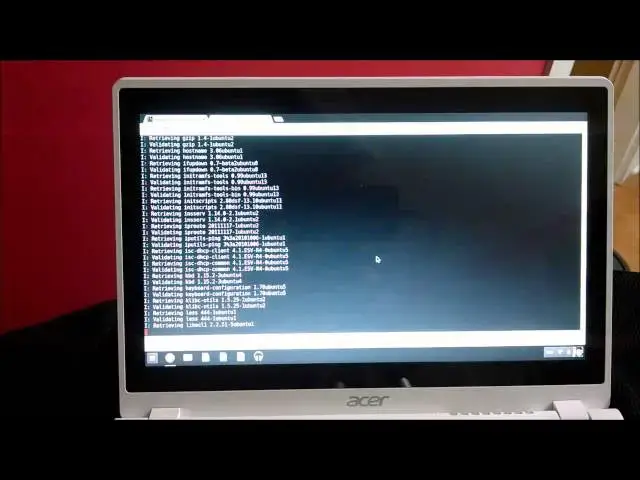
In this video, I give an in-depth tutorial on installing Ubuntu (Linux) on your Chromebook. The video is a bit lengthy, but is very thorough. Between it and the description below, you should have everything you need here in one place to get Ubuntu up and running on your Chromebook.
Hope you don't run into any issues, but if you do, feel free to leave them in the comments and I will try and help the best I can.
Thanks for watching!
LINKS:
Lifehacker How-To article:
http://lifehacker.com/how-to-install-linux-on-a-chromebook-and-unlock-its-ful-509039343
Show More Show Less View Video Transcript
0:01
hey folks Robbie Pay Here Again with chrome unboxed today we're going to be doing uh
0:07
as quickly as we can an install of Ubuntu Linux uh with the unity desktop
0:14
and I'll show you um there's some things you can change as far as the way that you uh type in the commands if you want
0:21
to install xfce um I I like Unity a little bit better just cuz the the user interface
0:27
looks a little bit better but it is a bit heavier uh we'll get into that in a few minutes this video is going to be
0:32
chopped up a little bit because there's some stuff that we got to do in between that just takes time and so bear with me
0:38
I'm going to try to condense it as much as possible but this is the Acer C720 uh P 2600 this is the white
0:46
touchcreen Acer C720 I've also got unboxings and we have a review up um probably not at the time
0:54
that this video goes up but shortly after we'll have a review up this device as well but I wanted to use something
0:59
that just came out of the box it was fresh it was new so you knew that I didn't really do anything else to the
1:04
device I literally just unboxed it probably an hour and a half ago so it is
1:09
new it's running fresh uh version of Chrome so we're I'm going to take you through each step as it goes first off I
1:15
want to give a big shout out to Life Hacker um there there's a ton of sites that give you a walkth through but every
1:21
time I do this I actually go right back to this one I've got it bookmarked uh and just reminds me of the steps I need
1:27
to go through so uh you could simply do a Google search search for um uh just
1:32
type in life haacker Chromebook Ubuntu or Chromebook Linux install those kind
1:37
of words uh it'll be the first thing that pops up as long as you put Life Hacker into that search anyway you'll get this article um at the top we'll see
1:45
it is titled how to install Linux on a Chromebook um and technically you could just follow this cuz that's all I'm
1:51
going to do U but I've had a lot of people where I've referred this article too and they still kind of want to see a Hands-On version of it so that's why
1:57
we're we're going to this so I'm let's get past all the stuff it's kind of explaining why you want to do this at this point if you're searching for this
2:03
I'm assuming you know why you want to put Linux on uh your device maybe there's an app or something like that
2:08
that you're really interested in getting running on your Chromebook or you want a fuller desktop experience than Chrome OS
2:14
can offer there's a a very uh wide arrangement of reasons that people do
2:19
this for me there's a couple specific apps uh applications that I need um one
2:25
of them is a kind of full-on SVG editor inkscape which I hope one day will be
2:30
made for Chrome OS um and used to I used to go and use filezilla as an FTP client
2:37
in Linux uh now I actually use a service called Cloud9 uh that is a fully
2:43
cloud-based uh coding FTP Solutions fantastic love it very much so the only
2:49
thing I really ever use in Linux uh when I flip over to it and you'll see how quick and easy that is as well the only
2:55
thing I use is um um an SVG editor inkscape so um to each his own you may
3:01
just be wanting to mess around see what you can do with this guy so either way we're going to walk through this um and
3:07
and do it step by step so the first thing Step One enable developer mode this is all these steps are pretty
3:13
simple but this is the one that requires pretty much zero code whatsoever so you you'll read in the description here
3:18
basically you're going to press and hold Escape in the refresh key um which I don't have my keyboard showing here but
3:24
you know right at the top so escape and then the fourth button on the top row
3:29
um and it's actually going to reboot the Chromebook into recovery mode we'll hit contrl d uh we'll press enter to
3:36
continue and then it takes a little bit of time so I'm going to show you that so escape and refresh I'm going to hold
3:48
those and power button sorry I had to get around
3:55
here and then it's going to bring up this thing do not fret control
4:01
D so control D brings up this screen it says turn off turn OS verification off
4:07
press enter it's what we want to do so we're going to press enter you'll next be prompted with this
4:13
screen always verification off we want to leave that alone now you can sit here and wait and I believe it'll beep at you
4:19
after maybe 30 seconds or a minute or you can just do contr D
4:25
again and now Chrome is going to realize hey you booted into developer mode and we haven't done that yet so it's gives
4:30
you a little message up in the corner up here you'll see uh it's saying that you got 23 seconds um and in here you're
4:38
getting local system data is transitioning to developer mode local data has been cleared so that's
4:43
something thing to note if you have done anything thus far at this point you either want to back out um you turn it
4:49
off real quick and back out of this save your stuff that's locally stored most people don't store local um excuse that
4:56
notification there and preparing system for developer mode okay and this is
5:01
going to take some time um I want to say 10 to 15 minutes usually what this takes so we're going to take a quick break uh
5:07
we'll come back when this is done and we'll continue on all right and we're back after that little 10-minute thing I
5:13
want to show you something that does this automatically but the first time I went through this process I kind of
5:19
freaked out so whenever you turn your Chromebook on now this is what it's going to show OS verifications off press
5:24
space to reenable if you let it sit here for a minute and I'm going to let it do that just so you can hear what I'm
5:29
talking about you're going to get this kind of weird like system beep uh it's a little strange so hopefully they'll do
5:35
that here in just a second see you hear that I kind of freaked out the first time it did that
5:41
with me I didn't really know what was going on now in in the future whenever you do restart would you don't have to do this very often on Chromebook when
5:47
you do restart if you want to skip that screen as soon as it begins as soon as that pops up you can just do a contrl d
5:54
uh and move right past that screen no big deal now as it said this is going going
5:59
to completely wipe your Chromebook so you do have to resign in fun
6:08
stuff like I said I want to show you everything um the entire process and so
6:14
it's going to be just like Chromebooks brand new again uh for better for worse so again if you do have uh any local
6:22
files whether there be pictures or something you've downloaded a couple files here or there that you have not
6:28
saved a drive you need to make sure and get those uh get those things backed up
6:34
before you start this process and it does warn you of that just in case you forget but it Bears
6:42
repeating so if you're going to get a new Chromebook and you're going to do this right off the right off the get-go just do do it first thing that's why I
6:48
went ah do this video now CU really I can't get a feel of how this thing works until I have uh my Linux setup on it as
6:55
well so let's get through yes yes welcome to Chrome good deal okay so
7:01
we're signed in it might be a little sluggish here at the beginning uh because it's going to start installing
7:06
all my stuff um so it's it'll take it just a minute to kind of catch up with what we're doing but while it's
7:12
attempting to do that I keep forgetting this is a touch screen and I can just touch it so like I said before just talk Life
7:19
Hacker um and I've done this quite a few times but uh
7:27
Chromebook open to I said I've done this quite a few times
7:32
I don't have all the steps completely memorized I wasn't joking when I said I go back to this um live hacker article
7:39
pretty much every time um and as I said there's a variety so the next thing we're going to have to do we're in
7:45
developer mode now so that's awesome step two install Crouton now Crouton if you don't know by this point Crouton is
7:51
the um the script basically that's going to install Linux for you uh runs inside
7:57
of chrome so we need to downlo download from this page um want to click this and
8:04
this is going to take us to a GitHub and basically gives you the latest uh Chrome it tells you a little
8:10
bit about it which is kind of cool too uh things that you wanted to keep now um a good point uh 12.04 is what this will
8:19
install uh for you you are free to upgrade uh there you can find distributions and you can find separate
8:26
things for that if you want to for me personally because I'm not using this as a full-blown Linux device um 12.04 is
8:34
fine uh but if you if you really want to push it um you can there are there are guides how to do
8:40
that where is the
8:52
download I missed it somewhere
9:22
sorry guys it's been a little while I've done this here we go grab the light so under
9:29
usage like I said some of this stuff isn't the easiest stuff to find but when you scroll down so you got some
9:35
questions Crouton what is it what is it what is it prerequisites usage boom there we
9:40
go this should make any of you who are watching this video to to do this feel a little bit better um like I said I've
9:47
done this on every Chromebook I've had but I forget the stuff between so now you got Crouton downloaded it's in that
9:53
is sitting in your download so we're done with that so we go back to the article
9:58
download it we're going to control alt T now this is a this is something you will memorize and you'll know you'll learn
10:03
some of these commands if you start using some of these things quite a bit so Control Alt is going to bring up the terminal and so I'll show you what that
10:10
looks like brings this up gives a thing at the top say Don't Panic don't freak out um you made it here uh probably on
10:18
purpose so it's fine no big deal um you can type help for a list of commands but
10:23
the next thing we need to do is shell and this is anytime you're going to do anything you going need to get
10:28
into the the shell so come back over here and it says that there type shell
10:34
and you get into where we were next run the following commands to install Crouton so we've got this command uh
10:40
here and I can't remember I don't want to do xfce
10:46
but and I'm going to try the touch one since I'm using the touch
10:53
oops just to see so I going to try to copy this in here I don't remember if I can or not
10:59
Y and then you just do a right click which is a two finger tap um and it goes in there now touch is fine but I want to
11:07
do Unity so if you want xfce do that I
11:13
changed this last line here to Unity so going to do that we're going to hit enter now it gives you a couple things
11:20
it says okay we're downloading some stuff we're doing some things let's go back over that's running in a in a
11:26
separate window so to get touch string support uh you can also do some encryption stuff
11:32
here I've never I've never done that um this is again going to take some time um
11:37
and it tells you about the unity stuff right here so right underneath
11:44
that um you can see change xfce to Unity
11:49
um and honestly guys this is about it um I need to let this go uh it's going
11:57
to take a little bit this is again takes another 10 15 minutes so this whole process can take up to 30 minutes uh not
12:02
because it's difficult just because it takes time to download and do this stuff it takes time to get you into developer
12:08
Mon and it takes time to download and install Crouton and uh get everything running now after this is over I don't
12:14
know uh when I first had the HP um I did this with my first Chromebook and the
12:20
mouse is almost unusable you had to almost lay your fingers real flat on it it wouldn't pick up fingertips it was really strange um that was wrong and
12:27
then the um the cursor on the mouse would disappear when hovering over certain items and so it was almost it
12:33
was borderline unusable especially an inkcap which I said before is basically what the only thing I use Linux for my
12:38
cursor would just disappear on the canvas and inkscape so I did a lot of digging uh that evening cuz um I knew if
12:45
that if I couldn't get that to work then that having a Chromebook was just not going to work out for me and I really didn't want that to be the case so I did
12:52
a whole lot of digging and I found two tutorials um and I will link I'm going to link to all this stuff in the bottom
12:58
the life hacker art CC Le um the uh tutorials to fix them the mouse all that
13:04
good stuff so all those links will be down there in the in the description but
13:10
um there were two things I needed to fix on the HP now I went through some other Chromebooks came back to the HP did the
13:16
same process and the mouse drivers were fixed so I think uh the guys you know running Crouton are are are fixing small
13:23
things like this uh The Disappearing uh cursor was still an issue but I'll have the links down down there both of the
13:30
fixes are actually pretty simple you just have to get into a terminal once you get into your um chosen interface um
13:38
and I think both of them now come with a terminal there was a little while that Unity actually after you installed it didn't have a terminal program so you
13:44
had to get back out into the shell and do some command line stuff to actually go get um a terminal program in order to
13:51
use it or do all the installs straight from the from the shell so um I know lot that maybe sounds uh a little bit
13:58
complicated I really don't know my way around Linux at all um other than what I've done with a Chromebook so um if I
14:05
can learn it you you guys can learn it too um but hopefully um I'll add like I
14:10
said I'll add here in just a second the uh extra stuff for the mouse and then we'll be done with this video and be
14:15
wrapped up and at least you can get into that make sure your mouse is working and you can start using uh Linux and I I'll
14:21
I'll show you as well how to at least use the simple terminology to get uh in unity you can download the uh Ubuntu to
14:29
uh I forget what it's called it's kind of like their App Store and basically it's just a nice front end instead of
14:35
having to use some different commands to get applications you can use it so uh I'm going to take another break and let
14:41
this guy do its thing and then I'll show you what's up whenever we get back and we'll work on the mouse all right guys
14:47
we are back now after uh actually installing uh Linux and pretty much
14:53
ready to go I don't know if you can read that at the bottom of the screen but down here what it says at the end when it's all said and done and and it does
14:59
take a good 15 minutes or so maybe longer I don't know I walked away and just kind of came back a couple times be
15:06
sure not to touch the keyboard uh in the middle of it that will mess up some stuff and then you you have to do a
15:11
power wash and start over again so just trying to save you some time here um at
15:17
the end though it's going to finally get to this point where you have a cursor and it says specify username for primary user so um this will just kind of be
15:24
your username for Linux and so I'm going to type in mine whatever you want that
15:29
to be hit enter and then it's going to ask for a password and the cursor won't move as you're typing this so be aware
15:35
of that and then it'll ask you to verify it
15:42
again okay it's going to give you some tips um and then say some things like um
15:49
here it's telling you again I'm unsure depending on the screen you're looking at you may not be able to read some of this uh saying you can do Control Alt
15:56
shift Back Control Alt shift forward to jump back and forth between desktops and it's incredibly handy um so the control
16:03
shift buttons are right down in the bottom corner so hold all three of those and then these Arrow buttons here um if
16:09
I'm in Chrome OS you hold all three of those press forward and you're into Linux uh immediately I'll do that here
16:15
in just a second to show you um and then you would hit back to go back if you
16:20
continue hitting forward you actually can open up uh multiple instances of of Linux and so it can get a little
16:26
confusing so you definitely want to use back to go back to Chrome and for to go to to Linux um anyway uh once you get to
16:33
this point you can just uh type start oh pseudo sorry you got to do
16:40
pseudo everything start unity and hit
16:50
enter well oh whoops sorry I put a space there have
16:57
it the start Unity and if you did xfce you just start xfce um and you're going
17:02
to see boom we're in unity desktop now cool thing is again I'm going to hold down here on the left you can't see but
17:08
shift control uh Control Alt shift I'm going to hold those down and I'm going to press the back arrow and that quickly you are back
17:17
into uh Chrome and when you go back if you see that screen you can close that once
17:23
you've started Linux it's going to ask you if you want to leave this page it's fine it's not a big deal and so you can
17:28
see we're in we're in chrome chrome chrome chrome and I'm going to hold control shift forward bam I mean it's
17:36
that fast you're back in your uh in your desktop now if you did um this one I
17:42
can't speak for xfc it's been a while since I've installed it uh if we click this Dash home up here it gives you a
17:47
search and um before I say anything else the mouse fix part one not necessary
17:52
here uh mouse works just fine it actually works really well I'm just curious to see and yeah touch Works cool
18:00
I've not used touch on this yet so that's okay U so what we're going to do actually is uh just go up to the top
18:06
here um click that um and you're going to search for terminal
18:13
um and I believe either one will work this is actually just going to give you
18:18
the command prompt um that you could get to outside a shell um in Chrome you can
18:24
actually do a couple commands and get there this is just easier on the user interface and let me grab my Chromebook
18:31
the other
18:36
one I've actually got this site pulled up um with enough digging you can find
18:43
it um but unfortunately I can't copy paste from one to the next so I'm going
18:50
to set my HP down and just read right off it and type this again this will be
18:57
in the the comment section below uh the description so you can see uh what it is
19:04
that I'm typing so it's Pudo
19:13
CP R share
19:23
icons DMZ Das
19:29
and you'll want to type all this exactly as I put it in the comments
19:37
below space
20:02
just about
20:11
there I'm going to ask for my
20:17
password and that should have done it so we'll see let's open the settings
20:22
here now I'll probably have to restart it
20:35
yes going to log out and we'll do a new shell so this is what you'll do normally
20:41
if you want to if you reboot it if you don't reboot it stays open so we're get in the shell and we're going to start
20:47
pseudo start Unity pseudo start
20:56
Unity hopefully that took we'll see yep and now we see we don't get the
21:03
flickering Mouse anymore um it's something with there's a particular animation or something that it should be
21:08
drawing on certain things and it just isn't um and so somebody was smart enough to figure out that was the case
21:15
and all that command line did was basically replace that little animation with the pointer so the pointer never
21:21
disappears which is awesome the last thing I need to show you to kind of get started is if you go
21:27
back here again and go your terminal um if you do a little bit of Google searching you'll see that one of
21:34
the most important things to do in Linux is to do apt get a-g and so you want to run that pseudo
21:40
which I'm not sure what that means I'm sure some people are going to make fun of me because I don't know Linux that
21:46
well but um so I'm going to do pseudo AP get um and it is escaping me
21:54
um I think it's software Center
22:00
try that oh I need to do install
22:10
sorry cool that was the right word uh yes I want to continue anything that's going to take up space it always asks
22:16
you if you want to continue um so the the command is pseudo sudo
22:22
a-g install space install um and then whatever you want to install so for
22:29
instance if in the repositories uh inkscape is what the thing I've mentioned a couple times I use it a lot
22:35
um I can go through and then do pseudo space apt get Space install space
22:41
inkscape and it will do this exact process it will install inkscape ready to go ready to rock and rolling what I'm showing you here is uh once this gets
22:49
done installing here in just a minute um it's going to give you kind of an app store uh software Center um I said app
22:55
store or something like it earlier this is going to give you the ubu software Center and it's basically anything you
23:01
want you can just search it click it install it it does it it's a nice user interface you can kind of this will be
23:07
the last prompt stuff you necessarily have to get with there are going to be some things that aren't in software Center that if if you're if you're
23:14
digging that deep and finding stuff like that that probably doesn't exist there you probably know what you're doing with Linux anyway so um hopefully this will
23:22
help we're going to let this go looks like it's at 93% so I'll just let this finish without cutting away
23:29
here um and and we're pretty much done um the
23:34
other I I'll leave a link to the other Mouse fix but it seems like uh with uh Crouton they fix the mouse problems cuz
23:41
this is the uh I've installed on this one and the HP um so that's two different manufacturers and the mouse
23:47
works just fine so it looks like they fixed uh whatever those little bugs are never had an issue with the Samsung
23:53
Series 3 uh didn't have an issue with the original Acer uh um so that that
24:00
pretty much knocks all of them out at this point so this process should work just fine sorry looks like it's doing a
24:06
couple other things hopefully this will be done in just a
24:14
second if this gets if this gets painfully long I will cut away for sure
24:34
one other uh thing to keep in mind I did not mentioned earlier there is one shared folder between the two uh
24:40
environments and that is your downloads folder so that can come in pretty handy you can actually work on things um
24:46
between environments as long as you're putting them in that downloads folder uh the only problem with that is I believe
24:54
there are a few workarounds if I understand correctly uh there are handful of workarounds you can use um to
25:02
get Google Drive working and the Linux environment I just have not done those
25:08
um I I I used to work around basically working out of that downloads folder
25:13
until I'm done for the day and then I just make sure that my downloads folder gets cleaned up so a lot of times that's
25:18
just a lot of copy and pasting and moving things to where they need to go anyway but that's my normal work habit
25:23
anyway on a Windows machine too I usually work out of that downloads or a desktop folder or something and then
25:29
when I'm done at the end of the day I usually go and clean all that stuff up so if that's the way you work just that
25:35
downloads folders kind of your your link between the two so we're going to go up here and search software Center boom bo
25:43
to software Center we touch that this is going to open up and should be just a very nice interface you can search you
25:51
can um there there's categories and all that kind of stuff we've all used app app places that's what this is about to
25:58
give you a simple place to go um and install your apps um one thing I would
26:04
suggest a lot of people suggest is to go in and actually in your settings um under your display I believe
26:11
it is I forget where this stuff is you want to turn off your screen saver in Linux
26:18
um from what I understand it can cause when it's running in the background it can start to cause some issues that may not be an issue anymore
26:25
um just don't want to do not di the screen never turn it
26:32
off no log um of course unless you're going to
26:39
live completely in this environment then obviously it's a different thing
26:46
um Power maybe that's it so we don't want to suspend
26:52
anything which is good uh
27:00
good to go
27:11
there cool two finger tap does a right click that's nice uh change desktop
27:16
background so this is all familiar stuff
27:25
um that stinks I was under the impression there were
27:31
more of these maybe not um there are a couple that are
27:36
pretty good it works uh
27:42
Behavior am let's look under appearance right no that's same
27:51
thing and let's see
27:59
see if I can search it screen
28:13
saver perhaps it's not in here I don't know if you dig around find screen saver I would I would suggest turning it off
28:20
um just so you don't cause issues and again back to Chrome that quick and you
28:25
can always close this it's going to ask you yes you can leave that page and so I mean you can literally be right in the
28:30
middle of typing something and
28:37
bounce I say that probably can't be actually typing
28:46
something that's odd
29:02
may have been advertently logged out or something I'm not sure and so my point
29:10
was you can bounce right back and forth between the two
29:17
environments something I'm doing is making it upset I'm not sure what
29:24
um that's kind of odd probably might might could use a reset
29:31
um I've changed a lot of stuff and so it's probably needs to be reset uh but in general you can bounce back and forth
29:38
uh usually in a normal workday I may go back and forth 20 times and a lot of times my my instance of Linux is still
29:45
sitting there long after I'd forgotten about it um and so your mileage is going to vary you're going to run into some
29:51
some things that do and don't work from time to time but for the most part this is a way you can get uh full working uh
29:58
Linux going and and hopefully fill in the gaps until the day that Chrome OS gets to the point where it doesn't need
30:04
this anymore and so that's what I'm looking forward to probably you are too um but hopefully this helps if you have
30:10
any questions leave them in the comments below I do my best to try to get back to people uh on questions I feel like need
30:15
to be answered um please understand if you're asking questions like um can you
30:21
install Linux on a Chromebook I'm probably not going to spend the time to answer I got a lot of questions that come so I'm not going to spend the time
30:26
to answer those questions if it's answered in the video but if if you run into some issues I'll try to help
30:31
troubleshoot with you um but there's not a whole lot you know usually if something messes up you do a power wash
30:37
and start over so um anyway I hope this helps you guys out um if you haven't
30:43
subscribed already subscribe to the channel um there's just going to be more and more Chrome OS Chromebook Chromebase
30:50
stuff coming uh down the pipe this is going to be an exciting year I think when it comes to Chrome and Chrome OS and so um hopefully you'll subscribe to
30:57
the channel check out my website Chrome unboxed decom uh there's some more news and
31:04
tidbits that don't get on the YouTube channel and so the two together really give you hopefully a pretty holistic
31:10
source of chrome news um and everything related to Chrome Chrome OS Chromebooks
31:15
and all the all the like stuff so you guys have a good day thanks for checking it out uh thanks for following thanks
31:21
for subscribing and I'll see you next time
#Operating Systems