Up next in 10

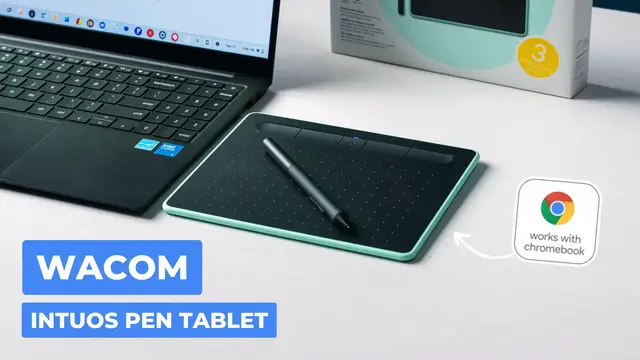
Easily Add Pen Support To Your Non-Touch Chromebook
Dec 19, 2024


👉 Join Chrome Unboxed Plus for access to our private Discord, an ad-free website experience, ad-free podcast, AMAs, exclusive giveaways, and more! Start your 7-day FREE TRIAL here: https://chromeunboxed.com/join/
👉 Shop the Wacom Intuos Pen Tablet (wireless) here: https://howl.link/6ud67hxerrblq ($99.99)
👉 Shop the Wacom Intuos Pen Tablet (wired) here: https://howl.link/p3cx1aozwgl96 ($49.95)
📧 Subscribe to our newsletter: http://bit.ly/2WjCDm7
・・・・・・・
☕ Fueled by Fresh Roasted Coffee! Buy the special edition Chrome Unboxed bag here: https://chromeunboxed.com/coffee
Subscribe to the channel: http://bit.ly/2xFuj6L
Follow us: https://x.com/chromeunboxed
https://www.instagram.com/chromeunboxed
https://www.threads.net/@chromeunboxed
https://www.facebook.com/Chromeunboxed
Show More Show Less View Video Transcript
0:00
on the desk in front of me are two items
0:02
one you probably know a lot about the
0:03
Samsung Galaxy Chromebook plus and one
0:05
you probably don't know much about the
0:08
Wacom inos Graphics tablet uh it works
0:11
for Windows Mac Chromebook all that kind
0:15
of stuff it's 50 bucks and it gives you
0:17
a very real way to add pen support to
0:20
devices like this one that don't even
0:22
have a
0:26
touchscreen so you've probably heard the
0:29
uh the company name Wacom before um some
0:32
of the early styluses that were in
0:34
Chromebooks were actually Wacom EMR
0:37
styluses and all that kind of stuff
0:39
they've been at this for a very very
0:41
long time and they have tablet like
0:43
Graphics tablets that are far more
0:45
expensive than this one uh this is this
0:47
is just a really cool kind of entry
0:49
level option uh and that's what became
0:51
so intriguing uh about it to me is that
0:54
you could get a wireless pin some of the
0:56
older tablets had like wired pins that
0:58
felt a little clunky uh um you can get
1:01
really really good pen input support you
1:03
get some buttons that you can customize
1:05
up here for 50 bucks and that's not on
1:07
sale I think when we got this one I
1:09
think it was on sale for like 10 bucks
1:10
off uh it actually will hook up
1:12
wirelessly as well so uh it's really
1:15
cool and we just I don't know just kind
1:16
of wanted to show show you what it looks
1:19
like actually using it uh cuz there are
1:21
a couple little quirks with using a
1:23
graphics tablet in the way that it works
1:24
with the mouse pointer uh so I wanted to
1:26
show you how uh for 50 bucks you can
1:29
basically just plug this thing into a
1:30
Chromebook that doesn't even have a
1:31
touchcreen and and achieve some some
1:34
pretty decent pen and and inking uh in
1:36
Chrome OS okay so I've got this thing
1:38
all plugged in it just has a a little
1:41
connector cable that plugs in through
1:42
USB type A it does do a Bluetooth
1:44
connection uh we'll talk about that in
1:46
just a second but the like the
1:48
smoothness of it on screen isn't as
1:50
smooth like uh it probably won't bother
1:52
me on this screen but on my uh desktop
1:55
where I've got 120 HZ screen or if
1:56
you're on something like the 516 G from
1:59
a you're going to run into issues
2:01
because uh the the Bluetooth mode won't
2:03
do the 120 HZ refresh you can definitely
2:06
tell it's it's 60 so uh we'll get it
2:08
paired up here in just a second and kind
2:09
of see what it does it's a 60 HZ screen
2:11
on the Samsung but in your settings as
2:13
soon as you plug it in uh there's
2:15
actually an option for pen tablet right
2:17
there on the screen now before I do any
2:19
navigating I'm going to explain how this
2:21
works so all of all of these graphic
2:23
tablets are the same so say I put my
2:26
mouse cursor right here in the middle of
2:27
the screen it's not like I'm swiping on
2:30
here to move the mouse around it's going
2:33
to go wherever the pen tip goes relative
2:36
to the uh the pad so if I go to the
2:39
upper left corner here and get the pin
2:42
close you can see now my mouse cursor is
2:44
here if I want to go to the center I'm
2:46
going to go to the center of the pad
2:48
bottom right upper left that takes a
2:51
minute to get used to if you're going to
2:52
use this as like a navigating tool it
2:54
does take a minute to get used to cuz
2:56
you just I I tended to want to sit there
2:57
and like to like slpe it like a trackpad
3:00
it is not a trackpad uh so to make no
3:02
mistake that's not what what we're
3:04
dealing with here um but there's a
3:06
couple buttons on the pin there's four
3:08
programmable buttons up here we're going
3:10
to talk about that now but so once I get
3:12
this down here I can hover it and you
3:15
can kind of see it moving to where I
3:16
want to go so I'm going to go to pen
3:17
tablet and just tap and because I don't
3:20
have my button set up right now so you
3:22
can see it picks up on the tablet name
3:24
right there uh I'm going to customize my
3:26
pen buttons real quick I'd like my front
3:28
button to be a left click I just kind of
3:31
like that because then I can hover and
3:34
I'll make my rear button a right click
3:35
how about that so now once I back out of
3:38
this and that's saved I can I can be
3:40
hovering and actually click my left
3:42
button and and go in like that feels
3:45
pretty natural to me and then this
3:47
button being you can make it back you
3:49
can make it quite a few things so
3:50
Express key is what they call these
3:52
there's four of them across the top here
3:54
um so say I want to make the the F the
3:57
left and right one say I want to go uh
3:59
um I want to make
4:01
them um overview I feel like I did yeah
4:06
create key combo so we'll do that so say
4:08
I want to make this my left and right
4:10
virtual desks I'm going to do my virtual
4:12
desk shortcut I'm going click
4:14
save and key combination on this
4:18
one I'm going to go the other
4:21
way save I think you got to back out
4:23
before those work but now I can virtual
4:25
desk with those super handy if you're
4:27
using this to navigate again options are
4:30
endless you can make them back Keys you
4:31
can do any key combo you want and you
4:33
can do that same thing with the the
4:34
buttons here so you can really kind of
4:36
customize this thing down um and again
4:38
once you get used to the fact that hey I
4:40
want to I want to go hit that minus uh
4:42
that minimize button up there I'm not
4:44
swiping my way there I just put the pen
4:46
up there and I'm there and then I can
4:48
use my left click I just created good to
4:50
go and I'm going to go down here and I'm
4:52
going to actually open up uh cursive and
4:56
um just we got a pin here yep
5:00
and you can see I mean it's very very
5:02
very responsive I mean there's just no
5:04
lag whatsoever there um and you would
5:07
think that this would be weird but
5:09
there's something about the fact that it
5:12
stays relative to the pad and relative
5:14
to the screen that it you just after a
5:17
second of doing it it's not hard to find
5:20
your way around the space of the screen
5:23
um like I said it takes a minute to get
5:25
used to but that's not a big deal really
5:27
once you if you need pen support like if
5:30
you're constantly writing and marking up
5:32
PDFs all the time this is a super handy
5:34
tool you take a screenshot here I'll
5:36
take a screenshot right now so boom
5:38
we'll do that we'll do full
5:41
screen take
5:43
capture and then we're going to edit
5:45
this
5:46
guy and say I need to mark this thing up
5:49
I don't do this very often if you can't
5:51
tell and I'm going to go uhuh don't do
5:53
that don't do
5:55
that uh we like this Smiley it's good
5:59
good I mean just no lag that feels great
6:03
I can hit done up here I can save that
6:06
and and I can move on and send that in
6:08
an email or whatever and so you get the
6:10
like even though I can't go up here and
6:11
ride on the screen like after just a few
6:14
seconds of using this it's like your
6:15
brain figures it out and just kind of
6:17
makes this work now for me that's the
6:18
way that I would use it um I would just
6:20
plug it in when I need it unplug it when
6:22
I don't but like I said there is a
6:23
Bluetooth method and to be fair I didn't
6:27
try this on a non 120 HZ screen so you
6:30
just hold your power button down for a
6:32
second it's going to start
6:34
blinking and we're going to go down
6:37
here just like You' pair any other
6:39
device Wacom shows up and we paired up
6:42
let's just see yeah I mean you can
6:44
definitely see I'm hoping the camera's
6:46
picking up on that like it's not missing
6:49
the spaces you can just kind of tell
6:51
like it's not lagging so as soon as I go
6:54
somewhere it gets there it's like the
6:55
frame rate's low so ultimately when it
6:58
comes down to writing
7:00
let's see
7:02
I yeah it just looks different it looks
7:05
weird to me and it so that breaks some
7:06
of it um if all you're doing is like
7:09
going going I'm going to circle this
7:11
we're going to x that out and we're
7:12
going to check mark here and scribble
7:14
this and circle that if you're doing
7:16
that kind of stuff honestly um the
7:19
Bluetooth mode would work but the lag of
7:21
it if you're going to be writing or
7:23
sketching anything I really feel like
7:24
just hooking it in with a cable uh is
7:26
probably the way to go but yeah I mean
7:28
it's a pretty simple way any in an
7:29
affordable way really cuz I mean if a
7:31
good Stylus is going to cost you 40 50
7:33
bucks for that you're getting the stylus
7:34
you're getting the cable you're getting
7:36
the pad uh you're getting bluetooth
7:37
support all that kind of stuff and you
7:39
can hook this up to any Chromebook it's
7:40
going to work with any any Chrome OS
7:42
device uh it'll work with u um Chrome
7:45
boxes if you wanted Chrome bases it
7:47
doesn't matter Chrome OS will work with
7:48
this thing just plug it in uh it's Plug
7:50
and Play Chrome OS clearly understands
7:52
that it's uh a Wacom tablet and works
7:56
very very well with it so if you are
7:58
holding out buying something like the
8:00
Samsung Galaxy Chromebook plus and going
8:02
ah I just needed some sort of pen
8:04
support um and you know that was the
8:07
main reason you didn't pick it up Well
8:09
here here's a $50 accessory that you can
8:11
get uh to actually add some some pretty
8:14
usable really reliable pen support uh
8:17
via the Wacom N20 tablet but guys that's
8:19
it for this one if you enjoyed this
8:21
video give us a thumbs up head down
8:22
there hit that subscribe button be sure
8:24
to ring the notification icon as well if
8:26
you'd like to be alerted when we make
8:27
future videos just like this one tell
8:29
next time we'll see you
8:32
[Music]
#Laptops & Notebooks
#Consumer Electronics
#Software
#Mobile Apps & Add-Ons