Up next in 10

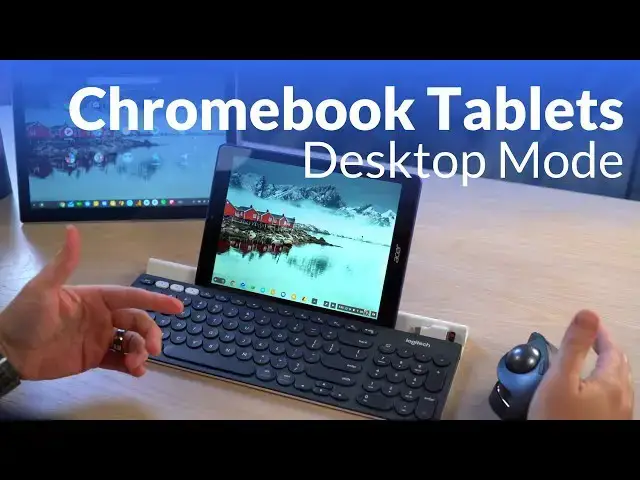
Chromebook Tablets and Desktop Mode
Sep 12, 2018


With all the development around Chrome OS tablets from both a software and hardware standpoint, one thing has been lacking until now: the ability to truly use a Chrome OS Tablet as a full desktop replacement.
// Shop on Amazon:
Logitech MX Ergo - https://amzn.to/2xaixAu
Logitech K780 Keyboard - https://amzn.to/2NyJ2cW
Google Pixelbook (i7, 16 GB RAM, 512 GB) - https://amzn.to/2x7vdHZ
Google Pixelbook (i5, 8 GB RAM, 128GB) - https://amzn.to/2QnwJP1
Acer Chromebook Tab 10 - https://amzn.to/2p0sqwH
// Read more: https://chromeunboxed.com/news/chromebook-tablets-getting-proper-desktop-mode-video/
// Follow us: https://www.instagram.com/chromeunboxed
https://twitter.com/chromeunboxed
https://www.facebook.com/Chromeunboxed
https://plus.google.com/+Chromeunboxed
Show More Show Less View Video Transcript
0:00
[Music]
0:07
so Chrome OS has come a long way in the
0:10
last few years from hardware to software
0:11
we've seen all sorts of changes right
0:13
we've we've got new features and all
0:16
these new things coming and we'll blink
0:18
right up here all the stuff that's
0:19
coming for tablets specifically in
0:21
Chrome OS 70 but you know we've got
0:23
convertibles now we've got clam shells
0:25
we've got tablets we've got detachable
0:27
z' like the HP x2 and so the it's it's
0:30
very diverse and there's a lot of stuff
0:31
going on and Google is doing a good job
0:33
of trying to really bring in a lot of
0:35
the good stuff from Android to make the
0:36
tablet experience better but one of the
0:39
things that's been missing especially
0:40
for me when I consider could I actually
0:42
use a Chrome OS tablet on a daily basis
0:47
is actually the desktop portion of using
0:50
one of those devices and it only came to
0:51
mind when I did the review of the Acer
0:54
Chromebook Tab 10 so I took this device
0:57
and said well let me try to work from it
0:59
for a day you know I used it at home and
1:00
and for you know with the kids and that
1:02
kind of stuff and that's that's fair so
1:04
that's kind of where this thing is aimed
1:05
but I wanted to use it a couple days at
1:07
work and so I was like well I got to get
1:10
a keyboard on it so you know paired up a
1:12
keyboard and paired up a mouse but then
1:14
you're still stuck in one app per page
1:16
you know because it's still in tablet
1:17
mode and so I went and dug around in
1:19
flags and found a way to turn off tablet
1:22
mode and it was janky and broken and it
1:24
just wasn't a good experience and it was
1:26
really difficult to use as a desktop
1:28
replacement and so I found myself kind
1:31
of frustrated with that because I would
1:32
love to be able to say this or something
1:34
a little bit larger it's kind of it's my
1:35
device you know and I use it at home to
1:37
read books and and consume content but
1:39
when I get to work I can I could drop it
1:41
in something and it's it's kind of my
1:42
all-in-one device and as far as I could
1:45
see at the time that just wasn't the
1:47
case but it looks like along with all
1:49
the other things that are coming in
1:51
Chrome OS 70 this is kind of a hidden
1:53
feature that I stumbled upon and it
1:55
brings the desktop experience to Chrome
1:58
OS tablets right out of the box without
2:00
any setup so let's take a look at it so
2:02
as you can see here we've got the Acer
2:03
Chromebook Tab 10 at the pixel book back
2:06
here and this thing is not plugged in
2:08
this is the Logitech K 780 and the
2:11
Logitech
2:12
MX ergo the trackball Mouse will throw
2:16
links to both of these in the
2:17
description use both of these on a daily
2:19
basis and they're really really awesome
2:20
anyway so they are both hooked in
2:23
through their USB dongle this keyboard
2:26
can actually hook up via just bluetooth
2:28
to either one of these devices if you
2:30
want it's just simpler to use this and
2:32
as soon as you plug it in you're ready
2:33
to go so anyway you can see we're in a
2:35
tablet mode here because this is a
2:37
tablet it doesn't leave tablet mode and
2:39
less told to do otherwise and so with
2:42
the latest update to Chrome OS 68 you
2:46
can tell there's some some work being
2:47
done already on this and I'll show you
2:49
some of the differences between what's
2:50
happening here and then in the beta
2:52
channel right now and how this will all
2:53
kind of take place but as soon as I plug
2:56
a keyboard mouse in now so I sit say I
2:58
sit down and I'm hooking this into
3:00
imagine a whole dock that hooks to my
3:02
display and all that kind of stuff as
3:04
soon as I plug it in you'll see some
3:06
stink things change immediately so the
3:08
the Shelf changed to what looks more
3:10
like the desktop setting and then I'll
3:13
show you again with open up an instance
3:16
of Chrome when I unhook it or full-page
3:18
right so there's I'm either closed or
3:22
open there's nothing else in between
3:24
the minute I plug this in you're gonna
3:27
see the ability now to resize and move
3:31
my windows around and the same thing
3:33
would happen with an extended display
3:34
the additional thing that helps here is
3:38
that instead of just using the interior
3:42
display if you're extending your display
3:44
in tablet mode all you can do is mirror
3:46
your displays but in desktop mode you
3:48
can actually extend the display and so I
3:49
have two different resolutions running
3:50
same thing applies here at least in the
3:53
dev channel we've not tested that on the
3:55
stable Channel as this this feature in
3:56
general has just now started rolling out
3:58
to the stable channel but one of the
4:01
things you can see so far in the stable
4:02
Channel that they've emitted is now that
4:04
I'm in desktop mode I'm not using a
4:06
Chrome OS keyboard so I think the
4:08
brightness numbers are f7 f8 somewhere
4:11
in there I have to guess sometimes and
4:15
so they've taken the brightness slider
4:16
out of here and you'll see in a second
4:18
on the pixel book that it's they they
4:19
leave it there even when you're in
4:20
desktop mode the other thing you'll see
4:23
different here is that that multitasking
4:25
button that shows
4:26
up again and pull this out that button
4:27
there so in a clamshell if you flip it
4:29
around into tablet mode you always get
4:31
this button here that gives you your
4:32
multitasking on the pixel book I'll show
4:35
you in just a second it's actually gonna
4:36
that's going to stay there so you're
4:38
almost seeing instead of it going
4:39
straight to desktop and straight to
4:42
tablet mode you're actually seeing it
4:44
going through this sort of hybrid mode
4:46
where it knows hey I'm still a tablet
4:47
but I can I can actually knock out some
4:49
desktop stuff too so let's bring the
4:51
pixel book up and I'll show you some of
4:54
that stuff so this one is running it's
4:55
in the dev Channel on Chrome OS 70 so
4:59
again with Chrome OS 70 your home screen
5:02
is your app tray and so the minute I
5:04
plug the mouse and keyboard in sorry
5:08
I'll flip it over that way and now
5:11
you're in desktop mode and so I can
5:12
actually do a window to applications
5:15
just like I normally would
5:16
snapping works just the way you'd expect
5:18
it to everything would work just the way
5:21
you would fully expect a desktop
5:23
scenario to look but you still have your
5:25
little multitasking button down here and
5:26
it still does its job but it almost is
5:29
like it's letting you know hey yeah I'm
5:31
a tablet being used as a desktop right
5:33
now I'm not completely switching modes
5:35
but what this is going to give users the
5:38
ability to do is have a tablet form
5:41
factor like this they can carry around
5:42
and use as a tablet
5:43
all they want in the minute they add any
5:46
this thing these are obviously our
5:47
third-party keyboard and mouse here you
5:50
can add any keyboard mouse combination
5:52
you want in the minute you do that it's
5:53
going to automatically recognize hey
5:55
I've got a keyboard mouse this person is
5:56
ready to get productive now we're
5:58
flipping into a mode that's closer to a
5:59
desktop mode you can drag your windows
6:02
around and do all the things you would
6:03
normally do and everything's gonna
6:04
behave the way you would expect it to on
6:06
a chrome box or a normal clamshell
6:08
Chromebook and honestly that's that's a
6:10
huge huge step in the right direction
6:12
for Chrome OS tablets because Chrome OS
6:14
tablets in general are gonna run into
6:16
the issue of not being as productive as
6:18
you want them to be and run into the
6:20
same problems that a Murray tablets have
6:22
and an iOS tablets have and not being
6:25
able to get all of the work done you
6:26
want to get done there are people that
6:28
would work from iPads if you if you gave
6:30
them the chance and there's just some
6:32
things that are lacking there now you
6:33
have something that can run Android apps
6:35
and do all your consumption in tablet
6:37
form factor all you want and then
6:38
you're ready to drop this thing into a
6:40
dock boom you have a full desktop OS and
6:44
you're not missing anything on either
6:45
side by going the tablet route so it's a
6:48
really cool move forward for Chrome OS
6:50
and and applause to the developers I
6:52
don't I didn't know this was even on the
6:54
radar I just kind of figured that was
6:55
one of those things that was gonna annoy
6:56
me for a long time and I would just get
6:58
over it and so it's really cool to see
7:00
it being a part of this entire Chrome OS
7:03
70 thing so guys that's that's about it
7:06
it's a cool new feature there's so many
7:08
cool new features we can't wait to the
7:11
new event to the new Google devices come
7:13
out and and we can't wait to see where
7:15
Chrome OS is going and in the fourth
7:17
quarter of 2018 and beyond and so if you
7:20
like this give it a thumbs up hit that
7:21
subscribe button down below and until
7:23
next time we'll see you
7:25
[Music]
#Laptops & Notebooks