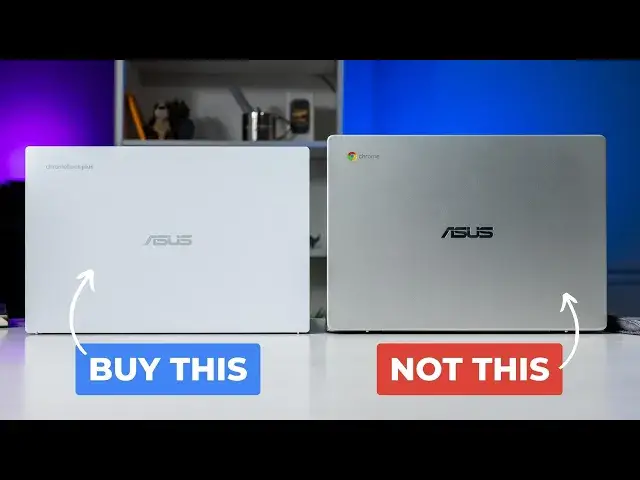
0:00
As we're making this video, there's no getting around the time of year we're currently in
0:05
With it being Q4, there are sales and deals and closeouts and clearances everywhere you look
0:11
And as we're in the thick of this season where searching for the best deal is pretty important
0:17
we thought it'd be a good time to make a video that could help people sort through all of that noise when it comes to sales and discounts
0:25
If you know a few things to look for, you should be all set to avoid buying a Chromebook that you'd be you
0:30
you'll regret later. Following these simple guidelines should get you down to a few Chromebooks that
0:34
at the end of the day, you're going to really love using. And that's what's most important, right
0:40
So let's get started. All right. So number one, avoid Amazon. We don't usually blast retailers
0:50
like this, but for Chromebooks, Amazon has become a bit of a wasteland. Even if you know the exact
0:56
model you're after, it can be hard to know who you're buying it from. If the price is even in the realm of
1:03
reality, and if that model even matches your expectations, with flat out misleading titles that
1:09
put things like 2023 in the description for a device that was like five years old, we just can't
1:16
recommend anyone's shop there for a Chromebook when there are better options like Best Buy, Walmart, Costco
1:23
and Target. Number two, use filters to sort by on sale and deals Depending on where you go to shop we recommend Best Buy most of the time You should be able to filter your results by terms like discounted on sale or something similar So instead of waiting through all of the regular price devices you only be seeing the stuff that is on sale It makes comparing and contrasting
1:47
Chromebooks you want to buy far simpler, and you'll be able to make your decision a lot
1:52
faster if you do this. Number three, check the processor. Now this is getting into the important
1:58
stuff. Probably the most crucial thing that we can tell you to do is to check the processor
2:03
under the hood of the Chromebook that you intend to purchase. While it was
2:06
would be nice if there was a single guideline to stick to, there just isn't. And it's not really
2:12
that simple at this point. We're getting closer to that point with the introduction of Chromebook
2:16
plus models, but there are some insane deals on great devices that aren't Chromebook Plus certified
2:22
right now. So you don't want to blindly miss out on those deals either. So here's how we'd go about
2:28
recommending deals for someone asking when it comes to processors. First, just see if there's a
2:34
Chromebook Plus model that matches your price point. If so, you know that you're buying a great
2:39
device and you don't really have to worry. All of the new Chromebook Plus models are clearly
2:44
labeled and we've included a link down in the description for all of the existing models that got
2:49
the upgrade. If you aren't liking what you see in the Chromebook Plus selection, there are a few
2:54
other processors to look for. We'll only list a few below. And since there are so many amazing
3:00
deals on current Chromebook models, there's really no need to go buy a device with a two or
3:06
three year old chip inside at this point. We'll throw up that short list on the screen for a few seconds, free to check it out
3:17
All right so number four check the RAM and storage Anytime you buying a Chromebook you need to pay attention to the RAM and storage Again Chromebook Plus devices solve this for you but I highly recommend springing for a device with at least 8 gigabytes of RAM if you can
3:36
If not, 4 gigs isn't a deal breaker. There are some great devices out there with only 4 gigs of RAM like the Lenovo Slim 3
3:44
So it's not really a deal breaker. Also, if you can stay at or above 64 gigabytes of storage, you'll weed out many of the bad
3:51
Chromebooks you may accidentally buy just because of some crazy deal. Trust me, you don't want to mess with a device that only has 32 gigabytes of storage
4:00
so just don't even consider those. All right, number five, check the screen
4:04
Get as many details on the display as you can. Most of your spec lists are going to show you the brightness rating on the screen
4:12
and that is very important. If you're choosing between two similarly priced Chromebooks that one has a 350 knit screen and the other has a 250 knit screen, you might as well go with the brighter screen, but also pay attention to the resolution and screen size too
4:28
It sounds obvious, but just don't get so blinded by a great deal that you forget what you're using the device for
4:35
If it's going to be your primary screen all day, you probably don't want a 12-inch device like the Lenovo Flex 3i, even if you're going to be your primary screen all day, you probably don't want a 12-inch device like the Lenovo Flex 3i
4:43
even if it has a 1080p screen with 300 nits. If you need more screen space
4:48
just let that guide your purchase. Finally, in most cases, if they don't list the screen brightness
4:54
it's probably on the dimmer side at 220 or 250 nits. It not a deal breaker but again if you comparing two devices that are close in price you want to choose the brighter screen Also if you stick to the processor list we already talk through I don think you have to worry about getting anything under 1080P
5:14
But just in case, let me say this, do not go buy a Chromebook with a 1366 by 768 screen
5:22
Just don't do it. And number six, check Chrome Unboxed. I'll close with this
5:27
It's tough to shield yourself against a bad purchase when, prices get so low. That's why we review Chromebooks all of the time around here. And even though we
5:37
constantly do, we've not had time to get our hands on every single one of them. If you're unsure about
5:43
a purchase, check both our unboxings and reviews here on YouTube. And there's a good chance
5:49
that you'll find a more in-depth look at the device you are considering. So there you have it. We
5:53
really do hope that this helps you make your purchase decision this time of year. We try to highlight
6:00
deals and create reviews that help guide consumers through this process of buying a device that
6:04
so many times can be a bit of an unknown. We want to do all that we can to assist in that
6:09
process, and we really do think that if you follow the guidelines laid out in this video
6:14
you'll make a purchase that you or whoever you're buying it for will be happy with for a very
6:19
long time. But that's it for this one. If you enjoyed this video, give us a thumbs up. If you loved it
6:24
make sure to go down there and click subscribe. And if you want to get an alert whenever we put out
6:29
future videos kind of like this one or just like this one, make sure to go down there and click
6:33
the notification bell. But that's it for this one. See you