Up next in 10



Sponsored by NordVPN. For a limited time, grab the 3-year plan with 70% off! Click here: https://chromeunboxed.com/nordvpn
・・・・・・・
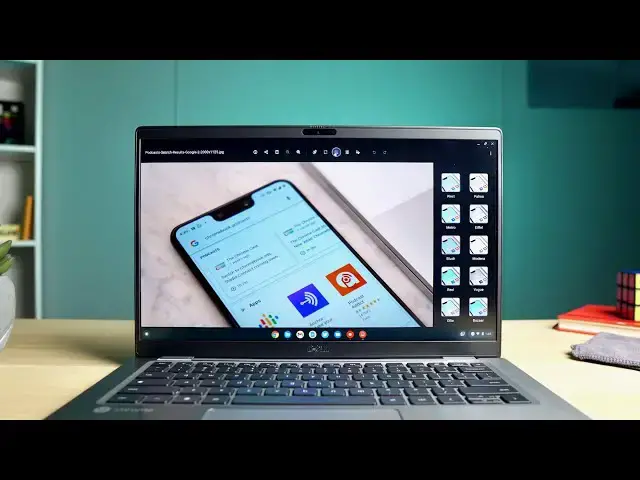
When the new Chrome OS Media App first began showing up for users, we were excited by the new look of the application. What wasn't so exciting was the lack of any new functionality. Essentially, the new Media App wasn't that different than what we had before and simply retained the abilities of the old version but updated the paint job. We've known for some time that this wouldn't remain the case, but we've not seen any of those changes until now.
Right now in the Developer Channel of Chrome OS 89, some notable new additions are present in the Media App that really enhance the app's overall usability, so we fired up a device, moved to the Developer Channel and started testing some things out. Here's the most notable changes on the way.
Read more: https://chromeunboxed.com/chromebook-media-app-new-features-filters-annotation
Join our newsletter: http://bit.ly/2WjCDm7
・・・・・・・
Join our Patreon community for exclusive extras, an ad-free website experience, access to our private Discord server, and more: https://www.patreon.com/chromeunboxed
Shop Chromebooks on CHROME SHOP: https://chrmshop.com/
Subscribe to the channel: http://bit.ly/2xFuj6L
The Music We Use - PERFECT for YouTube: http://bit.ly/31W6PYP
Show More Show Less View Video Transcript
0:00
in recent months the new media app for
0:02
chromebooks has rolled out and
0:04
though it looks a lot nicer than what we
0:06
used to have when you would go to
0:07
doubleclick media from your files app
0:09
it really didn't do anything different
0:11
but that's all getting ready to change
0:13
as we're starting to see some new
0:14
features actually rolling into
0:16
the media app in the developer channel
0:18
of chrome os right now so we want to
0:20
take a look at a few of them
0:22
[Music]
0:25
before we dive in this video is brought
0:26
to you by nordvpn they're the vpn of
0:28
choice for millions of consumers because
0:30
they're awesome at what they do
0:31
keeping your browsing safe and secure
0:33
whether you're at home or on the go
0:35
if you'd like to check them out and see
0:36
what they're all about head over to
0:37
chromeunbox.com forward slash
0:39
nordvpn where you can learn more and get
0:41
started today okay so
0:42
let's jump in and like we always say
0:45
when we talk about features showing up
0:46
in the developer channel
0:48
you need to approach this with a bit of
0:49
caution because there can be crashes
0:52
and instability and all that kind of
0:53
stuff in these developer channels and
0:55
then when we start talking about adding
0:56
flags
0:57
additionally to that you could run into
0:59
some problems so
1:00
keep that in mind if none of those
1:02
things scare you then you know
1:03
give it a try if you want to but as far
1:05
as the flags go if you head to your
1:07
flags chrome colon forward slash forward
1:09
slash flags
1:10
you're going to see i've enabled media
1:12
app annotation which is one of the
1:13
things we're going to talk about
1:15
and then we've also done media app pdf
1:17
in
1:18
ink so those will make sense here in
1:20
just a second but the
1:21
bulk of all of these new features are
1:23
just available already out of the box
1:25
when you're in the developer channel
1:27
this is chrome os
1:28
89 at this point there's still no way to
1:31
open the media app
1:32
just as a standalone application i'm
1:34
hoping that they just
1:35
make this a thing where you can open it
1:37
and because it has the ability to open
1:39
files but to get there if you go to your
1:41
file manager
1:42
i've downloaded a couple things here so
1:44
i'm going to open up this once you
1:45
double click on
1:46
an item it will open up this nice new
1:49
media application and you can see
1:51
we've got a photo here and there are
1:53
some new options available if you're
1:55
used to looking at this thing that
1:56
you'll notice right off the bat
1:58
but the first thing i want to cover is
1:59
the fact that as soon as you get this
2:01
three dot overlay
2:02
you get down to experiments and there's
2:05
all this stuff
2:06
down here that you can add and so one of
2:08
those things
2:09
are zoom tools the new color filter tool
2:12
so i'm going to click that and enable it
2:13
and you see it pop
2:14
up up there additionally in experiments
2:17
it's hard to read here but if you look
2:19
it says
2:19
enable auto fix tool so what that's
2:22
telling me is that it's not there yet
2:24
you can't select it yet but in a second
2:26
i'm going to show you why it is we
2:28
believe that that means you're getting
2:29
an autofix similar to what you see in
2:31
google photos very soon
2:33
one other thing i want to note in this
2:35
experiment is the fact that we have the
2:36
ability to save
2:37
xf data and display exif data
2:41
for now it doesn't seem like that's
2:42
working the way it should if you
2:44
click on for instance in a file in the
2:47
files application you hit the space bar
2:49
you get all this nice exif data over
2:51
here
2:51
location image info if that actual image
2:55
has image info i grabbed this off the
2:56
website so it didn't have it but
2:58
if this was a photo that we had taken
3:00
you would see the exif data from our
3:02
camera on there telling you f-stop
3:04
numbers and resolution and all that kind
3:06
of stuff
3:07
you see that in the files app but if i
3:09
click out into
3:10
the new media app and i click this info
3:13
button all you really see is the
3:14
the size the resolution and the date it
3:17
was last modified
3:18
but clearly there's a space here where
3:20
this exif data will live
3:21
at some point in the future so you can
3:23
expect exif data and you can expect an
3:25
automatic filter similar again to what
3:27
we see in google photos okay so let's
3:29
talk about a couple of these
3:30
other features that are basically fully
3:33
baked and working right now so
3:35
color filters is one of the ones that we
3:37
turned on if we click into this
3:39
you're going to see these and if you use
3:40
google photos at all
3:42
you're going to notice the names of
3:43
these look very very familiar and it's
3:45
because
3:46
they're the exact same that you see in
3:48
google photos it's why we think when it
3:50
says auto fix we're going to get the
3:52
same type of google photos auto fix but
3:54
you can click on any of these
3:55
and they'll filter some of this stuff
3:57
doesn't move incredibly fast right now
3:59
obviously this again is a developer
4:01
channel
4:02
these are things behind experimental
4:04
flags so
4:05
you know take it easy as far as you know
4:08
judging how fast all this stuff's going
4:09
to work there's probably going to be
4:10
some jank
4:11
in here as we move around but it's
4:13
really cool to be able to see these
4:14
filters
4:15
to be able to do this right here locally
4:17
on your chromebook without having to
4:18
upload the file
4:19
to google photos in order to do
4:20
something with the with the file itself
4:22
and you can see like that filter there
4:24
looks a little weird and i've gone
4:26
through a few filters now and it's
4:27
starting
4:28
and it came back so again realize that
4:31
this is all
4:32
experimental at this point right now and
4:33
so we're going to run into jankiness
4:35
from time to time
4:36
additionally we now have the ability if
4:38
we click this little annotate button
4:39
here
4:40
you can actually write and draw right on
4:42
your photos and so you can change the
4:44
pen
4:44
thickness here you can go to a
4:46
highlighter and we
4:48
obviously change the highlighter
4:49
thickness and you kind of see that that
4:51
gives you
4:52
less opacity so you can actually
4:54
physically highlight stuff without
4:56
completely covering what's underneath of
4:58
it
4:58
and the pen works obviously as you would
5:00
expect as well
5:02
so if i click there and then we go to
5:04
pen and
5:05
we'll go to a thicker pen here let's go
5:08
orange
5:08
and once we click you can just draw
5:11
right on stuff
5:12
again if you're using a pen or a stylus
5:14
this is going to be a lot better but you
5:16
get the idea you can make some scribbles
5:18
uh onto a photo so if somebody sends you
5:20
something you're like hey i like this
5:21
but let me circle that and draw an arrow
5:23
here and
5:24
hey that part i circled is out of line
5:25
or whatever the case may be
5:27
again you can do all this now locally
5:29
right in your files app you'll just
5:30
double click the image
5:31
annotate save and then send it back
5:33
which is honestly a pretty cool and very
5:36
useful
5:37
new trick that this app will be able to
5:38
do finally the app still maintains all
5:40
the other things that you could do with
5:42
it so you know pinch to zoom with your
5:44
with your track pad you can zoom with
5:46
these buttons up here
5:47
you can share to other applications from
5:50
here
5:50
you can crop with multiple presets or
5:54
just do a free crop
5:56
you can additionally resize the image
5:58
with a locked aspect ratio or unlock
6:00
that aspect ratio and skew the image if
6:02
you need to so
6:03
all that stuff's still there and all
6:05
very beneficial honestly and
6:07
we're getting to the point where when
6:08
they start continuing to add these
6:10
features that we're seeing in this app
6:12
it's going to be a really
6:14
full featured application and there's
6:16
even hints in these experiments to the
6:18
fact that we might have some basic video
6:20
editing stuff too
6:21
with the reduced motion here so we tried
6:24
this this literally is doing nothing at
6:26
this point in time but there's no reason
6:28
there would be reduced motion for
6:29
photos hopefully you'd be able to open
6:31
up a video and add some video
6:33
stabilization
6:34
in here and maybe some other filters
6:35
will come along as well and eventually
6:37
eventually
6:38
this thing could become a full-fledged
6:40
media editing application for
6:42
chromebooks but guys that's about it for
6:44
this right now again this is chrome os
6:46
89 we're expecting 88 to roll out the
6:48
end of january so
6:50
another six weeks past that we're
6:51
talking you know early spring kind of
6:53
march time frame probably before we're
6:55
gonna see this
6:56
and it's not even guaranteed at that
6:58
point but what's cool to note
6:59
is the fact that they're just adding
7:01
more and more stuff to this media app
7:03
and it's not just going to be a
7:04
reskinned version of the old thing we
7:05
had
7:06
but it's going to give users tons more
7:08
tools built into the chromebook
7:10
right from the files application i think
7:12
it's going to be a beneficial upgrade
7:14
when it all finally does land in the
7:15
stable channel but that's it for this
7:17
one guys
7:18
if you like this video give us a thumbs
7:19
up go down there and hit that subscribe
7:20
button
7:21
and be sure to ring the notification
7:22
bell as well if you'd like to be alerted
7:24
when we make future videos just like
7:25
this one
7:26
until next time we'll see you
7:29
[Music]
7:41
you
#Software
#Multimedia Software