0:00
Well, here we go. Another Chromebook Plus review. If you haven't yet watched the others, you can check our playlist here on the channel. But the gist of Chromebook Plus, in a nutshell, is this
0:09
Create a solid hardware baseline for new Chromebooks that will help facilitate a greater user experience across the board
0:16
And while hardware specs alone don't 100% translate to user experience, Google has done well with this first batch of Chromebook Plus devices in delivering a universally great experience pretty much across the board
0:28
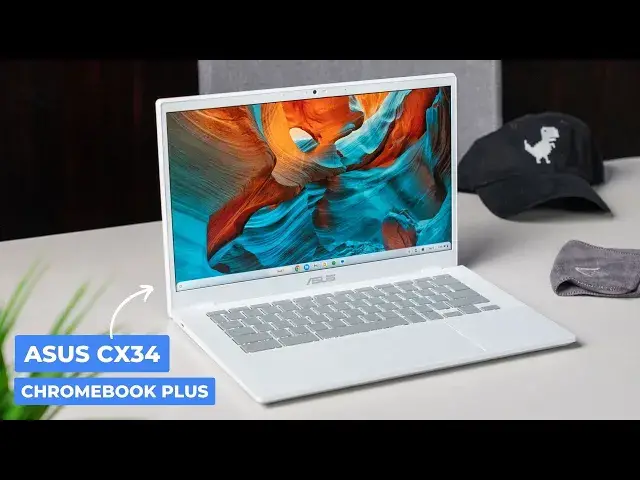
and that includes the device that we're talking about today, the ASUS Chromebook Plus CX-34
0:34
Let's get into it. Now, right off the bat, you'll notice this Chromebook
0:43
It's white, like all-white and angular, and it doesn't really look like any of the other Chromebook Plus models
0:49
at least at this point. And though that all-white chassis is plastic, it's firm, it's rigid
0:53
and it makes the outer portions of this Chromebook one of my favorite features. If it were gray or navy blue
0:58
it would look a lot like most other Asus Chromebooks, but it's not. It's white, and that white
1:03
color looks really sweet, and I'm glad Asus chose to add this little bit of flare. But the
1:07
chassis isn't perfect. Some of the seams are a little bit sharp, and though it does look nice
1:12
the plastic used on the lid and the keyboard deck isn textured and it feels a little cheap to the touch It not like a deal breaker but there are better tactile plastics out there for sure and this ultra surface is a little bit of a turnoff
1:26
And speaking of the keyboard deck, this one comes with a great backlit keyboard that's performed very well for me during my testing period
1:33
There's plenty of travel and feedback, and I was really accurate the entire time I use the CX-34
1:38
My only gripe here comes back to Asus's gray keycaps that look fine when the backlighting is either
1:43
off or fully on, but not really anywhere in between. I've complained about this before
1:48
and the same goes here. You're going to need to adjust it to either extreme every time you open the lid
1:53
And while we're at it, I'll go ahead and give you my only other big gripe with this Chromebook
1:58
the track pad. I found it to be unnecessarily jiggly on the screen. It's not unusable
2:04
but I felt the precision I'm used to from Chromebook trackpags was missing here. Part of that's likely
2:09
the plastic used for the surface, which I found to be nowhere near as good as glass and less smooth
2:13
than most other plastic or mylar track pads. But the other issue was the wobble in the physical click mechanism
2:20
Like we've seen with other Chromebooks in the past, the trackpad isn't quite seated
2:24
in place where it should be and that means you get a little bit of movement before you actually get the track pad down to the physical click mechanism
2:30
Just feels a little janky and cheap and really shakes overall confidence in the track pad when it time to use it However above all that sits a great non screen that hits 300 nits of brightness It got anti coating and generally performs really well
2:45
The colors are punchy. The glare is handled really nicely by the matte finish and the 300 nits gets by in most lighting situations just fine
2:53
It is a standard 14 inch 16 by 9 screen though. So if you were hoping for one of those more spacious 16 by 10 screens, you'll have to look elsewhere
3:00
The camera above that screen is quite good too, coming in at 1080P with the standard Chromebook
3:06
Plus temporal noise reduction, background blur, and lighting corrections all there and ready for you to use
3:11
in any app. The detail on this camera is quite good, and even shooting a selfie with it doesn't look that bad
3:17
I mean, kudos to ASUS for getting this part really right. And pairing that screen and the camera and a decent pair of stereo speakers, you've got a device
3:25
that's pretty great for video calls, but maybe not the best for like longer video watching sessions
3:30
For something like that, I'd just recommend a set of earbuds. And like many of the Chromebook Plus models out there
3:35
the CX34 comes packed with ports, giving you a couple USB type C ports
3:39
a couple USB type A ports, a full-size HDMI port, and a headphone microphone jack
3:44
You won't need a docking solution unless you just want to clean up your cable management on the desk
3:49
And again like other Chromebook plus models it all the speed you need in a Chromebook with roughly 10 hours of battery life under normal circumstances So should you buy this one When all the Chromebook Plus models get the experience
4:01
pretty right, why would you pick this one over the others? Well, for one, the MSRP is pretty good. It sits
4:07
at 399 most days, and that's on the low end of the Chromebook Plus spectrum. But there are constantly
4:13
deals on devices like the Lenovo Flex 5I Chromebook Plus that get below $400. And on a basic level, that's a better
4:21
Chromebook. Similarly, the Lenovo Slim 3-I is better all around than the Asus CX-34, and it
4:27
dips below 400 bucks from time to time, too. And neither of those are flashy, though, and that's what
4:32
the Asus CX-34 really has going for it. If you prefer a little bit more flair for your Chromebook
4:38
Plus, then this one could be a better choice for you. After all, all of these Chromebook Plus devices
4:44
are pretty great overall to use. So if you're really into the all-white chassis and you like a little bit
4:49
more flair, I'd say to go for it. But guys, that's it for this one. If you enjoyed this video
4:54
give us a thumbs up, head down there, hit that subscribe button. And be sure to ring the notification icon as well if you'd like to be alerted when we make future videos just like this one
5:02
Until next time, we'll see you