Up next in 10



Thanks to some reader input, we’ve been made aware that a missing feature we discussed not long ago that is now coming soon to a Chromebook near you.
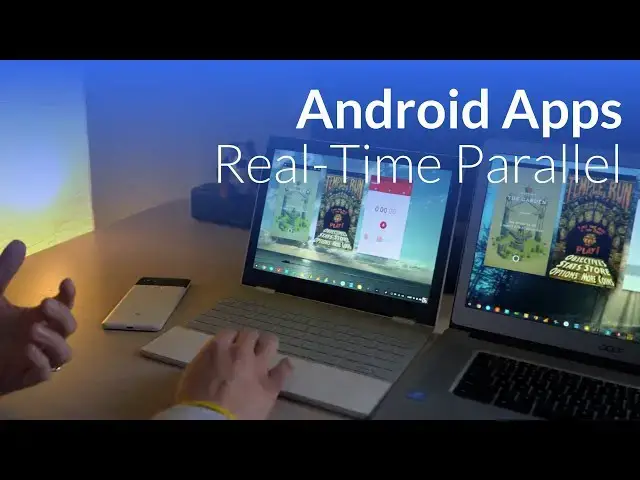
That feature? Android Parallel Tasks.
So, let’s take a minute and break down what this is, why it is needed, and what it does when working as expected.
Show More Show Less View Video Transcript
0:00
[Music]
0:07
hey folks Robbie Payne with chrome
0:09
unboxed and we wanted to do a quick
0:11
video to showcase an upcoming feature
0:14
that should be rolling out within the
0:16
next chrome OS update so right now we're
0:18
seeing this happen on Chrome OS beta in
0:21
64 so whatever stay will hit 64
0:24
hopefully this feature will come along
0:25
what we're talking about today is the
0:27
ability to actually run android apps
0:29
side by side simultaneously so right now
0:31
if you'll take a look here I'm running
0:34
the pixel book on the stable Channel so
0:36
we're in 63 here I've got the Acer
0:38
Chromebook 15 in the beta channel which
0:41
is on 64 and in your Android developer
0:43
settings I'll show you where to get to
0:45
that in just a second you can actually
0:47
turn on the ability for Android apps to
0:49
run in parallel and not paul a state in
0:51
the background so over here on 63 we're
0:53
getting Paul stating I must show you
0:55
what that looks like so say I'm running
0:56
a game right here okay I'm going to
0:59
start this and you see the animations
1:01
kind of moving as soon as I tap her to
1:03
actually move her and then click away
1:05
the game stops I go into here and play
1:08
but the minute I click outside of that
1:11
window
1:12
Paul's game now even more kind of
1:15
frustrating is when I go back that's
1:17
actually let me stick for a minute if I
1:20
move back over here probably long enough
1:22
so let's we'll start this and we'll
1:25
start recording for instance when I come
1:27
back over here you see the animation
1:29
pause here and it's not pausing now
1:33
earlier when I was doing this it
1:34
actually would pause the game and force
1:36
you to to actually hit resume it would
1:38
do this automatically so it's going to
1:40
do that with different things it's gonna
1:42
pause States in different ways and so
1:45
for people coming to Chrome OS from
1:48
something like Windows or Mac OS and
1:49
they open up an Android app and they
1:51
open it up in a window like this you
1:52
would expect fully for the thing to just
1:55
keep running in the background it
1:56
regardless of whether I click on it or
1:58
not and so that's just one of the things
2:00
Android does on phones to say battery
2:01
well you don't really want that on a
2:03
desktop and so we've seen signs that
2:05
that was going to stop and we're
2:07
actually seeing that come through now
2:08
and so over here we got the same apps
2:10
running ok I'm gonna do this
2:12
exact things so we're playing a little
2:14
bit of my name Evalia here I'm also
2:18
going to play some temple run and you
2:19
see everything's still moving and I can
2:21
play over here and if you really want to
2:23
play two games at one time hey you can
2:25
go for it
2:26
and I obviously can't really play both
2:29
of these so I'm probably just gonna let
2:30
him jump off the cliff there meanwhile
2:33
we're gonna be recording our session so
2:35
that we can play this stuff back later
2:37
for me one of the best things that this
2:39
is able to do is something like Google
2:40
Analytics I can have running over here
2:43
real time and every time I move away
2:45
from and it's not gonna reset my screen
2:46
or freeze I'm not gonna put our
2:48
analytics up here for everybody to look
2:49
at but you can kind of see that over
2:51
here we've got stuff running real time
2:54
and no matter whether I switch apps or
2:57
not everything's still running and this
2:59
isn't the most powerful Chromebook in
3:01
the world and it's handling these things
3:02
pretty much just fine so I imagine on a
3:05
pixel book or something like that we're
3:06
gonna be able to run all sorts of
3:07
different things all at the same time
3:09
and what that's going to give everyone
3:11
is a better overall app experience so
3:13
whenever they're going to use and open
3:15
up multiple Android apps to use on the
3:17
desktop whenever they move away from
3:19
them you're not gonna lose the ability
3:22
to keep that app running in the
3:24
foreground because sometimes you know if
3:26
you're working on a graphics intensive
3:27
thing are you working on a word document
3:28
and you move away and it pulls a state
3:31
maybe it doesn't save you're gonna lose
3:32
that work and so this is a massive step
3:35
in the right direction for Chrome OS
3:36
Android apps specifically so it's gonna
3:39
make all this stuff feel a lot more
3:40
native so if you're interested in trying
3:42
this out first you need to move your
3:44
Chromebook over to the beta Channel
3:47
which is pretty simple go to your
3:49
settings over here you're gonna go about
3:51
Chrome OS detail build information and
3:54
channel you're gonna hit change channel
3:56
and you're going to select beta it'll
3:58
download it prompt you to restart and
4:00
you'll be in beta channel you won't lose
4:02
anything moving to beta we've covered
4:04
this before but if you come back from
4:05
beta to stay well it will wipe your
4:07
device so I know that going in
4:09
beforehand if you go to Google Play
4:12
Store at that point and click Google
4:15
Play Store again and then manage and
4:17
repair fences you get your aim Droid
4:18
screen what you'll need to do is go to
4:20
the bottom under about
4:22
of ice and click your build member now
4:25
saying I'm already a developer but if
4:27
you click it I don't know like ten times
4:28
or something it'll start counting down
4:30
and say hey you're a developer which for
4:33
most of us know we're not really a
4:34
developer but it gives you your
4:36
developer options at that point click
4:37
into developer options go all the way to
4:39
the bottom and there's this new thing
4:41
enable parallel running of tasks keep
4:44
visible tasks running when losing focus
4:46
turn that bad boy on close your settings
4:49
and you'll be able to do everything we
4:50
just talked about
4:51
see how that's it guys if you like this
4:53
give it a thumbs up hit that subscribe
4:54
button until next time we'll see you
4:58
[Music]
#Software
#Technology News