Up next in 10



Sponsored by NordVPN. For a limited time, grab the 3-year plan with 70% off! Click here: https://chromeunboxed.com/nordvpn
Enter our On The Run To 200K giveaway: http://bit.ly/runTo200k
・・・・・・・
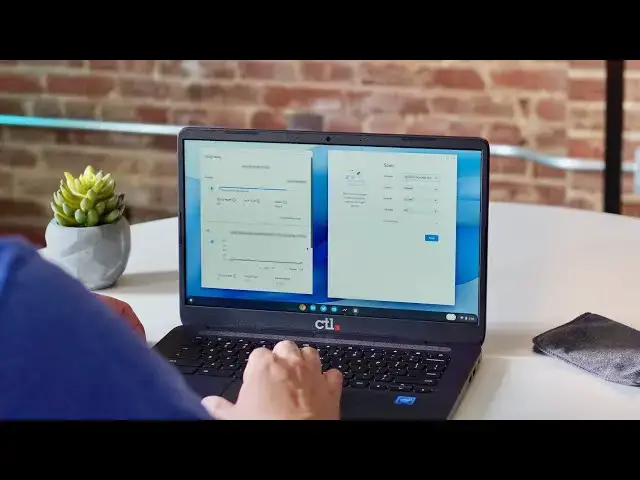
This week, Chrome OS 90 began rolling out for users and though it isn't as feature-packed as the Chrome OS 89 update was, that doesn't mean it didn't come with its fair share of great new tricks. It is worth noting that a few of the announced features aren't quite available here in week one, so we wanted to focus in all some of the cool stuff you can do right now if your Chromebook has taken the upgrade to Chrome OS 90. No flags, no tricks, no extra steps needed. We'll plan an update when things like Enhanced Launcher Search and Live Captions actually show up for everyone, but for now, let's take a look at Chrome OS 90's available new features.
Read more: https://chromeunboxed.com/chrome-os-90-5-features-video-walkthrough/
Join our newsletter: http://bit.ly/2WjCDm7
・・・・・・・
Join our Patreon community for exclusive extras, an ad-free website experience, access to our private Discord server, and more: https://www.patreon.com/chromeunboxed
Shop Chromebooks on CHROME SHOP: https://chrmshop.com/
Subscribe to the channel: http://bit.ly/2xFuj6L
The Music We Use - PERFECT for YouTube: http://bit.ly/31W6PYP
Show More Show Less View Video Transcript
0:00
chrome os 90 is here and it's rolling
0:01
out for lots of
0:03
users and there's a ton of new stuff in
0:05
this update and
0:06
though it's not quite as feature packed
0:08
as 89 was
0:09
there's some cool stuff here and we
0:11
wanted to take you through our top
0:13
five new things that chrome os 90 can do
0:15
that you can access right now no flags
0:17
no extra tricks
0:18
let's take a look
0:20
[Music]
0:23
today's video is brought to you by
0:24
nordvpn they're the vpn of choice for
0:26
millions of consumers because
0:28
they're awesome at what they do and
0:29
that's keeping your browsing safe and
0:30
secure whether you're at home or out and
0:32
about if you'd like to learn more about
0:34
them and their services
0:35
head over to chromeunbox.com forward
0:36
slash nordvpn and you can learn more and
0:39
get started today
0:40
all right let's start off with our first
0:41
feature that is in chrome 90 we've
0:43
talked about
0:44
it before but it's here out of the box
0:45
all you have to do is search for
0:47
scan and you will see the new scanning
0:49
app
0:50
it is here it will look for any printers
0:52
on your local wi-fi
0:53
i've actually loaded up a piece of paper
0:55
in ours real quick so we can actually
0:57
test it here so we're going from the
0:58
flatbed
0:59
scan it to my files that works and
1:03
you can choose your file type here and
1:04
again you could choose a different
1:06
place for it to go when it gets done
1:08
scanning i'm just going to put it in my
1:09
files
1:09
um we'll go to the jpeg and then further
1:13
you can do color
1:14
not color uh black and white grayscale
1:16
type thing
1:17
um then we've got page size we've got
1:19
three different page size
1:21
and then your resolution dpi gonna go
1:23
ahead and hit scan
1:24
and give it just a second and there you
1:27
go as soon as it's done it's going to
1:28
show you a visual preview
1:29
we're good to go we hit done it takes
1:31
you right back to that screen and we can
1:32
see
1:33
it should actually be down here in my
1:34
tote yep scan is right there
1:37
and it's also if you look in your files
1:39
app
1:40
under my files you can see the scan that
1:43
you just did
1:43
like double click it and that new media
1:45
app that came out in the last update
1:47
you can see that and make some edits to
1:49
it mark it up all that kind of stuff if
1:51
you need to
1:51
alright the next feature we're going to
1:52
talk about is window naming and it does
1:54
exactly what you
1:56
would think it would do based on the
1:57
name of it if i open up a chrome window
1:59
and that's kind of all this really works
2:00
on
2:01
if i open up a window and right click up
2:02
here on the top bar
2:04
we now have an option to name the window
2:06
and i can name that window
2:08
eight whatever it doesn't matter you
2:09
name it whatever you need but then when
2:11
you go into your overview mode instead
2:12
of it telling you what it is up here
2:14
it says eight so then if i have multiple
2:16
chrome windows
2:18
with multiple tabs open and i find
2:19
myself in this situation many many times
2:22
where maybe my my gmail has lent itself
2:24
over to
2:25
me opening a few things from my gmail
2:27
but then i have another chrome instance
2:29
somewhere else that has some stuff i'm
2:31
working on whatever
2:32
it's sometimes difficult if i'm going
2:34
down here to look between these i don't
2:36
know which
2:36
chrome instance i'm looking for so this
2:38
almost does me no good a lot of times
2:40
but now i can name this window
2:42
oops over here name this window zero
2:47
and then when i'm looking at these and i
2:48
see them all together i know that's zero
2:50
that's eight you know
2:52
obviously you're gonna name them
2:53
something more creative than that but
2:55
basically this gives you a better way to
2:57
organize and see whenever you go into
2:58
this overview mode or you're using
3:00
virtual desks
3:01
to be able to see which chrome instance
3:03
you're using so if you have multiple
3:04
tabs open
3:05
it's easier to know where you are and
3:07
how to get back to where you need to go
3:09
so the next one we're going to look at
3:10
is the new diagnostics app so let me
3:12
close some of the stuff down here
3:14
so we are all cluttered and if i go to
3:16
search now and search
3:18
diagnostics you see this and we've
3:20
talked about this before we've actually
3:21
put this on video before
3:23
and it's like pre-stages basically when
3:26
it was moving through the developer and
3:28
beta channels but it is here out of the
3:30
box ready for you to try it out and use
3:32
and it does again what you would expect
3:35
it to do it gives you some basic
3:36
diagnostic information about the system
3:39
here and so
3:40
you can see basic things like battery
3:41
health the number of times this is a
3:42
brand new chromebook here
3:43
the number of cycles this battery has
3:45
charged the current charge that it has
3:47
on it you can run a discharge
3:48
chip test and be able to pull that stuff
3:51
out
3:52
you've got your current usage of the cpu
3:55
the temperature is running at the
3:56
current speed it's running at you have a
3:58
battery of tests you can run here as
4:00
well for the cpu
4:01
and then you get into memory and you see
4:03
of the eight gigs how much is actually
4:05
available and you can run tests and
4:06
export all of these sessions
4:08
uh in a log and basically this isn't
4:10
necessarily for
4:12
you as a user to go in and dig through
4:14
and be keeping your eye on this stuff
4:15
hopefully you don't have to mess with
4:17
this stuff but
4:18
in the event that something's going
4:19
wrong and you're trying to to
4:21
troubleshoot your device and figure out
4:22
what is going on maybe there's an
4:25
expert trying to help you over the phone
4:26
or via email or something
4:28
these kind of stats can be very very
4:30
helpful in that
4:31
situation to help them see what's
4:34
happening on your device and that's the
4:35
that's the purpose of this
4:37
new diagnostic tool on to our next
4:39
feature this is another productivity
4:40
focused feature
4:42
and it has to do with tote or holding
4:44
space as we used to call it
4:45
and that's this area down here where
4:47
your recent files are shown
4:49
and this is a feature that i've come to
4:51
use quite a bit
4:52
and the fact that they're adding some
4:53
stuff to it's really cool one of the
4:55
things that they
4:56
have added in chrome os 90 is the
4:57
ability to just remove files from here
4:59
and
5:00
honestly it's one of those things we
5:01
wanted from the get go and all you have
5:03
to do is right click as you would expect
5:04
click remove and boom that thing is gone
5:07
the second thing that they've added to
5:08
tote is the ability to drag
5:10
stuff down into tote as you see my my
5:12
tote's gone i deleted everything out of
5:13
it
5:14
i can't drag something to something
5:15
that's not there so i want to show you a
5:17
quick other tip
5:18
this has actually been around for a
5:19
little bit but if you didn't know if you
5:21
right click a file and click
5:22
pin to shelf it's actually going to pin
5:25
it down there and tote so now i've got a
5:26
tote area to drag something to
5:28
but the bigger highlight here is the
5:30
fact that now any of these additional
5:32
files i can just grab if i know i'm
5:33
going to need this file and i needed to
5:35
get the tote and i
5:36
deleted it and shouldn't have or
5:37
whatever i can just grab this thing
5:39
drag it right down here boop drop it you
5:41
see that animation and now both of those
5:43
files are down here in tote for your use
5:45
whenever you need them
5:46
so the final feature we're going to talk
5:47
about today is the fact that a couple
5:49
google apps
5:50
are actually kind of installing
5:52
themselves as pwas at this point moving
5:55
forward on chromebooks
5:56
and those two apps are youtube and
5:58
google maps so
5:59
if you've had those shortcuts basically
6:01
pinned into your app launcher prior to
6:03
this
6:04
they're just going to try to open
6:05
themselves up as pwas and if you haven't
6:08
you'll see the install script up at the
6:09
top in the url bar pretty prominently
6:12
the next time you try to open these
6:13
things on your chromebook but most
6:15
people have them kind of pinned or
6:16
installed out of the box
6:18
so for new users and you know existing
6:20
users alike
6:21
when you click that youtube link now
6:24
it's still just youtube on the web
6:25
basically but
6:26
you're going to get it in this nice pwa
6:28
fashion same thing goes
6:30
for maps if i click google maps now it
6:33
opens up in its own window
6:34
same functionalities are all there
6:36
everything's there that you need and
6:37
it's going to function just like you
6:38
want
6:39
but google's trying to take some of
6:40
these app experiences and open them up
6:43
as
6:43
separate applications but guys that's it
6:45
for this one we hope this helps you out
6:47
helps you see some of the cool stuff
6:48
that's coming
6:49
in chrome os 90. there are a few
6:50
features that google
6:52
announced whenever they put out their
6:53
chrome os 90 announcement
6:55
that aren't ready yet they aren't
6:56
working they aren't functioning so live
6:58
captions
6:59
some updates to the search bar you know
7:01
with everything button
7:03
that were announced and they don't work
7:04
quite yet or they're they're in the
7:06
process of being rolled out on an
7:07
account level basis
7:08
so when those things do come out we'll
7:10
update and we'll do some
7:12
future videos about chrome os 90 and
7:13
some of the other things you can do
7:15
maybe with some flags and all that kind
7:16
of stuff but we wanted to show you
7:18
some of the cool new things you can do
7:19
right out of the box without having any
7:21
additional setup
7:22
and these are the top five things that
7:23
we really liked and are enjoying so far
7:25
with the update but that's it for this
7:27
one if you liked it give us a thumbs up
7:29
head down there and hit that subscribe
7:30
button and make sure and hit the
7:32
notification bell as well if you'd like
7:33
to be alerted when we make future videos
7:35
just like this one till next time
7:36
we'll see
7:44
[Music]
7:50
you