0:00
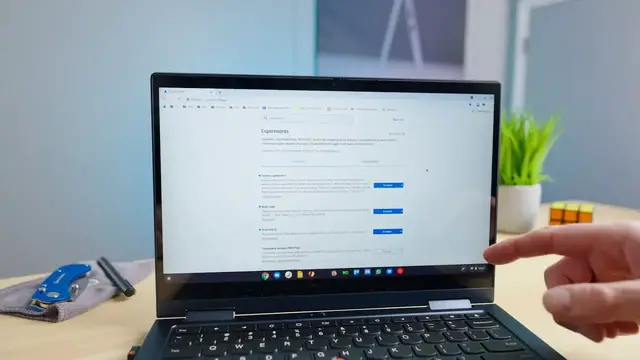
Chrome OS 88 is out and available to all Chromebook users, and while this update came with some nice new perks like Tab Search and Chrome OS's new screensaver
0:08
there's still some features hidden just under the surface that, with a quick flip of a switch, you can actually activate and start taking advantage of right now
0:16
Today, we're highlighting three of these new features that we've been testing and using for the past couple weeks
0:21
and just wanted to show them to you real quick in the event that any of them could help your daily workflow
0:30
okay so before we jump in the normal caveats apply these are flags they're experiments so
0:42
there may be some jank here and there but we've tested these particular three features
0:47
use them for a couple weeks and it doesn't seem like there's really anything going wrong with them
0:53
and they're completely usable and beneficial for you to actually start using right now so what
0:57
you're going to want to do is head to chrome colon forward slash forward slash flags. And once you get
1:02
to this screen, search for these three things. You can just search right there in the top bar
1:06
screen capture test, read later, and scanning UI. And once you see those things, you can just flip
1:12
them over to enabled. And once you switch them to enabled, you'll see something like this pop up at
1:17
the bottom Again I already enabled these here but click restart It go black screen for a couple seconds and then it come back up with a fresh restarted Chrome and all of your flags should be ready to go
1:28
So we'll start with the scanning UI. I will say the scanning UI isn't completely fully baked at this point, so if you want
1:35
to scan to a PDF, for instance, I found that I couldn't do that, but I actually needed
1:39
to scan in a couple doctor bills in order to send over to the insurance to get them
1:44
looked at and was able to use this with our HP printer here in the office. Once you have this
1:48
turned on, if you search for scan in your applications, there's actually a whole UI built
1:54
for this and it brings up the scanner. You can pick, we only have one printer, so it's defaulting
1:59
to that printer. You can choose the source, whether you want the document feeder or the flatbed
2:04
and then you choose where you want it to scan to. And then you choose your file type. I had to do
2:09
JPEG or PNG. Like I said, PDF wasn't quite working. Hopefully they'll get that ironed out pretty
2:14
quick. But then you hit scan and the printer scans, you get a file that's sitting right in
2:19
your files application. And I can show you actually, I'm not going to show you my doctor bill
2:23
but both of those scans happened just not too long ago. And again, like I said, those are just a
2:28
couple of doctor bills I need to get taken care of. And it was cool to be able to scan those in and get those sent over electronically and not really have to go and get some other device or
2:36
some other way of getting those things scanned in to be able to send over to the insurance company Next up let talk about the reading list So up here on the right you see I have reading list Again this is under read later from the flags perspective but the reading list is just kind of a extra bookmark section So say I go to let go to the verge We go to the verge
2:58
and I click bookmark here. Now I have two choices. I can add it just as a standard bookmark or I can
3:03
add this to my reading list. Well, probably don't want to add a homepage to your reading list, but
3:07
Let's say I click right there. I don't even know what that is. And say, yeah, I want to read this later
3:12
So I'm going to add this to my list. Boom, click Add to Reading List. And now it shows up over here in a nice little UI that's over on the side
3:20
And from here, I can check that I've read it. So once I check it, it goes away
3:23
I can click here to completely just delete it. And it just basically is, again, just a different take on bookmarks
3:32
So bookmarks now, for me, are becoming things that I need to get to on a regular basis or
3:36
that I need to stay static. A reading list now can be something that I see a quick article and
3:41
I'm like, I want to read that. I just don't have time to read it right now. I'm going to throw it over my reading list. And you can see pages I've read. Since I clicked into this, it's down here
3:49
in pages I've read. I can uncheck it, bring it back up here. So that's almost like an archive
3:53
type button. And then when I'm fully done with it, click the X button and it is off my reading list
3:57
And it's not taking up an ever increasing amount of real estate in my standard bookmarks. Finally
4:02
the screen capture test is probably the flag that I had on most and I used most in day operations And we did a whole video about this thing So it been around for a little bit in different
4:14
channels. But right now in the stable channel, if you just turn that flag on, you've got it. And so
4:18
the normal screen grab still works. So control and overview mode still gets a screenshot and it does
4:24
it the way it's always done it. But if you control shift overview button, you get this whole new UI
4:29
so I can drag and select certain parts, move that capture around. I can switch it to video. I can
4:35
switch it to full screen. I can capture certain windows, all that kind of stuff. Again, we have a
4:40
full video. We'll link that in the description below so that you can see this whole thing working
4:44
It hasn't really changed. It's just available and stable now just behind a single flag. And it is so
4:50
useful. It is so beneficial to grab your screen recordings, to be able to grab, you know, just
4:55
quick screen grabs. It's just, it makes all of that stuff so much simpler and so much easier and
4:59
so much better to work with. So guys, that's about it for this one. Again, just go and enable these
5:04
flags, restart your browser, and you can start using these things and taking advantage of some
5:09
of the cool stuff that Chrome OS 88 already has just sitting right there under the hood behind
5:14
the flip of a couple switches. We hope you enjoyed this video. If you did, give us a thumbs up
5:18
go down there and hit that subscribe button, and make sure to ring the notification icon as well
5:22
if you'd like to be alerted when we make future videos just like this one. Until next time, we'll see you