0:00
years ago when I made the switch to
0:01
becoming a full-time Chromebook user I
0:04
had to find all kinds of loopholes to
0:06
stay productive on my device to get my
0:08
job done and back then my job had
0:10
nothing to do with writing articles I
0:11
had everything to do with building
0:13
websites and being a front-end web
0:15
designer these days my work tests are
0:18
quite a bit different I do spend still a
0:20
lot of time building and maintaining our
0:22
website but I spent the majority of my
0:24
time writing and part of that production
0:27
process means I need to be able to deal
0:29
with photos and edit graphics and make
0:32
sure that all our stuff looks consistent
0:35
across the board and it's now easier
0:37
than ever to do those types of tasks on
0:40
a Chromebook and I want to show you
0:41
three of the tools that I use on a daily
0:43
basis literally every single day to get
0:53
today's video is brought to you by Nord
0:54
VP and their the VP and of choice for
0:56
millions of users because they're
0:57
awesome at what they do keeping your
0:59
browsing safe and secure whether you're
1:00
at home are out and about and on the go
1:02
if you'd like to learn more about their
1:03
services head over to chroma and voxcom
1:05
forward slash Nord VPN to learn more and
1:08
first app I want to talk about is
1:10
basically an experiment that Google did
1:13
whenever they were talking about how to
1:14
use progressive web apps and how to
1:16
build them at i/o either last year or
1:20
regardless it has become indispensable
1:22
to everybody at the chrome unbox team
1:24
it's called squash squ oosh and it is an
1:29
app that is again built on the web that
1:32
allows you to resize and compress images
1:35
and I can't tell you how useful this
1:38
thing is literally every time we put up
1:41
a post or we put up a YouTube video I am
1:43
using squash to bring down the size of
1:47
our overall images if you know anything
1:49
about web development or if you've
1:51
messed with YouTube at all you know when
1:53
you start uploading photos you want to
1:54
make sure that they are small in size
1:56
and that I'm not talking about pixel
1:57
density I'm talking about the file size
2:00
and sometimes it just depends on the
2:02
picture how many colors are going on and
2:04
how much shadow there is and all those
2:05
kind of things you can have a photo that
2:07
you don't think it's a big deal and it's
2:09
one or two Meg's and while that doesn't
2:10
sound massive when you start layering
2:12
those on top of one another on a website
2:15
it really decreases the load time and I
2:18
don't think YouTube will allow an upload
2:19
for a thumbnail of more than two
2:21
megabytes so you really have to figure
2:23
out how it is you're going to keep your
2:24
picture size down and squoosh is an
2:26
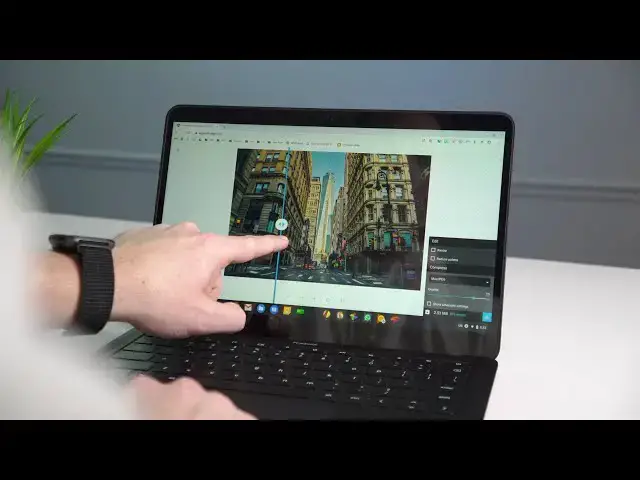
awesome tool for this we load the image
2:28
in you decide what percentage you want
2:31
to compress the image in and it's almost
2:33
like magic in the background it has a
2:35
slider that you can see on both sides
2:37
what your image look like before and
2:38
what it looks like after you can see
2:40
exactly how big the image is and when
2:42
you are satisfied with what you've got
2:43
after you've resized and all that kind
2:45
of stuff hit download you have your new
2:47
compressed image that almost always
2:49
looks as good as the original and it's
2:51
way smaller and it's much better for web
2:54
use so if you'd like to learn more about
2:55
that app you can head over to squoosh
2:57
again its squ oosh dot app AP p and you
3:02
can use it on the web there's nothing to
3:04
install it's a web app you know this is
3:05
a Chromebook that's the
3:06
awesomeness of all this stuff so any
3:08
device you can get on the web with you
3:09
can go to school and start using that
3:11
right now the second app I want to talk
3:13
about is one called gravity designer
3:15
it's GRA vit designer it seems like
3:18
paulie's have weird names but this one
3:20
is a service that was bought up by Corel
3:22
not too long ago but Gravatt has been
3:25
around for a few years and it's one of
3:27
those indispensable tools that I wish
3:29
deeply was around when I first started
3:31
using Chromebooks I used to have to jump
3:33
through all these hoops and get Linux
3:34
going so that I could have Inkscape so
3:36
that I could do vector stuff and if
3:38
you've ever messed with graphics you
3:39
know the difference between vector art
3:41
and you know pixels and dealing with
3:42
photos if you really need to build
3:44
graphics you need some sort of vector
3:46
editor and used to that just wasn't a
3:48
thing online but now there's quite a few
3:50
and by faraway Gravette designer is the
3:53
best version of this and it has almost
3:56
every tool that you need it's not to say
3:58
that there's not a learning curve just
3:59
like any other piece of software but
4:00
I've found over the last few years I've
4:03
transitioned everything I do on a
4:05
graphic basis over to gravity I do
4:07
everything from a graphic perspective
4:09
from this app and back when I was doing
4:11
web development on a full-time basis I
4:13
had to do graphic stuff a lot deal with
4:15
logos build logos make different
4:17
graphics for websites it can handle all
4:19
of it it can handle all sorts of things
4:21
I've done signage with it I've done
4:22
print media with it and for Chrome
4:25
unboxed on a daily basis I deal again
4:27
with thumbnails for YouTube and and
4:30
featured images for the website and
4:31
graphics for the website and it is an
4:33
indispensable tool and if you're looking
4:35
for something that's robust easy to use
4:38
and easy to start up with and you know
4:40
again you don't need to really download
4:41
anything you can use it right on the web
4:43
it's just gravity oh it's called gravity
4:46
seiner you can check them out online and
4:48
I highly recommend it the third and
4:50
final app I want to talk about is one
4:52
that you're probably familiar with and
4:53
if you're not you need to be using it
4:55
it's Google Photos and specifically I'm
4:57
talking about the web version of Google
4:59
Photos because when you're on a
5:00
Chromebook sure you can put the Android
5:02
app on here if you want to and it works
5:04
just fine and exactly like you would
5:05
expect it to but again the web version
5:08
is lighter it's easier to get to and if
5:10
I don't have it installed or I don't
5:11
have it pinned to my taskbar or
5:13
something like that you just go to
5:14
photos Google comm and boom there's your
5:16
interface change the account to the one
5:18
you need and you can jump into
5:20
photos that for me that I've literally
5:23
just taken on my phone by the time I get
5:25
to photos at google.com they're already
5:27
uploaded and what I use it for primarily
5:29
is either cropping and getting a you
5:31
know a shot just right that we've taken
5:33
for again a thumbnail or a featured
5:35
image but mainly it's for the auto color
5:39
correction and if you know anything
5:41
about Google in image processing I mean
5:43
they're pixel phones are amazing not
5:45
because they have the best hardware but
5:47
because they have all kinds of AI and
5:49
machine learning that makes their images
5:50
look awesome and so any image you take
5:53
and upload to Google photos you can go
5:55
in and start messing with all the
5:56
colorscience on it or you can just hit
5:58
the auto button that's there and kind of
6:00
allow Google to do the thing that Google
6:02
is really good at and make your photo
6:04
just look better I would say seven times
6:06
out of ten I run my photos through that
6:09
hit auto and to kind of just see where I
6:11
get and if I want to make some slight
6:13
adjustments I can but most times Google
6:16
does an awesome job at fixing my photo
6:18
for me making it look a lot more
6:20
and then I can take it and I can squish
6:22
it and I can take it into graphic
6:24
designer and add some graphics to it and
6:26
then upload it as a nice sized file that
6:29
works for the web or works for YouTube
6:30
and it's just an indispensable tool so
6:33
that's it those are the three apps I
6:35
probably use most on my Chromebook on a
6:38
daily basis that's not to say those are
6:40
the only things I use the only web
6:41
services the only apps I install that's
6:43
not true obviously I use lots of stuff
6:45
but if we're talking the things I use
6:47
literally on a daily basis every time I
6:49
sit down at my Chromebook those three
6:52
are the top of the list for sure so if
6:54
you're looking for something to do some
6:55
basic photo editing some basic graphic
6:57
editing and some stuff that you can
6:58
actually produce pro level stuff and get
7:01
pro level results those are three apps I
7:03
think you would do well to go ahead fine
7:06
install and start using today but guys
7:08
that's been it for this one if you like
7:09
this video give it a thumbs up go down
7:11
there and hit the subscribe button make
7:13
sure and hit the notification bill if
7:14
you'd like to be alerted when we make
7:15
future videos like this one and finally
7:18
hit the join button down there and you
7:19
can see all the perks that our members
7:21
get things like custom emojis and
7:23
behind-the-scenes footage until next