0:00
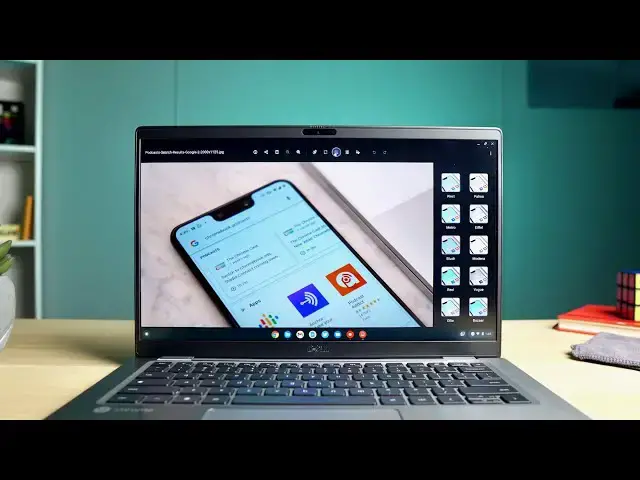
in recent months the new media app for
0:02
chromebooks has rolled out and
0:04
though it looks a lot nicer than what we
0:06
used to have when you would go to
0:07
doubleclick media from your files app
0:09
it really didn't do anything different
0:11
but that's all getting ready to change
0:13
as we're starting to see some new
0:14
features actually rolling into
0:16
the media app in the developer channel
0:18
of chrome os right now so we want to
0:20
take a look at a few of them
0:25
before we dive in this video is brought
0:26
to you by nordvpn they're the vpn of
0:28
choice for millions of consumers because
0:30
they're awesome at what they do
0:31
keeping your browsing safe and secure
0:33
whether you're at home or on the go
0:35
if you'd like to check them out and see
0:36
what they're all about head over to
0:37
chromeunbox.com forward slash
0:39
nordvpn where you can learn more and get
0:41
started today okay so
0:42
let's jump in and like we always say
0:45
when we talk about features showing up
0:46
in the developer channel
0:48
you need to approach this with a bit of
0:49
caution because there can be crashes
0:52
and instability and all that kind of
0:53
stuff in these developer channels and
0:55
then when we start talking about adding
0:57
additionally to that you could run into
1:00
keep that in mind if none of those
1:02
things scare you then you know
1:03
give it a try if you want to but as far
1:05
as the flags go if you head to your
1:07
flags chrome colon forward slash forward
1:10
you're going to see i've enabled media
1:12
app annotation which is one of the
1:13
things we're going to talk about
1:15
and then we've also done media app pdf
1:18
ink so those will make sense here in
1:20
just a second but the
1:21
bulk of all of these new features are
1:23
just available already out of the box
1:25
when you're in the developer channel
1:28
89 at this point there's still no way to
1:32
just as a standalone application i'm
1:34
hoping that they just
1:35
make this a thing where you can open it
1:37
and because it has the ability to open
1:39
files but to get there if you go to your
1:42
i've downloaded a couple things here so
1:44
i'm going to open up this once you
1:46
an item it will open up this nice new
1:49
media application and you can see
1:51
we've got a photo here and there are
1:53
some new options available if you're
1:55
used to looking at this thing that
1:56
you'll notice right off the bat
1:58
but the first thing i want to cover is
1:59
the fact that as soon as you get this
2:02
you get down to experiments and there's
2:06
down here that you can add and so one of
2:09
are zoom tools the new color filter tool
2:12
so i'm going to click that and enable it
2:14
up up there additionally in experiments
2:17
it's hard to read here but if you look
2:19
enable auto fix tool so what that's
2:22
telling me is that it's not there yet
2:24
you can't select it yet but in a second
2:26
i'm going to show you why it is we
2:28
believe that that means you're getting
2:29
an autofix similar to what you see in
2:31
google photos very soon
2:33
one other thing i want to note in this
2:35
experiment is the fact that we have the
2:37
xf data and display exif data
2:41
for now it doesn't seem like that's
2:42
working the way it should if you
2:44
click on for instance in a file in the
2:47
files application you hit the space bar
2:49
you get all this nice exif data over
2:51
location image info if that actual image
2:55
has image info i grabbed this off the
2:56
website so it didn't have it but
2:58
if this was a photo that we had taken
3:00
you would see the exif data from our
3:02
camera on there telling you f-stop
3:04
numbers and resolution and all that kind
3:07
you see that in the files app but if i
3:10
the new media app and i click this info
3:13
button all you really see is the
3:14
the size the resolution and the date it
3:18
but clearly there's a space here where
3:20
this exif data will live
3:21
at some point in the future so you can
3:23
expect exif data and you can expect an
3:25
automatic filter similar again to what
3:27
we see in google photos okay so let's
3:29
talk about a couple of these
3:30
other features that are basically fully
3:33
baked and working right now so
3:35
color filters is one of the ones that we
3:37
turned on if we click into this
3:39
you're going to see these and if you use
3:42
you're going to notice the names of
3:43
these look very very familiar and it's
3:46
they're the exact same that you see in
3:48
google photos it's why we think when it
3:50
says auto fix we're going to get the
3:52
same type of google photos auto fix but
3:54
you can click on any of these
3:55
and they'll filter some of this stuff
3:57
doesn't move incredibly fast right now
3:59
obviously this again is a developer
4:02
these are things behind experimental
4:05
you know take it easy as far as you know
4:08
judging how fast all this stuff's going
4:09
to work there's probably going to be
4:11
in here as we move around but it's
4:13
really cool to be able to see these
4:15
to be able to do this right here locally
4:17
on your chromebook without having to
4:19
to google photos in order to do
4:20
something with the with the file itself
4:22
and you can see like that filter there
4:24
looks a little weird and i've gone
4:26
through a few filters now and it's
4:28
and it came back so again realize that
4:32
experimental at this point right now and
4:33
so we're going to run into jankiness
4:36
additionally we now have the ability if
4:38
we click this little annotate button
4:40
you can actually write and draw right on
4:42
your photos and so you can change the
4:44
thickness here you can go to a
4:48
obviously change the highlighter
4:49
thickness and you kind of see that that
4:52
less opacity so you can actually
4:54
physically highlight stuff without
4:56
completely covering what's underneath of
4:58
and the pen works obviously as you would
5:02
so if i click there and then we go to
5:05
we'll go to a thicker pen here let's go
5:08
and once we click you can just draw
5:12
again if you're using a pen or a stylus
5:14
this is going to be a lot better but you
5:16
get the idea you can make some scribbles
5:18
uh onto a photo so if somebody sends you
5:20
something you're like hey i like this
5:21
but let me circle that and draw an arrow
5:24
hey that part i circled is out of line
5:25
or whatever the case may be
5:27
again you can do all this now locally
5:29
right in your files app you'll just
5:30
double click the image
5:31
annotate save and then send it back
5:33
which is honestly a pretty cool and very
5:37
new trick that this app will be able to
5:38
do finally the app still maintains all
5:40
the other things that you could do with
5:42
it so you know pinch to zoom with your
5:44
with your track pad you can zoom with
5:46
these buttons up here
5:47
you can share to other applications from
5:50
you can crop with multiple presets or
5:56
you can additionally resize the image
5:58
with a locked aspect ratio or unlock
6:00
that aspect ratio and skew the image if
6:03
all that stuff's still there and all
6:05
very beneficial honestly and
6:07
we're getting to the point where when
6:08
they start continuing to add these
6:10
features that we're seeing in this app
6:12
it's going to be a really
6:14
full featured application and there's
6:16
even hints in these experiments to the
6:18
fact that we might have some basic video
6:21
with the reduced motion here so we tried
6:24
this this literally is doing nothing at
6:26
this point in time but there's no reason
6:28
there would be reduced motion for
6:29
photos hopefully you'd be able to open
6:31
up a video and add some video
6:34
in here and maybe some other filters
6:35
will come along as well and eventually
6:38
this thing could become a full-fledged
6:40
media editing application for
6:42
chromebooks but guys that's about it for
6:44
this right now again this is chrome os
6:46
89 we're expecting 88 to roll out the
6:50
another six weeks past that we're
6:51
talking you know early spring kind of
6:53
march time frame probably before we're
6:56
and it's not even guaranteed at that
6:58
point but what's cool to note
6:59
is the fact that they're just adding
7:01
more and more stuff to this media app
7:03
and it's not just going to be a
7:04
reskinned version of the old thing we
7:06
but it's going to give users tons more
7:08
tools built into the chromebook
7:10
right from the files application i think
7:12
it's going to be a beneficial upgrade
7:14
when it all finally does land in the
7:15
stable channel but that's it for this
7:18
if you like this video give us a thumbs
7:19
up go down there and hit that subscribe
7:21
and be sure to ring the notification
7:22
bell as well if you'd like to be alerted
7:24
when we make future videos just like
7:26
until next time we'll see you