Up next in 10



SHOP Chromebooks Plus at Best Buy: https://howl.me/ckKz4e6ciVV
・・・・・・・
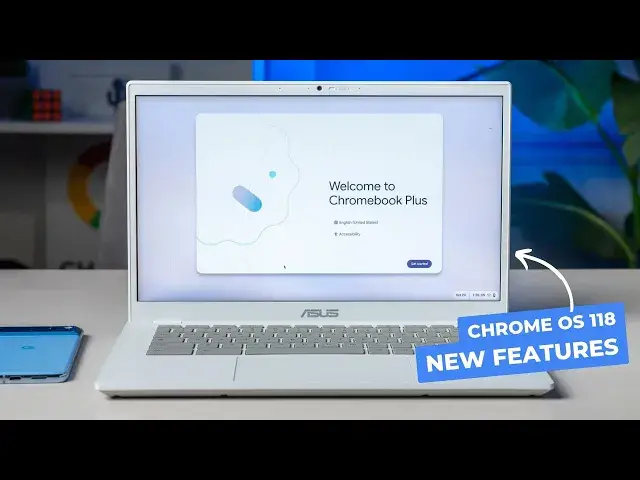
ChromeOS 118 began its roll-out this week and with it came a nice handful of Chromebook Plus features for the entire list of devices that meet those Chromebook Plus specifications. For those non-Plus devices, the updates aren't much to talk about this time around and this ChromeOS 118 release was clearly aimed at getting all the Chromebook Plus models up to speed and moving forward together.
💲Where to buy the ASUS Chromebook Plus CX34 from this video: https://chromeunboxed.com/where-to-buy-each-of-the-new-chromebook-plus-models/
🧾 Entire Chromebook Plus device list: https://chromeunboxed.com/where-to-buy-each-of-the-new-chromebook-plus-models/
👉 READ MORE: https://chromeunboxed.com/closer-look-at-chromeos-118-and-new-chromebook-plus-features/
📰 Join our newsletter: http://bit.ly/2WjCDm7
・・・・・・・
Join our Patreon community for access to our private Discord, an ad-free website experience, and more ➡️ https://www.patreon.com/chromeunboxed
Fueled by Fresh Roasted Coffee! Buy the special edition Chrome Unboxed bag here: https://chromeunboxed.com/coffee
Subscribe to the channel: http://bit.ly/2xFuj6L
Follow us: https://www.instagram.com/chromeunboxed
https://twitter.com/chromeunboxed
https://www.facebook.com/Chromeunboxed
Show More Show Less View Video Transcript
0:00
So Chrome OS 118 has rolled out and for the first time we get to talk about this kind
0:04
of stuff in terms of Chromebooks and Chromebook Pluses. And so it's going to kind of be the new normal moving forward
0:13
And with 118 really all the new stuff came for Chromebook Plus
0:17
And so we've got one of the new Chromebook Plus models here, the Asus Chromebook Plus CX34
0:23
And I want to show you around some of the Chromebook Plus specific features that showed
0:26
up with Chrome OS 118. Before we jump into the features though, I do want to specify real quickly
0:36
Just because this device has Chromebook Plus on the lid, it doesn't mean that these features
0:41
I'm going to show you are only for these handful of devices that are like that. There's actually like 33 total devices I think right now
0:48
There's a list. We'll link it in the description and it's over on ChromeUnboxed.com
0:52
You can read about that stuff. But there's quite a few Chromebooks that meet the Chromebook Plus specification and they
0:58
all got 118. Well, most of them. There's a few that are kind of lagging behind, but maybe by the time you're watching this
1:03
they'll have it too. But they've received this 118 update and all the features I'm going to show you today
1:08
even though this is a branded Chromebook Plus device, all those devices will also be getting
1:13
these features as well and future features that show up for Chromebook and Chromebook Plus
1:19
So let's just dive right in. We chose to go Chromebook Plus on this specifically because there's not a whole lot new in Chrome
1:26
OS 118 for non-Chromebook Plus devices. This update was definitely for kind of getting everybody that's going to be on the Chromebook
1:33
Plus train up to speed so we can start moving forward. So we're wanting to show you this stuff on a Chromebook Plus model
1:39
So I'll start with the simpler things first. You notice this wallpaper
1:43
It's new. It's kind of cool looking. I can't show you in real time what this wallpaper does, but over the course of the day, this
1:51
wallpaper will change to kind of match the time of day. I had this one on a different device that I took home the other night and when I got
1:57
home, I opened the Chromebook and I have auto dark mode set. So it was in dark mode, but my wallpaper also, because the moon was up and it was nighttime
2:05
it was this setting. It was just this setting at nighttime. So it was a kind of cool thing
2:09
So if you go into the wallpaper and styles here, you actually get in your wallpaper picker
2:16
We'll go in here. So this is new. Again, if you're on Chromebook Plus, this new dawn to dark exclusive, and there's two
2:21
of them in here. The one I've got right now is the cloud flow and then you've got the earth flow and it
2:26
does the same thing. Both of these do the same trick. It changes throughout the day based on the time of day
2:32
So those are there in the future. We're going to be getting like AI driven wallpapers and we can't wait to get that, test that and
2:38
show that stuff to you. But for now, these are the two new wallpapers that were added
2:43
But what's really, I think a little more cool as we go back out to this customization
2:48
area and we're going to turn on the screen saver option and you've got the same stuff
2:53
that you've always had here, but now you've got dawn to dark exclusives. And if we go down here and choose out of that library, we have two of these
3:01
So I'm going to show you earth flow first and I'll hit preview. Now this does not follow the time of day
3:06
It actually just, when your device goes to sleep, this will pop up and you can kind of
3:09
just sit here and watch it a little mesmerizing actually, kind of a time lapse of a day with
3:16
this shot. So every time you look up, it's just going to kind of be moving and changing like this
3:20
Got your weather and your time in the bottom. If you have media playing, there's a little media player in the top right corner
3:26
Pretty cool stuff. And then there's the cloud flow one as well
3:30
I love this one. This is what I've got on mine. I really like, like normally I have another Chromebook kind of sitting off to the side
3:36
versus my main setup and I've had this on now. And so I was working today and I looked over and this was going and I'm like, man, that's
3:43
just, that's cool to look at. I like that. And I'm hoping that we'll get more and more of these in the future
3:50
It makes me want to use my screensaver a little bit more, just kind of having that video element here
3:55
So that's a really cool feature addition. All right. So that's kind of the small stuff
3:59
You know, Chromebook plus is going to be adding a bunch of AI driven screensavers, wallpapers
4:05
ability to help you write and compose tweets and text and emails and all that stuff right
4:09
on device. That stuff is coming by the end of the year. That stuff's not here yet
4:13
And again, can't wait to get that stuff moving and working and show it to you
4:18
But one of the new features that was added, and if I can for just a second explain why
4:24
this is so cool for Chromebook plus, is this, the new video call features
4:30
And the important part to remember here is with these features, there are certain things happening
4:35
So background blur, noise cancellation, portrait lighting effects and all that kind of stuff
4:41
For one, they're happening on device. So the stuff I'm going to show you is actually happening on the Chromebook and regardless
4:46
whether I'm using zoom or Google meet or even in a FaceTime call or whatever, any video chat
4:53
these controls pop up and when they do, they change what is being piped into that service
4:57
And so it helps to make a case for Chromebook plus in general. So if you want to have really good background blur and you want to have really good noise
5:05
cancellation, you want to have really good quality of video that's going out and you want to have all these little features that are on the device, you need to make sure that
5:11
the device has the hardware to do it. And so that's part of the idea of Chromebook plus
5:15
And I think this video portion highlights why Google is doing this because when you
5:20
set a set of parameters for a piece of hardware, it lets developers and it lets Google with
5:25
Chrome OS in general, have these targets to be like, look, we wanted to do this kind of
5:30
feature before, but it wouldn't have worked on that processor and that one and that arm
5:33
chip and this one, it would only work on these. So how do we roll out a feature for Chromebooks
5:39
That's only going to work on a few Chromebooks, but now they have a landing place. So Chrome OS or Chromebook plus is that landing place for Google and for developers
5:47
So I want to show you this in action. I'm just going to go to Google meet here and I'm going to start a instant meeting and you
5:55
see at the bottom right there, as soon as I did that, let me cut that off and get that
5:59
out of here. So it looks a little nicer. As soon as I did that, there are video buttons that popped up down here
6:05
Now you have the ability to click this to mute your mic
6:10
Turn on mute nudge. Yes. So it'll let you know when your mic is muted, which is helpful
6:15
So you can mute your mic right there. You can turn off your camera right there
6:19
And so instead of having like this, this Chromebook has the slider up top
6:23
That's great. I love that, but it's even more handy for all the devices that don't or ones that were
6:29
the slider breaks or whatever. It's nice to have that button right there
6:32
It's just kind of baked in. It's ready for you to mute your camera and your audio, regardless of the service
6:37
It doesn't matter what you're plugged into. No more hunting and zoom. I get into zoom calls and teams calls and I'm like, where's the mute button
6:44
How do I, where's my stuff? Don't worry about that anymore. On a Chromebook, all your, all your controls are right here
6:49
And then we can pop up this, this little menu and we have background blur
6:53
And because it's happening on device again, with a specific set of hardware, it gives
6:57
us a much better ability to, to do this well. And hopefully you can see this on the screen
7:03
Like you can see how tight that blur is to my head. And if you've used the baked in blur stuff in different video chat tools, you know, especially
7:14
on the web, it's not always great. There's pretty much a buffer around your head where it's not blurred
7:19
The whole point is to kind of get rid of the background noise, but this actually looks awesome
7:23
This looks really cool. It makes this camera look excellent. It is a, it is a pretty decent camera
7:27
We can go to the full blur here, but I don't love that. I've never loved that
7:31
I think it looks super duper artificial. I love this look. This looks really nice and natural
7:36
And even though we're in a room with lighting, the Chromebooks off to the side, the lighting's
7:40
all kind of coming from over here. You can tell the side of my face is dark. And if I improve lighting, Google just fixes it for you
7:48
And now it looks like I just put in a key light over here on the side of my face
7:52
I look well lit. There's a nice blur to the background. Everything looks really cool
7:56
And so in this meeting, I'm going to look a little more professional than maybe I would. There's no way for me to show you noise cancellation, but I can turn that on too
8:02
And again, I know Google Meet provides these types of things. It provides these services, but not all of them do for free
8:10
And you know, they work in different ways. This is a way for you to know. I need noise cancellation
8:14
My kids are back here, a dog, you know, there's cars driving by, whatever. I can turn that noise cancellation on and bring that stuff down for all the people in
8:20
the meeting. I can improve my lighting right here. I can add some background blur
8:24
I can turn my cameras off. It's all right here in this cool little nested hub that is there while I'm in the video chat
8:30
And the minute I'm out, it goes away. It is absolutely well done
8:34
And again, one of those perfect things that shows like this is why Google's doing the
8:38
whole Chromebook Plus thing. They need to have hardware that can handle these types of really cool features
8:43
And the final thing I want to show you, I can't actually show you in the way that we've
8:48
been looking at some of this stuff, which is to see things on screen. We've got to kind of switch up the camera here because I want to show you the out of
8:54
box experience. And we looked at Chrome OS 118. Most of it is the same as what you're getting on Chromebook Plus, but there's a really cool
9:03
like intro animation that happens that I want to show you. And it's this nice touch on top as everything kind of fades in
9:11
You'll see it here in just a second. It's just this nice touch that I like that Google added because these Chromebook Plus
9:17
devices need to be set apart a little bit. So I imagine somebody getting it out of the box and opening it up for the first time and
9:23
Chromebook Plus fades in and then this animation fades in and you've got this really nice handheld
9:28
experience through the entire setup process. Now with Chrome OS 118 on non-Plus devices, it's the same steps
9:36
There's some animations that are missing. It doesn't look quite as good, but for the most part it does
9:40
It walks you through the same steps and most of like the new rounded boxes you'll see here
9:44
in just a second are all there on Chrome OS 118. It's just not quite as nice as it is on Chromebook Plus
9:50
So we're going to reset this shot so that we can show you that last bit before we get
9:55
out of this one. Okay. So as I was talking about, I want to show you all kind of what it will be like to open
10:00
up a new Chromebook Plus again, or one that's not branded that is part of this Chromebook
10:04
Plus thing. So imagine pulling it out of the, out of the box and opening up and seeing this
10:13
I know it's little, but that is a really nice touch compared to what we used to get, which
10:21
was like Chrome OS and then just, we just were here. So let me walk you through this real quick
10:27
So once you get into your wifi here, a lot of these settings are gonna be the same as
10:31
what we've had for a little while, but there's just a nice new box that everything's in versus
10:37
it being a big white screen and it just has a nice material you look, which partially
10:43
came in from 117. And Oh, I didn't, I didn't point that out to you
10:49
Let's see. Personally use this little animation here. I kind of skip past this too quick
10:54
This is a cool one. So it's just saying, add your Google stuff and get all your services
10:58
It's a nice touch. Let's see. So we're going to add in this
11:02
And once you get signed in, you can already see the wallpaper that I've had set before
11:06
is kind of filling in the back. It's super, you know, blurred out back there, but it's a nice touch again to let me kind
11:12
of feel like, okay, I'm, I'm almost home here. But you got your, your basic terms and conditions and all that kind of stuff
11:19
Except to continue, you can review some sync options if you want. If you've had Chromebook set up before, you're probably going to want to leave them the same
11:26
And I'm just going to set a dummy pin here. But even that you saw like the, the numbers looked, you know, it's all material you which
11:36
is really nice. And then we get to this point here where we get to choose a few things
11:41
So we've got the scrolling direction. We'll do change display size. So this stuff showed up, I think in 117
11:49
We've talked about it, but you know, you can check and test your scroll position or scroll direction
11:55
Make sure you like that. We're going to knock it down. We'll go two notches down and then I like to go auto and then we're all set, all signed in
12:05
Make sure our stuff is saved. And then, you know, just like every other out of the box, it meets you kind of with
12:10
what's new. Here's some apps and games, all that kind of stuff on your Chromebook
12:14
And just like that, we are logged back in and up and running
12:17
But what we wanted to show you here was just how cool and how, I don't know, thoughtful
12:23
that initial process is now for Chromebook plus users. And that's an important thing because Chromebook plus is going to be something that Google
12:30
starts to advertise a lot more. That is basically trying to tell consumers, Hey, these things are helpful and they're
12:36
beneficial for you to use and you can do a lot of stuff on them and you can rely on the
12:41
fact that if you buy one that's a Chromebook plus model, you know that it's going to get
12:44
all of these features. You don't have to worry about it, you know, not getting the latest, greatest stuff, all
12:49
the software that gets developed like Photoshop and stuff that it's made to work well on Chromebook
12:54
plus devices. And so it's an exciting time. It's interesting to sit and watch these updates come in and, and for there to be kind of different
13:01
features, but that's just going to be the way things are for, you know, the foreseeable
13:05
future right now. And it's exciting to see what Chromebook plus is going to offer
13:09
It's exciting to see what's happening now, but it's also exciting to think about all the stuff that's coming in the future
13:14
But guys, that's it for this one. If you liked this video, give us a thumbs up, head down there, hit subscribe and be
13:19
sure to ring the notification icon as well. If you'd like to be alerted when we make future videos just like this one
13:24
Until next time, we'll see ya
Computers & Electronics
Laptops & Notebooks
Consumer Electronics
Skins, Themes & Wallpapers
Science