Up next in 10



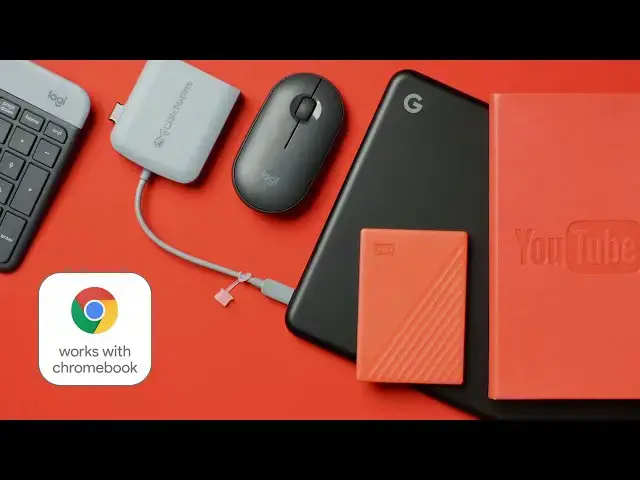
This video is sponsored by Western Digital! Expand your Chromebook storage with the My Passport from WD. Enter to win a drive here: http://bit.ly/371bk8y
Shop these Works With Chromebook accessories on CHROME SHOP:
WD My Passport - https://bit.ly/2Z1tKl6
Sandisk SD Card - https://bit.ly/3q61R7n
Cable Matters Adapter - https://bit.ly/3p2yJN2
Logitech Keyboard & Mouse - https://bit.ly/370uhZt
・・・・・・・
If you’ve ever picked up an accessory and wondered whether or not it would work with your Chromebook, you’ve likely figured out by now that a ton of stuff actually does. Over the years, I can’t count how many times I’ve wondered the exact same thing and simply started plugging things into the nearest Chromebook. After all, with a pretty high rate of success, I’ve simply found that the vast majority of the times I try, things tend to “just work” on Chromebooks.
But that’s not true 100% of the time, and the fact that there’s been no real way to know if something works well with a Chromebook or not has been a real thorn in the side of many new Chromebook users. After all, most people don’t like to buy and return stuff with the regularity that I do, so they just want to know up front whether or not a certain accessory is going to work or not before leaving the store with it.
So, in response to this clear need, Google has rolled out the Works With Chromebook initiative, and we're testing some of the accessories already on board.
Read more: https://chromeunboxed.com/works-with-chromebook-accessories-tested/
Join our newsletter: http://bit.ly/2WjCDm7
Show More Show Less View Video Transcript
0:00
have you ever picked up an accessory and
0:01
just wondered
0:03
will this work with my chromebook well
0:05
i've told people for years if you wonder
0:07
if it works on a chromebook just
0:08
plug it into a chromebook and see a lot
0:10
of stuff actually does but
0:12
google's taking this a step further and
0:14
has created the new
0:15
works with chromebook initiative that
0:17
aims to help users understand
0:19
which peripherals have been tested and
0:20
certified to work seamlessly on their
0:22
chromebooks so
0:24
let's check it out and test some of this
0:27
[Music]
0:28
stuff
0:30
but before we get into all that a big
0:32
shout out and thanks to western digital
0:34
for sponsoring this video
0:35
and providing a handful of certified
0:37
works with chromebook devices for us to
0:39
test and show you later in this video
0:41
they've even provided a few of these for
0:42
us to give away so make sure you stick
0:44
around to the end to get details on how
0:46
you can get entered to win from the time
0:47
that i began using chromebooks i have
0:49
long been a fan of saying to other
0:51
people who ask me
0:52
will this work on a chromebook sure yeah
0:55
just plug it in and see and honestly
0:57
about six to seven times out of ten it
0:59
seems like that's just the case you can
1:00
just plug stuff into a chromebook and it
1:02
tends to work but
1:03
that's not true across the board not
1:05
everything just works on a chromebook
1:08
and for a lot of users especially new
1:10
users coming into the chrome os
1:11
ecosystem
1:12
it may not be quite as clear as it feels
1:14
like it should be which peripheral
1:16
devices will
1:17
and won't work on your chromebook and so
1:19
google has come up with this new
1:21
initiative that's launched in the past
1:23
few months called
1:23
works with chromebook and it does
1:25
exactly what you would think it does
1:27
these certified peripherals things like
1:29
storage devices charging bricks
1:31
cables docks mice keyboards are tested
1:34
and proven to meet google's own
1:35
chromebook compatibility standards and
1:37
they're sold at lots of different stores
1:39
and over time
1:40
what we're going to end up seeing is a
1:42
bunch of accessories that have a sticker
1:43
on them that makes it very clear to end
1:45
users
1:46
that they're built to work with their
1:47
chromebook and sure these accessories
1:49
will work with other things too
1:51
but there's just this assurance that
1:52
they'll function properly the way you
1:54
expect the minute you plug them into
1:56
your chromebook so now that you know
1:58
what works with chromebook is
1:59
and to be looking for it on shelves at
2:01
best buys and walmarts and those kind of
2:03
stores when you're out picking up
2:04
accessories
2:05
let's actually take a handful of these
2:06
things that are already tested
2:08
already certified to meet the standards
2:10
google is set and just
2:11
see how they do all these devices
2:14
already have the
2:15
works with chromebook sticker on the
2:16
outside of the box so
2:18
we're just going to start plugging some
2:19
of this stuff in so you can see how
2:21
quickly and how seamlessly these types
2:23
of accessories work with a chromebook
2:25
okay so here's how we're going to do
2:26
this a little bit kind of unboxing style
2:28
we actually have three different
2:30
chromebooks here so we wanted to make
2:32
sure and cover
2:33
the fact that you know it doesn't matter
2:35
what type of chromebook or what
2:36
processor you've got
2:38
if it works with chromebook it works
2:39
with chromebook so i've got the acer
2:41
spin 713 which is
2:42
a 10th gen intel processor
2:46
i've got the pixelbook go which is an
2:48
8th gen
2:49
intel processor and then we've got the
2:51
lenovo c13 thinkpad yoga
2:53
which is one of the newer amd ryzen
2:56
processors so we've got a nice little
2:58
assortment of devices here and we've got
3:01
a handful of accessories
3:03
um so first up we've got the wd my
3:06
passport
3:07
and you can see right on the outside
3:08
they've affixed the sticker here
3:10
uh kind of as a after thought kind of
3:13
thing like hey we got it tested we got
3:14
it passed
3:15
slap the sticker on but then you've got
3:17
devices like this cable matters
3:19
that instead of having a sticker affixed
3:22
to it it's part of the packaging like
3:23
this is something they thought about
3:25
prior to
3:26
shipping this particular box in this
3:27
particular dock and it works with
3:29
chromebook and they've got it certified
3:31
and they've got it right there on the
3:32
box which is kind of cool
3:33
same thing goes with this sandisk ultra
3:35
it's just an sd card nothing special
3:37
here
3:38
but again right on the outside of the
3:39
packaging works with chromebook so
3:41
all really cool to see and then we went
3:43
ahead and included
3:44
not that we haven't tested or messed
3:46
with these before heck we made a whole
3:47
video on this
3:48
uh the logitech uh k580
3:52
keyboard and then the three 355 m355
3:56
uh mouse and these again the packaging
3:59
for these
4:00
works with chromebook and just like we
4:02
said in that video
4:03
i'm not going to go to great links here
4:04
on this but whether you're using this
4:06
with bluetooth or the usb
4:08
dongle that goes with these keyboards
4:10
and mice
4:12
it works so well in either mode that
4:14
it's shockingly good
4:16
uh we've if you've used chromebooks
4:17
before you know bluetooth accessories
4:19
can really be a pain in the butt
4:20
and even on bluetooth these things work
4:23
better than just about any other
4:24
accessory that we've used that
4:26
utilizes bluetooth to connect with all
4:28
right so let's just start plugging some
4:29
stuff in here
4:30
the sandisk ultra micro sd xc
4:35
this is just a decently fast micro sd
4:37
card
4:38
and it comes with an adapter which is
4:40
handy
4:41
for certain devices most chromebooks
4:43
though just take the micro sd card so
4:45
we're just gonna pop it in the slot here
4:49
and this lenovo actually has it nice and
4:52
flush which is
4:53
handy pop the chromebook open
4:56
and boom i mean it it was ready to go
4:58
before i even had the lid open
5:00
uh shows sd card right here and just
5:02
like with you know
5:04
any other removable storage i can eject
5:06
it i can format the device i can start
5:08
moving files to and from it
5:10
no big deal works exactly like you'd
5:12
expect well cool so there's a
5:14
amd chromebook working well with a works
5:16
with chromebook thing so let's pop open
5:18
this
5:19
10th gen device now and let's go with
5:22
the cable matters here so this is a usb
5:24
type-c dock and it is made again
5:28
to work specifically with chromebooks it
5:29
doesn't mean it's the only thing it's
5:30
going to work with
5:32
but idea being usb type-c
5:35
you place it in the port and you can
5:36
plug basically anything else you want to
5:39
into that dock you would use something
5:40
like this at a desktop that you would
5:42
set up with
5:43
for most days so you just have this
5:45
connected to your monitor connected to
5:46
your storage peripherals all that kind
5:48
of stuff
5:49
and you know you can see it's got a usb
5:51
type-c passthrough you're getting
5:52
ethernet
5:53
you're getting hdmi you're getting a
5:56
couple usb type-a
5:57
ports so you're getting a nice extension
5:59
of your port selection on your
6:00
chromebook and again it's one thing
6:02
that you plug in i use a dock very
6:04
similar to this on a day-to-day basis
6:06
it's not labeled works with chromebook
6:08
but it's a very similar dock to this
6:10
that samsung makes
6:11
and so uh let's just plug this thing in
6:13
see what happens
6:15
okay light came on so now that we have
6:17
this plugged in let's plug something
6:19
into it so we'll take this
6:21
usb dongle that we have with this
6:23
particular mouse
6:25
and it is set to work it's already set
6:27
up with this dongle
6:29
but i'm going to plug it in right there
6:31
again no further setup needed
6:33
and just like that mouse is on the
6:34
screen and you know for kicks and
6:36
giggles
6:37
this uh this keyboard actually works
6:39
over that same dongle
6:40
and so right away you can see keys
6:44
working
6:45
right there on the screen so just plug
6:47
the stuff in
6:48
boom works so we didn't plan on doing it
6:51
this way but
6:52
there's this working on this chromebook
6:54
without really any setup there's this
6:55
keyboard and mouse working on this
6:57
without really any setup either it just
6:59
works plug it in
7:00
things just work okay so let's move on
7:03
to the
7:04
my passport from wd and for that one
7:07
what do we have under here we've got the
7:09
pixelbook go so this this presents uh
7:12
another opportunity
7:13
for us to find something that works
7:15
plugs and plays with the chromebook so
7:18
the reason being this device this
7:20
particular device only has usb type a
7:23
or usb type c i'm sorry and so whenever
7:25
you're buying a
7:28
accessory for a chromebook that's only a
7:30
usb type a
7:31
device which is like this it's actually
7:34
going to plug in with usb type a
7:36
if your chromebook doesn't have usb type
7:37
a ports that's really the only asterisk
7:40
here i mean it's not like
7:41
this works with most chromebooks but
7:43
some chromebooks with these processors
7:45
won't work
7:46
that's not really the case but if the
7:47
hardware doesn't line up obviously
7:49
you're going to need something
7:51
to get you to the right type of usb so
7:54
here's this wd my passport really
7:57
slim cool looking design nice and
8:00
pocketable this is going to go in your
8:01
bag no problem whatsoever
8:02
so we're going to plug that bad boy in
8:05
and again if the hardware doesn't line
8:06
up
8:07
doesn't mean it won't work you just need
8:08
something to change it so i've got type
8:10
a
8:11
cables here and only type c import
8:14
inputs here so we're going to go back
8:16
and just grab this
8:18
guy we'll plug him in and again there
8:21
are adapters that are much smaller than
8:23
this that you could use for this case
8:24
but
8:25
again if you've got the adapter why not
8:26
use it
8:28
we're going to plug that right into the
8:30
side there and boom
8:32
removal device detected same thing
8:34
applies here i can right click i can
8:36
format rename
8:37
eject the device start moving files to
8:39
it immediately
8:40
it works exactly like it's supposed to
8:42
and now we've got
8:44
heck if i put this in here um we've got
8:47
just about
8:48
all of our peripherals this doesn't have
8:50
an sd card reader if i had an sd card
8:51
reader i put the sd card in there and we
8:53
just kind of have this frankenstein
8:54
going on here but basically we've got
8:56
our keyboard
8:57
our mouse our dock our external storage
9:01
all working together all working on this
9:03
chromebook and again
9:04
no previous setup was done here i'm
9:06
opening this stuff up out of the box
9:08
plugging it in and boom it just works so
9:11
there you have it stuff marked works
9:12
with chromebook does exactly what it
9:14
promises to do
9:15
it just works we've shown you that we
9:17
can plug this stuff into multiple
9:18
chromebooks and get the exact same
9:20
result across the board doesn't matter
9:22
what kind of processors we're talking
9:23
about and
9:24
for users we really hope and we're sure
9:26
that google hopes this as well that it's
9:27
going to be something that makes buying
9:29
peripherals for chromebooks
9:30
so much simpler because you can just
9:32
know as i pick something up off the
9:34
shelf
9:35
if i see that sticker on it i am good to
9:37
go it's going to work
9:38
with my chromebook again huge thanks to
9:41
western digital for providing a lot of
9:43
these peripherals that we tried out in
9:44
this video today and
9:45
as a part of that promotion they're
9:47
actually giving us three wd
9:49
my passports to give away completely
9:51
free there's a five terabyte version
9:53
and two two terabyte versions all
9:54
certified works with chromebook and all
9:57
available to win if you enter the
9:58
giveaway that's linked down in the
10:00
description below
10:01
but guys that's it for this one if you
10:02
enjoyed this video be sure to give us a
10:04
thumbs up
10:05
go down there and hit that subscribe
10:06
button and make sure and hit that
10:07
notification bell as well if you'd like
10:09
to be alerted when we make future videos
10:11
just like this one till next time we'll
10:13
see you
#Computer Peripherals
#Consumer Electronics
#Electronic Accessories