0:00
since its debut a few months ago the new
0:02
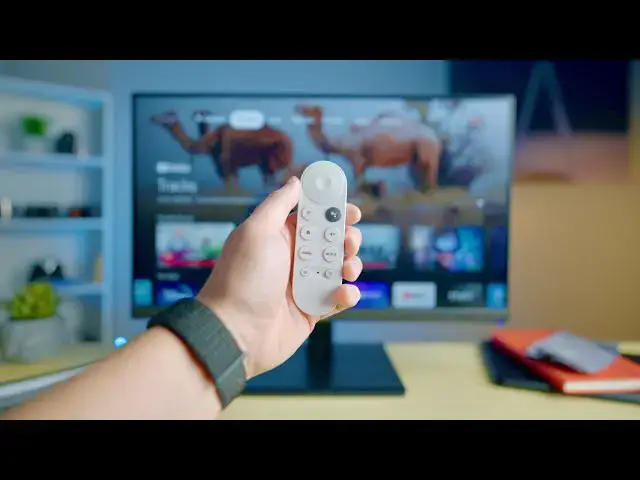
chromecast with google tv
0:03
has become the favorite and go-to
0:05
streaming dongle for all sorts of people
0:08
because frankly it's just awesome at
0:11
delivering content to your screen
0:13
gives you a remote and keeps all the
0:15
goodness of the original chromecast
0:17
experience but along with that remote
0:20
on screen there are some learning curves
0:22
to getting around and how you move
0:24
through all of it and
0:25
part of that is learning shortcuts and
0:27
learning how to leverage your remote
0:29
and take advantage of some of those
0:31
shortcuts and so we've put together a
0:32
list of our five favorite shortcuts
0:34
that you can use with your new
0:36
chromecast with google tv
0:41
today's video is brought to you by
0:43
nordvpn they're the vpn of choice for
0:44
millions of consumers because they're
0:46
awesome what they do keeping your
0:48
safe and secure whether you're at home
0:50
or out and about if you'd like to learn
0:51
more about them and their services head
0:53
over to chromeunbox.com forward slash
0:56
and you can learn more and get started
0:57
today okay so first off number one let's
0:59
start with a quick shortcut that gets
1:01
you to your settings menu from wherever
1:04
so a lot of you probably know right here
1:06
at the top you can go all the way over
1:08
and into your settings and you can
1:12
change things from right here log out of
1:13
your account that kind of stuff but what
1:15
if you're actually in an application so
1:17
for instance what if we're in netflix
1:20
and i need to get back and my wi-fi is
1:23
acting up and i need to quickly jump
1:24
back well instead of having to go all
1:26
the way back home and cycle through a
1:28
if you just hold the home button for
1:30
just a second you'll see that
1:31
menu pop up there again click down and
1:34
boom just like that you're right in your
1:35
settings the next tip is for live tv
1:37
viewing for any of you that leverage
1:40
youtube tv on your chromecast and what i
1:44
as i was moving through the ui for
1:47
youtube tv things work like you expect
1:49
them to and you can get around just fine
1:52
but i couldn't find how to get back to
1:55
so from the home screen you actually
1:59
live view right here this isn't youtube
2:02
tv it's what's on youtube tv but it's
2:03
not the same exact thing so
2:05
if i click into something like this and
2:08
i'm going to pause this so it's not
2:10
playing in the background
2:11
but say i want to get from here back to
2:14
what else is playing live i don't want
2:15
to go all the way back to the home
2:16
screen and start from scratch and start
2:19
all you have to do is click the back
2:21
button from this view
2:24
click over to live and you get youtube
2:28
tv stream and it's super helpful it's
2:30
not very intuitive to get here
2:32
but once you know that it's there it's a
2:34
whole lot easier to jump back and forth
2:35
between programs that you're you know
2:37
looking around and choosing what to
2:39
watch in a similar manner if you're
2:40
wanting to move between programs that
2:43
watched instead of going all the way
2:45
back to the live view and then
2:46
looking through the live listings again
2:48
and trying to find what it was you're
2:50
if you want to just go right back to
2:52
what you're watching like say you're
2:53
watching a couple different sporting
2:54
games or something like that
2:56
then the easiest way to do that is to
2:57
actually just click down
2:59
twice on the remote and you'll be right
3:01
on the last show you'll actually see the
3:03
last few things that you're watching
3:04
but you can jump from one thing right to
3:08
really quickly so we jumped here so i'm
3:12
and i'm right back to hgtv where my wife
3:15
likes to keep the channel set next up is
3:17
a quick shortcut that can work for
3:19
anybody whether you use youtube tv or
3:22
and that's the ability to remap the
3:24
youtube button that is on the face of
3:28
while i think most people will probably
3:29
find youtube the most handy feature here
3:32
maybe youtube tv for someone like myself
3:34
that uses youtube tv a lot
3:36
would rather that button go to youtube
3:37
tv or youtube music and to change that
3:40
all you have to do is long press that
3:42
a nice little ui comes up and you select
3:44
which service you would rather have
3:46
that button mapped to speaking of
3:49
a really handy shortcut that a lot of
3:51
people don't realize is available when
3:53
you're watching youtube videos on your
3:56
is the ability to actually like and
3:59
thumbs up and all of that kind of stuff
4:00
you would normally do on your phone
4:03
whenever you are watching a video on
4:05
your television so i'm just going to
4:06
click into the first thing that's here
4:08
and again when you're looking at
4:10
something on your phone you have the
4:12
ability to just scroll down and hit your
4:15
or subscribe to the channel well you
4:16
have all those abilities here too if you
4:18
know where to look all you have to do is
4:19
start using your directional keys on
4:22
click down and right back up above the
4:26
slider and you have captions you can
4:28
click into the channel here or if you go
4:31
you can change your quality you can
4:33
thumbs up thumbs down
4:34
you can subscribe to the channel and all
4:37
that kind of stuff that you normally
4:38
would do on your phone and it's really
4:39
handy because a lot of times you'll sit
4:42
multiple things on the chromecast that
4:44
you would normally watch in your phone
4:45
and you have all the same abilities to
4:47
interact with these videos
4:49
just like you would on your phone with
4:51
the chromecast with google tv and our
4:53
quick trick is the ability to quickly
4:58
the chromecast doesn't come with a whole
4:59
lot of storage and so it's nice to know
5:01
how to quickly go through and delete
5:03
now granted you could use the shortcut
5:04
we talked about earlier go to your
5:07
dig down into your applications and
5:08
delete them that way or
5:10
say you're done with disney plus and you
5:12
don't want it anymore all you have to do
5:13
is long press the center button
5:15
for just a second move open and view
5:18
details we're going to view details
5:19
and right from here you'll be able to go
5:22
in and uninstall the application
5:24
just like that alright guys well that's
5:25
it for our five best chromecast with
5:27
google tv remote tricks if you like this
5:30
video go down there and give us a thumbs
5:32
hit that subscribe button and make sure
5:33
and ring the notification icon as well
5:35
if you'd like to be alerted when we make
5:37
future videos just like this one until