Up next in 10



Join our Patreon community for exclusive extras, an ad-free website experience, access to our private Discord server, and more: https://www.patreon.com/chromeunboxed
Try Parallels for free: https://fave.co/3qp3my9
・・・・・・・
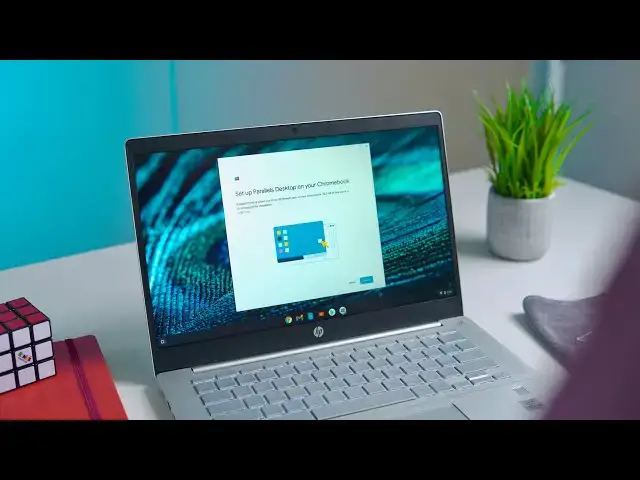
Today, we're going to take our first look at installing Parallels and the Windows desktop environment on Chrome OS. Bringing Windows applications to Chrome OS is a massive achievement for Google and it will greatly assist companies that want to move to Chromebooks but still rely on mission-critical legacy applications.
Try Parallels for free:
Read more: https://chromeunboxed.com/parallels-widows-chromebook-zero-touch-enrollment-first-look
Join our newsletter: http://bit.ly/2WjCDm7
・・・・・・・
Shop Chromebooks on CHROME SHOP: https://chrmshop.com/
Subscribe to the channel: http://bit.ly/2xFuj6L
Show More Show Less View Video Transcript
0:00
google just wrapped up chrome os dev day
0:02
and there was a lot of cool stuff to
0:03
check out but we want to look at one
0:05
thing in particular
0:06
zero touch enrollment allows companies
0:08
to hand out devices
0:10
and people can just log into them and
0:11
their stuff's just there but they
0:13
highlighted parallels today which
0:15
is the program that brings the full
0:17
windows desktop experience to chrome os
0:20
and that's now part of the zero touch
0:22
enrollment so we want to take a look at
0:23
exactly how that works
0:31
[Music]
0:40
hi guys so if you've ever dealt with
0:42
managed devices whether it's via
0:44
school or a business you know that a lot
0:46
of the stuff on the chromebook is
0:47
handled
0:48
on the back end by an i.t administrator
0:50
they have control over what apps are
0:52
installed what things you can and can't
0:54
use on a device
0:55
zero touch enrollment takes it a little
0:57
bit further and it allows administrators
0:58
to actually hand out devices
1:00
and when the user logs in everything
1:02
they need is already there
1:03
so the admin can have extensions
1:06
applications things like that are
1:07
already set up
1:08
from the google admin console and it
1:11
just makes it a lot easier to handle and
1:13
manage the infrastructure of a business
1:15
so with zero touch enrollment and
1:17
parallels companies that are dependent
1:19
on
1:20
legacy microsoft apps windows apps
1:22
things of that nature
1:23
they can actually install parallels on
1:25
the back end they uploaded the windows
1:27
image to a server
1:28
and then they can put their licenses in
1:30
the admin console
1:32
and assign them to a user or a device
1:34
and this allows them to actually
1:36
remotely they can drop ship a device to
1:38
an employee that's working remotely
1:40
when that employee opens it up logs in
1:42
with their company credentials
1:44
whatever that domain may be everything
1:46
they need is already there and that
1:47
includes parallels
1:49
so you can see right down here on the
1:51
taskbar
1:52
this is the parallels icon so this is
1:55
the parallels desktop and when you start
1:56
this up
1:57
it will install the local windows image
2:00
and create the virtual machine that you
2:02
need
2:02
to run windows applications on your
2:05
chrome os desktop and this is all part
2:07
of google's initiative
2:08
to allow companies to move into the
2:11
cloud and using chrome os full time
2:14
because they know a lot of companies
2:15
still have some applications that they
2:16
depend on and they need that they cannot
2:18
run on chrome os
2:19
but parallels is that stop gap that will
2:22
allow them to go ahead and move
2:24
while still having access to critical
2:26
applications that
2:27
just can't run on a chromebook so you'll
2:29
see this is already on the device it's
2:30
not installed this is similar to the way
2:33
christine e linux works
2:34
it's a container and a virtual machine
2:37
you click this and click install
2:39
and then it's going to prompt you that
2:40
it's setting up the parallels desktop
2:42
now understand this is not just
2:43
downloading a virtual machine
2:45
it's actually installing the custom
2:47
built windows image that your company
2:49
has so
2:50
it's not just a windows installation it
2:52
will also have whatever
2:53
predetermined applications you need for
2:55
your specific use case can be installed
2:58
on this image and then when you install
3:00
the virtual machine and it sets up the
3:02
windows desktop
3:03
everything you need whether it be excel
3:05
corel whatever it is
3:06
will be there for you and all of your
3:09
company's infrastructure will already be
3:10
integrated
3:11
and it allows you to use this on the go
3:13
wherever you go
3:14
and you don't have to spend crucial time
3:16
setting all this up because it's already
3:18
there for you now this is a large
3:20
download because it's installing
3:22
a full-blown version of windows to run
3:24
parallel
3:25
to chrome os so this is going to take a
3:27
few minutes but we'll be right back to
3:29
see it when it's done
3:30
all right so here you have it guys this
3:32
is a full-blown version of windows
3:34
running on chrome os
3:36
now just to be clear this did take about
3:38
30 to 35 minutes to download and
3:40
install but remember this is an actual
3:43
windows image being installed
3:45
on this device then once it's installed
3:47
parallels is the go between it is the
3:49
virtual machine that chrome os
3:51
accesses to view the chrome os desktop
3:54
so it is installed locally but you're
3:56
accessing it
3:57
virtually but the cool thing is is that
3:59
now that this is installed locally
4:00
parallels will actually
4:02
let you use this offline so we have all
4:04
these applications that were
4:06
pre-installed with our license so
4:08
you can use whatever browser you want
4:09
chrome works really well on it obviously
4:11
it's windows
4:12
it's going to recommend microsoft edge
4:14
but you can use whatever you want
4:15
there's corel photo app
4:18
all kinds of stuff on here this image
4:20
came pre-installed with a few different
4:21
applications a corel photo app here
4:24
and just some different things but your
4:26
company can design this and tailor it
4:28
for whatever need that you have so they
4:29
can pre-install
4:30
the applications that you need if you're
4:32
if you're into finances and you need
4:34
macros for
4:36
microsoft excel they can they can
4:38
install that on the image for you
4:39
whatever the case may be
4:41
they can customize this for your
4:43
specific environment
4:44
then when you install parallels and run
4:46
the windows desktop
4:47
those applications will be there for you
4:49
and the cool thing is that if you want
4:51
to keep your workspaces separate
4:53
you can just use desk and you can see
4:55
here i actually have
4:57
chrome os on this desk so i have no
5:00
window stuff running here i've got all
5:02
my chrome os stuff here
5:03
and then i can quickly switch back to
5:05
windows if i need it because remember
5:07
this is designed to be a stop
5:08
gap this is not so you can just run
5:10
windows all the time on a chromebook
5:12
if you're going to do that you just buy
5:14
a windows device this is to help
5:16
companies transition to the cloud and
5:18
transition to a chrome os
5:21
centric workforce so this allows them to
5:24
continue
5:25
using those applications until they can
5:27
figure out an alternative or transition
5:29
to web-based tools
5:30
chrome os linux whatever the case may be
5:33
but with the zero touch enrollment
5:34
you can literally hand out these devices
5:37
ship these devices however you want to
5:39
whomever you want
5:40
and when they log in with their company
5:41
credentials this stuff is already there
5:44
and the cool thing about this parallels
5:46
desktop is that
5:47
now that windows is installed and it's
5:49
running essentially on bare metal once
5:52
you shut down chrome os
5:53
or if you close the lid or anything like
5:55
that windows pauses in the background it
5:58
doesn't
5:59
go away or anything like that so you're
6:00
not stuck waiting for windows to start
6:02
up again
6:03
it will install updates and everything
6:05
for applications and windows just like a
6:08
regular windows desktop would
6:09
but windows is very responsive on this
6:12
now obviously it is running through a
6:14
virtual machine so when you open
6:15
applications
6:17
everything seems to run pretty smooth
6:19
but you'll see a little bit of lag
6:21
here and there and it's just it's not
6:24
rendering perfectly but it runs
6:26
smooth and it's not just smooth enough
6:28
this is
6:29
running well enough to get some work
6:31
done but remember this is a core i7
6:34
device with 16 gigs of ram 256 gigs of
6:37
storage
6:38
and parallels does recommend that you
6:39
have at least a core i5 and 8 gigs
6:42
because
6:42
the virtual machine and chrome os and
6:44
windows all running together
6:46
takes a lot of horsepower and it takes a
6:48
lot of space because you have two
6:50
operating systems running side by side
6:51
but we're going to do a full review of
6:53
parallels here in a week or so after
6:55
we've used it for a few days
6:56
and then we're going to do some back end
6:58
stuff and show admins how you actually
7:00
install this and run this and deploy
7:02
it to your fleets but for now guys
7:04
that's been it for this one i just
7:06
wanted to give you an up close and
7:07
personal look of what it looks like
7:09
and how simple and easy this new
7:11
deployment method is for parallels and
7:13
just the zero touch enrollment in
7:15
general guys if you like this give us a
7:16
thumbs up and don't forget to subscribe
7:18
and if you want to check out more
7:20
content hit that notification bell
7:21
because we've got a lot more coming your
7:22
way and you don't want to miss out
7:24
we'll see you next time
#Business & Productivity Software
#Enterprise Resource Planning (ERP)