0:00
if you're anything like see you end up
0:01
on multiple computing devices in any
0:03
given day whether it's your phone or
0:05
tablet Windows machine and Mac
0:07
Chromebook whatever the case may be a
0:09
lot of times we move between different
0:11
devices and the harsh reality is a lot
0:14
of times you go to pick up whatever
0:15
device it is and you've been working on
0:17
another one and the file you need to
0:19
work on the file you need to manipulate
0:21
just isn't there and fortunately for
0:23
Chromebook users there's a way to avoid
0:25
this pain point altogether and for this
0:28
chromebook tip Tuesday we want to show
0:38
today's Chromebook tip Tuesday is
0:39
brought to you by Nord VP and of the VPN
0:41
of choice for millions of users because
0:43
they are excellent at what they do and
0:44
that is keeping your browsing safe and
0:46
secure when you're at home or on-the-go
0:48
if you'd like to learn more about them
0:50
go to Chrome on box.com forward slash
0:52
Nord VPN first up it needs to be stated
0:55
that you can do some of this in the same
0:57
way for Windows or Mac devices because
1:00
what we're going to talk about is
1:01
actually a chrome setting the difference
1:04
whenever you're actually using it Mac
1:06
and Windows devices don't quite interact
1:08
with your files in Google Drive the same
1:10
way a Chromebook would there is file
1:12
stream that you can use on those and
1:13
we'll talk about that in a further
1:15
tutorial but if you're using file stream
1:16
a lot of this stuff will translate the
1:18
same way it would for a Chromebook but
1:20
in general what we need to talk through
1:21
is the chrome setting that's going to
1:23
get you set up to using your downloads
1:25
folder in Google Drive the way that you
1:28
would as if you were downloading them
1:30
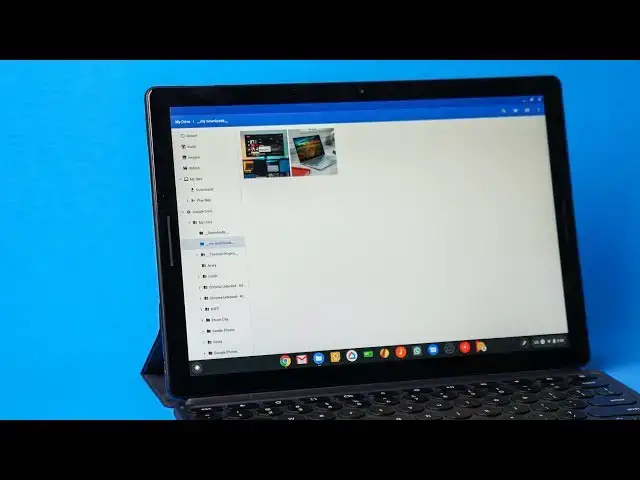
straight to your device so first things
1:32
first you need to go to Google Drive
1:33
either again in your file browser or in
1:35
file stream or straight up just on the
1:38
internet go there and create a downloads
1:40
folder what I would recommend doing is
1:42
placing either an asterisk before it or
1:44
placing an underscore or a dash or
1:46
something like that what that's going to
1:47
do is anytime you sort things by name
1:49
it'll put it right at the top so every
1:51
time you go to download it's easy to
1:53
find that file so once you've done that
1:55
once you've created that downloads
1:56
folder you can call it downloads you can
1:58
call it cloud downloads or whatever it
2:00
is you want to call it doesn't really
2:01
matter as long as you know what you're
2:02
using and you know are you're working
2:04
with you'll be in good shape here create
2:06
that folder and now you're ready to set
2:08
up the other setting in chrome that
2:10
allows this to happen automatically in
2:12
order to do that you're gonna want to go
2:13
to your chrome settings so open up a
2:14
chrome tab and hit the three dot menu
2:16
for Chrome OS users this is important
2:18
because whenever it is you're watching
2:20
this video it's highly likely that
2:23
they've split the settings so you have
2:24
Chrome OS settings and you have Chrome
2:26
browser settings we need to be in the
2:28
chrome browser settings so you need to
2:29
open up a chrome window hit your
2:31
three-dot button go to your settings on
2:33
the left side under advanced you're
2:35
gonna find a section that says downloads
2:37
and in that section there is a spot
2:39
where it says choose the folder that you
2:41
would use for your downloads this is all
2:43
pretty straight forward at this point
2:44
click the button choose the file that
2:46
you just created whatever again whatever
2:49
it is you've called it you're going to
2:50
choose that file and now what
2:51
Chrome is going to do anytime you
2:53
download a file from anywhere it is
2:55
always going to put it in that folder
2:58
and so the next time you download some
3:00
stuff and you're working on a few things
3:02
and then you go and hit the road you
3:04
open up another Chromebook or you open
3:05
up your Windows Device you open up your
3:07
Mac and you need that file well guess
3:09
what you didn't have to remember to
3:11
actually go download and then re-upload
3:12
those to a file management system
3:14
somewhere they're already saved in
3:16
Google Drive and they're accessible
3:18
wherever it is you are because that's
3:20
the magic of the cloud
3:21
so in general we just hope this helps
3:23
you make that decision to make that step
3:25
and change the setting on your
3:26
Chromebook so that you don't run into
3:28
that same kind of problem in the future
3:30
and oh by the way if you want to change
3:32
some channels like we talked about in
3:33
last week's chromebook tip Tuesday you
3:36
can feel free to do so and not really
3:37
have to worry about whether you clear
3:38
local storage or not once you go back to
3:40
the stable Channel because everything's
3:41
gonna be set up and ready to go as soon
3:43
as you sign in and that's just the
3:45
benefit of Chrome OS it's the benefit of
3:47
Google Drive and it's the benefit of
3:48
cloud computing in general but guys
3:50
that's it for this one if you liked it
3:52
give us a thumbs up and hit the
3:53
subscribe button down below and make
3:55
sure and hit the notification bell if
3:56
you'd like to be alerted when we make
3:57
future videos just like this one until
3:59
next time we'll see you