0:00
hey guys Gabriel with chrome unboxed and
0:01
today we're talking recovery media
0:03
perhaps you've bought your device and
0:06
you've got that white screen of death
0:07
that says insert recovery media or maybe
0:09
you like us and you'd like to take her
0:11
and it's just a good idea to have a
0:12
backup just in case so we're going to
0:14
show you all the steps on how to install
0:16
and create a backup for your device
0:24
before we get started this video is
0:27
brought to you by Nord VPN it's the VPN
0:29
of choice for millions of users whether
0:31
you're at home abroad public Wi-Fi it
0:33
will keep your browsing safe and secure
0:35
to learn more go to Chrome on box.com
0:37
forward slash Nord VPN alright if you're
0:41
doing this just as a backup you can do
0:43
it from whatever device you want but if
0:45
you've actually borked your chromebook
0:46
you'll need a second device to set up
0:48
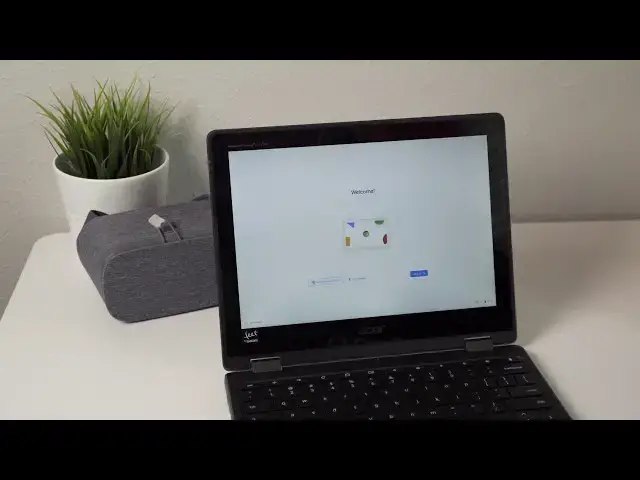
the recovery media so we have a Acer 512
0:51
here that we've got on the recovery
0:52
screen and we're going to use the HP 15
0:54
to dam load and create our image so
0:59
let's get started on installing alright
1:01
one other thing you're gonna need is a
1:02
flash drive you're gonna need at least
1:04
four gigs in the flash drive will work
1:06
obviously if your device only has USB
1:08
sees you're gonna need an adaptor or USB
1:10
C Drive recommend pretty much any brands
1:13
you want to pick up except for sand
1:15
discs for some reasons sandesh flash
1:17
drives do not play well with the Chrome
1:19
OS recovery tool and they are hit or
1:21
miss so you gonna slide over to the
1:23
chrome webstore and you're gonna look up
1:24
the Chromebook recovery utility it is by
1:27
Google you can see it right there on the
1:28
offered by your gonna install that on
1:30
your Chromebook and then you're gonna
1:31
launch it they're gonna be greeted with
1:33
a screen that tells you the same thing I
1:35
just did you're gonna need a flash drive
1:36
go ahead and get started so this is
1:39
where you're actually going to choose
1:40
the device that you're making the
1:41
recovery media for not the one you're
1:43
doing it on so you can select the model
1:45
from a list sometimes you might have to
1:47
use the board name and we'll put a link
1:49
in the description where you can find
1:51
all those board names for your specific
1:52
device but just go ahead and click
1:54
select model from the list go to Acer
1:57
and then you're going to keep scrolling
2:00
until you find the 512 there's a couple
2:02
different model numbers they're all the
2:03
same it's all the same board and then
2:05
from there click continue make sure your
2:08
flash drive is inserted and then select
2:10
device you want to use right now we have
2:12
a 16 gig on the drive there and then
2:15
next and create now it's going to take a
2:17
few minutes to download and install this
2:19
and then when it's done it'll tell you
2:20
do you eject the device and you're ready
2:22
to go it's moving on to the next
2:24
Chromebook got your white screen of
2:25
death there so you're gonna take your
2:27
newly created recovery media plug it
2:29
into the drive and we wait that's gonna
2:32
verify the install image and then in
2:34
just a few seconds it will start the
2:36
recovery process it doesn't take very
2:37
long it's just installing a new version
2:39
of Chrome OS and making sure
2:42
everything's verified and safe and
2:43
you'll be ready to go so there you go
2:45
once the recovery is complete it'll let
2:47
you know and you're just going to remove
2:49
the media and it will restart on its own
2:51
once this reboot you have a completely
2:53
clean fresh install of Chrome OS you'll
2:55
be ready to login just like its brand
2:57
new for whatever reason this did not
2:59
work maybe your recovery media was
3:01
flawed just try it again
3:03
use a different flash drive you always
3:05
want to make sure you have at least a
3:07
four gig flash drive and this will work
3:09
with any device so once you get into the
3:11
recovery tool you'll be able to find any
3:13
device that you have is in the list
3:15
there hey guys if you found this helpful
3:17
give us a thumbs up click the subscribe
3:20
button and don't forget to hit that
3:21
notification bill because we'll be
3:23
putting out some more how-tos and
3:24
tutorials in the near future and you're
3:26
gonna want to check those out till next