0:00
one of the most useful features a laptop
0:01
can give you is the ability to
0:03
screen grab or screen record so getting
0:05
a still image or a video of whatever it
0:07
is on your screen so you can share it
0:09
and honestly chromebooks haven't been
0:10
that great at doing this
0:12
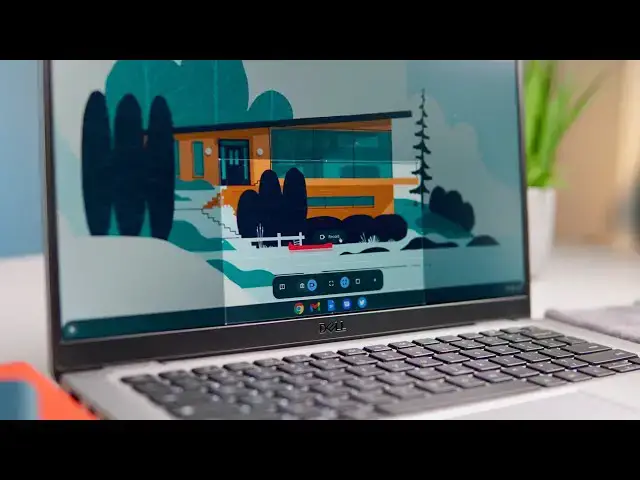
up until now but with chrome os 88 a new
0:14
tool is coming out that's going to allow
0:16
you to not just get stills but also
0:19
and audio from your chromebook right out
0:21
of the box with no extensions no apps
0:41
for right now as i said this is a
0:42
feature that shows up in chrome os 88
0:45
88 currently is in the beta channel we
0:47
don't expect 88 out until sometime in
0:49
january so if you're seeing this before
0:51
then you're going to need to head over
0:53
to your flags hey you're going to have
0:54
to go to the the beta channel and then
0:56
you have to go to your flags
0:58
again if chrome os 88 isn't stable by
1:00
the time you're watching this it'll be
1:02
may or may not be behind a flag so if
1:04
you're not seeing it out of the box
1:06
know that you need to go to your chrome
1:08
colon forward slash forward slash
1:09
flags once you get there you're going to
1:13
screen capture once you do you'll find
1:17
flag going to enable that and then
1:19
you'll have a button down here that
1:20
shows up you click reset
1:21
it'll reset chrome and you'll be ready
1:23
to go so we're just going to close that
1:26
basically once you've enabled the flag
1:28
you have a couple different ways you can
1:29
invoke this new screen capture it's
1:31
right here in your main
1:33
tray over here so you've got screen
1:37
the old shortcut that would give you the
1:39
old screen capture so control and
1:42
that just does the old screen capture ui
1:44
nothing special there but the minute you
1:46
the old like different size screen
1:49
capture ui so control
1:50
shift and overview you boom come into
1:53
brand new interface so that's going to
1:55
look the exact same as if you just go
1:57
down here and hit screen capture
1:58
so same thing once you're here there are
2:01
a couple things that you can do
2:03
so you see there's a toggle at the
2:04
bottom that shows a camera
2:06
and video and as you hover each of these
2:08
it tells you what what it is so that's
2:09
going to switch us to screen record
2:11
if i click this it's going to say take
2:13
full screen screenshot
2:15
and then you'll see it kind of
2:16
highlights the entire screen you tap
2:18
anywhere out here and boom you've got
2:20
it's going to slide in until you've
2:22
taken a screenshot it's set to do a
2:25
out of the box so when you do this so
2:26
say i do this right here
2:28
i'm like that's not exactly the framing
2:30
i wanted we can drag this frame around
2:32
we can grab the edges
2:33
and as you can see you get a nice little
2:35
magnifying thing there so you can
2:37
actually really hone in on that edge
2:39
that you want to grab
2:40
once you're cool and you're like this is
2:42
it this is what i got and i need to move
2:43
it a little bit more there we go that's
2:45
click that capture button boom screen
2:49
and you can click it and view it in here
2:51
and see that it's an exact
2:52
grab of the portion of the screen that i
2:56
now when you move to video capture
2:59
again our little box stays up here oops
3:01
sorry our little box stays up here
3:03
and if i flip over to video the box can
3:06
stay here we can define
3:08
specifically how much area we want to to
3:10
record and you actually get
3:12
pixels down here so you know exactly how
3:14
much of the screen you're getting
3:15
and once we're there say okay i want to
3:17
start recording click it
3:19
and you're going to get a countdown once
3:23
the the outline goes away but it's still
3:26
only going to record that portion of the
3:29
and you'll see that here in just a
3:30
second once you're done
3:32
there's a stop button right down here on
3:35
done we're going to click this and we're
3:37
going to click our video and what you're
3:38
going to see is just a portion
3:40
of the screen so outline and you'll hear
3:44
and so you see it only grabbed that
3:45
portion of the screen which is a really
3:47
nice trick honestly i mean if you're
3:49
trying to do a screen recording
3:50
of just a particular section of a
3:52
website or anything on your chromebook
3:54
it's so awesome to be able to define
3:56
that space and then click screen record
3:58
so now you don't have to go and
3:59
you know chop up the video afterwards to
4:01
actually get the crop that you were
4:03
so finally the other trick i want to
4:04
show you is you heard my audio pop in
4:07
it's going to record the audio from your
4:09
microphone so there's not always going
4:11
to be a need for that or
4:12
maybe you just don't want that to be the
4:14
case right now there's no toggle to turn
4:17
but if i go over here in my main chrome
4:20
click next to the main speaker input
4:23
i can just take my mic slide it all the
4:25
way down that basically mutes the
4:28
and so now when i go to do my screen
4:32
again i can click full screen down here
4:34
if i want to screen screen grab the
4:36
i'm talking oh i did the wrong thing
4:40
record full screen click it so as it
4:45
i'm going to record and talk in this and
4:46
you'll hear in just a second
4:48
as i get done with that and hit stop
4:52
click into this one and as you can hear
4:55
there's no volume my volume is at max
4:57
no volume whatsoever so if you need a
4:59
screen recording and you don't want the
5:00
volume in there of your kids screaming
5:02
in the background or whatever
5:03
just turn your microphone down but what
5:07
is basically a full-fledged screen
5:09
recorder i mean everything you need to
5:11
screenshots small ones full screen video
5:15
small full screen audio while you're
5:18
doing it i mean it really replaces the
5:20
need for any kind of extension or
5:21
application for screen recording on your
5:25
for chrome os to be a lightweight
5:27
operating system and have this robust of
5:29
a screen capture tool
5:30
built in is pretty awesome and so we're
5:33
excited to see it we're excited to see
5:34
it roll out and stable again
5:36
it'll show up in chrome os 88 so if you
5:38
want to try it now head to the beta
5:40
or wait around for chrome os stable to
5:42
hit 88 but guys that's it for this one
5:44
if you liked it give it a thumbs up go
5:46
down there and hit the subscribe button
5:48
and be sure and hit the notification
5:49
bell as well if you'd like to be alerted
5:51
the next time we make a video just like
5:53
till next time we'll see