Up next in 10

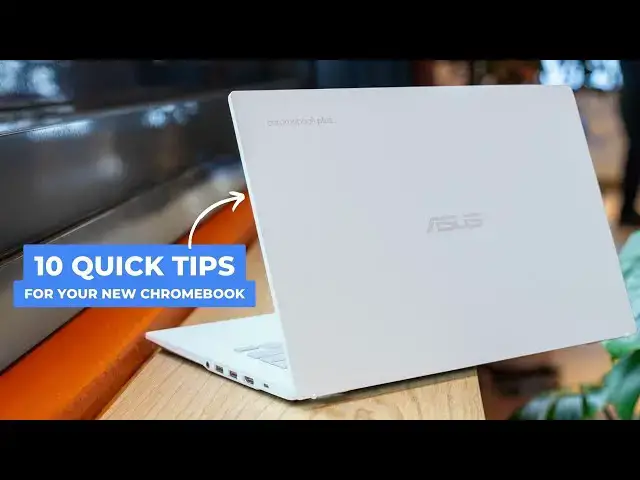
Got A New Chromebook? 10 Things You Need To Know
Jan 1, 2019


Shop Chromebook Plus models at Best Buy: https://howl.me/ckOkt9dHUMs
・・・・・・・
It is pretty easy to get lost in all this Chrome OS news on a daily basis and forget the large number of users who may be sitting in front of a Chromebook for the very first time today. After a few years of researching, reviewing and writing about Chromebooks, it becomes very tempting to just assume everyone knows what they are getting into when a new Chromebook arrives.
But, as we all know, that simply isn't the case. So, if you are a Chromebook ninja or a regular reader of Chrome Unboxed, this post and video may not exactly be down your lane. Sure, there may be something in here you haven't encountered, but the chances are slim that any of this will be news to you. However, there's a really good chance that someone you know is new to the Chromebook scene. For those folks and for anyone else new to Chrome OS, this video is for you.
We want to spend a few minutes highlighting some of the more important things you need to know as you take your new Chrome OS device out of the box. Absorbing this amount of content would be a lot if you're just reading it, so we put together a video with all the tips in an easy-to-watch, easy-to-consume form.
Getting started with a new device and a new operating system can be a lot, so hopefully, this helps make the process less stressful for you or someone you know. Without further ado, here are 10 things you need to know if you are new to Chromebooks!
👉 Read more: https://chromeunboxed.com/new-chromebook-10-tip-get-started
💲Shop Chromebook Plus models at Best Buy: https://howl.me/ckOkt9dHUMs
📰 Join our newsletter: http://bit.ly/2WjCDm7
Join our Patreon community for access to our private Discord, an ad-free website experience, and more ➡️ https://www.patreon.com/chromeunboxed
・・・・・・・
Fueled by Fresh Roasted Coffee! Buy the special edition Chrome Unboxed bag here: https://chromeunboxed.com/coffee
Shop Chromebooks on CHROME SHOP: https://chrmshop.com/
Subscribe to the channel: http://bit.ly/2xFuj6L
Follow us: https://www.instagram.com/chromeunboxed
https://twitter.com/chromeunboxed
https://www.facebook.com/Chromeunboxed
0:00 Introduction
1:27 PLUG IN YOUR CHROMEBOOK
2:01 CREATE GOOGLE ACCOUNT
3:44 PORTS
4:30 SETTINGS
5:17 HOW TO EXTEND YOUR DISPLAYS
6:34 KEYBOARD SHORTCUTS
7:43 TRACKPAD
9:22 TABLET UI
10:30 ANDROID & LINUX APPS
11:36 POWERWASH
Show More Show Less View Video Transcript
0:00
so you just got a Chromebook it's not
0:02
steep but there is a learning curve if
0:04
you're coming from Windows or Mac it's
0:06
okay
0:06
chrome unboxed is here to help
0:10
[Music]
0:15
look there are tons of people like us
0:18
who have spent lots of time in Chrome OS
0:20
using Chromebooks and they're just very
0:22
familiar with all of this stuff and so
0:23
as we look up things we write articles
0:26
it's really easy to forget there are
0:28
tons of people that are just now
0:29
starting to pick up Chrome OS and
0:31
Chromebooks and so we wanted to make a
0:33
video for you guys and so if you're
0:34
watching this and you're someone who's
0:36
been using Chrome OS for a while
0:38
this video is probably not for you you
0:40
may find something in here that you
0:41
didn't know about but likely this is
0:43
gonna be more for your friend or family
0:44
member who is just now getting into
0:46
Chrome OS and needs a QuickStart guide
0:49
and some some tools to help them use
0:51
their Chromebook as someone who has been
0:53
using Chromebooks for six months or a
0:55
year and so we will provide ten very
0:57
simple things that can kind of get you
0:59
jump-started in your overall experience
1:01
but before we get into those 10 tips
1:03
here's a freebie to get us started Nord
1:05
VPN is the VPN of choice for millions of
1:08
users it is the simplest and easiest way
1:11
to secure your browsing data whether
1:13
you're on a Chromebook or you're on a
1:15
Windows device or a Mac or a phone or
1:18
Android iOS any of them all you have to
1:20
do is go over to chroma and box comm for
1:22
it slash Nord VPN to get started today
1:25
alright so let's get started tip number
1:27
one plug in your Chromebook
1:29
now when you unbox it it's gonna be
1:30
tempting to pull all the wrapping off
1:32
open it up and hit the power button 99
1:34
times out of 100 that's not gonna do
1:35
anything and we know because we've
1:37
unboxed a lot of Chromebooks around here
1:39
Google for whatever reason I'm sure it
1:41
has something to do a safety or
1:42
something sets these in such a way that
1:45
when they pack them up they need to be
1:47
plugged in to the outlet for at least a
1:49
few seconds before they will power on
1:51
and connect the battery up to the
1:52
motherboard so get it out plug it in
1:54
probably for just a couple seconds that
1:56
will wake the device up and you can be
1:58
off and running tip number two you're
2:00
gonna need a Google account and I know a
2:02
lot of people get really uptight
2:03
whenever someone says hey you need to
2:05
sign up for yet another thing but you
2:08
need to know that a Google account in
2:09
general isn't just another thing it's
2:11
kind of the gateway to using a
2:13
Chromebook to its fullest potential and
2:14
there's not really a way to use it
2:16
without one sure you can jump in guest
2:18
mode and that's one of the options when
2:19
you go to login and you'll use guest
2:21
mode from time to time somebody will
2:23
need to use your Chromebook
2:24
log out pop it in the guest mode and let
2:26
him go to town when they log out
2:27
everything they did is gone that's great
2:29
and it's one of the great things about
2:31
Chromebooks is that they are account
2:33
driven meaning all the things you set up
2:35
all the things you download all the
2:36
things you do all the stuff that you
2:38
accumulate follows that account and so
2:40
we're talking about settings Wi-Fi
2:41
passwords all of that stuff is logged
2:43
into your personal account so that if
2:46
you drop this Chromebook lose this
2:48
Chromebook move on to another Chromebook
2:50
need to just jump into another
2:51
Chromebook you can just log in give it a
2:53
few seconds to sync up and everything
2:55
you had set up on your device will be at
2:58
your disposal on this other device a
2:59
Google account is kind of the keys to
3:02
the kingdom here it's going to give you
3:03
access to Google Docs gonna give you
3:05
access to Gmail to Google Calendar
3:07
Google Photos Google everything
3:08
basically it's all tied to that account
3:10
so it is something that is absolutely
3:12
necessary and again one of the cool
3:14
parts about it is with all this stuff
3:16
being connected to your account you can
3:17
also lend your Chromebook to other
3:19
people let them sign in with their
3:20
account all their stuffs there it's all
3:22
siloed you can't get to it they can't
3:24
get to your stuff it's all completely
3:26
separated and you can jump back and
3:28
forth between accounts really really
3:29
quickly and really easily by logging out
3:31
or just switching accounts and so it it
3:33
brings a lot of power to the table and
3:35
so don't be afraid of signing up for
3:36
that Google account you'll need it
3:38
you'll use it and it will make your
3:39
Chromebook experience really really
3:41
great number three use your ports
3:43
Chromebooks come with all kinds of ports
3:46
and some of them are going to be USB see
3:47
only some of them are going to be a mix
3:49
of USB C and USB a you're gonna have SD
3:51
card slots and headphone microphone
3:53
jacks the point is use them because
3:56
Chrome OS takes very good advantage of
3:58
these ports lots of stuff works with
4:00
Chromebooks you can plug all sorts of
4:02
things and so if you're even curious
4:03
about whether or not it would work with
4:05
your Chromebook plug it in and see SD
4:07
cards work to offload storage and and
4:09
videos and and footage and all that kind
4:12
of stuff and printers you can plug them
4:14
right in portable hard drives work
4:15
really really well and wireless and
4:18
wired keyboards and and mice and all of
4:20
these peripherals just work just plug it
4:22
in and see and and you might be
4:24
surprised of what will work with the
4:26
ports on your Chromebook number four
4:28
giving around your settings now Chrome
4:31
OS is pretty simplified as an operating
4:33
system but there still are a lot of
4:35
settings to choose from so if you go
4:37
down to the system tray and
4:38
like where the clock is and then hit
4:39
your gear icon you're gonna see a long
4:42
list of settings and to be honest with
4:44
you even after years of using these I
4:46
couldn't even tell you exactly where all
4:48
the things are that I go and tweak
4:50
because I never actually navigate
4:52
straight to them I go straight to the
4:53
search bar type what I'm looking for it
4:55
highlights it I go there and change it
4:57
so whether you're looking for passwords
4:58
or you're gonna change something on your
5:00
keyboard or whatever setting it is
5:02
you're looking for font sizes all that
5:05
kind of stuff just start typing right up
5:06
there in that search bar find what
5:08
you're looking for and get right to it
5:09
it's actually insanely simple but if you
5:12
don't use that search bar the settings
5:14
can be a little bit overwhelming number
5:16
five how to extend your display
5:18
for some of you getting this device
5:20
you're gonna be wanting to get some work
5:21
done on it and be productive and luckily
5:23
Chrome OS does a great job at extending
5:26
displays all you got to do if you've got
5:28
HDMI on your particular Chromebook is
5:30
hook an HDMI cable into the Chromebook
5:32
and into the display you want to go to
5:33
whether it's a monitor or TV chrome OS
5:36
will recognize it some of you are only
5:38
going to have USB type-c rest assured
5:40
USB type-c on Chromebooks always has a
5:42
display out function you just need an
5:44
adapter to do that you can find them on
5:46
Amazon we'll link one in the description
5:47
below but once you've got it hooked up
5:50
there's gonna be a notification that
5:51
will pop up you click on that
5:52
notification it's gonna take you right
5:54
to the spot in your settings where you
5:55
actually get to arrange how those
5:57
screens are aligned and so you want to
6:00
align them basically the way that you
6:01
have them physically like I like my
6:03
monitor up here with my actual
6:05
Chromebook beneath it I drag it in that
6:07
way that way once you've done that the
6:09
mouse cursor can go from screen to
6:10
screen exactly as you would expect as if
6:13
they're exactly there in physical space
6:15
and so the setup is super super easy if
6:17
you don't quite get everything you want
6:19
maybe you want to change the resolution
6:20
on one of the monitors or something like
6:22
that you need to get back again go back
6:24
to the earlier tip on the settings open
6:26
that settings panel up type in display
6:28
you'll see it right there click in and
6:30
you can change those things as you see
6:32
fit onto number 6 that's keyboard
6:34
shortcuts you're gonna notice right out
6:36
of the box that if you've not used a
6:38
Chrome OS device before the keyboard
6:40
looks a little bit different in that top
6:41
row function keys they do kind of what
6:43
you expect you know forward back refresh
6:46
escape that kind of stuff is pretty
6:48
straightforward there are a couple
6:49
function keys up there there's one
6:51
kind of like a box you hit it it's
6:52
actually gonna take whatever you're
6:54
looking at and go fullscreen and the one
6:55
next to it that looks like three boxes
6:57
will actually go into an overview mode
6:59
and we're gonna talk about that mode
7:00
here in just a second with the trackpad
7:02
but I'm not really talking about the
7:04
stuff that's right there in your face on
7:05
the keyboard I'm talking about keyboard
7:07
shortcuts things where you can hit a
7:08
combination of keys and do different
7:10
stuff and Chrome OS is kind of loaded up
7:12
with them there's lots and lots of
7:13
different things but simple stuff like
7:15
copy and paste for instance you know
7:18
control V control C control X work
7:20
exactly like you would expect them to
7:21
those are the ones I use a lot some
7:23
people are looking for the delete button
7:24
not the backspace alt backspace gives
7:27
you delete button but you can see every
7:29
single one of these keyboard shortcuts
7:31
if you hit ctrl alt shift in the
7:34
question mark and so once you do that
7:35
it's going to bring up a searchable
7:37
database of every shortcut that you can
7:39
access on your keyboard
7:41
number seven navigating your trackpad
7:43
Google's done a really good job with
7:45
Chromebooks across the board regardless
7:47
if they're cheap or they're really
7:49
expensive of making good trackpads a
7:51
necessity and because of that all the
7:54
gestures work on all Chromebooks since I
7:56
want to talk through a couple of those
7:57
gestures that are really really helpful
7:59
in day-to-day use so we'll talk about
8:02
one finger gestures first which is
8:03
basically just pointing but you do have
8:05
the option of choosing in your settings
8:07
whether you want to be able to tap to
8:08
click or actually click the trackpad
8:10
down to click moving on to two fingers
8:13
if you want a right-click or a context
8:15
menu to come up you can tap or click
8:17
with two fingers onto the trackpad and
8:19
get that and then if you want to scroll
8:21
a page or scroll up down anything or
8:24
whether you're in an app or whatever you
8:25
want to move the content up and down two
8:27
finger scroll moves that content up and
8:29
down moving on to three finger gestures
8:31
you can swipe up or down depending on
8:34
which way you've got that set in your
8:35
settings on your trackpad with three
8:37
fingers and get an overview mode to see
8:39
all of your open windows and then you
8:41
can swipe left and right with three
8:43
fingers on your trackpad if you have
8:45
multiple tabs open on any single
8:47
instance of Chrome and move between
8:49
those tabs quickly and for me one of my
8:51
favorite gestures on Chromebooks in
8:54
general and when I go to Windows or Mac
8:56
or something else I sorely missed that
8:58
feature the last one I want to mention
8:59
is three finger click to close if you're
9:02
clipped on to or hovering over a tab
9:04
three-finger click can close that tab
9:06
where you don't have to go hunting for
9:07
the little X button there but the
9:08
gestures in general always work and they
9:10
work really fluidly and they work really
9:12
well and Google has done a good job of
9:14
making sure that that experience is the
9:16
same regardless if you paid $150 for
9:18
your Chromebook or a thousand number
9:20
eight navigating the tablet UI so as of
9:23
Chrome OS 70 that came out a few months
9:25
ago Google really overhauled the entire
9:27
tablet interface so if you've got a
9:29
chrome OS tablet or a convertible the
9:32
minute you put it into tablet mode
9:33
you're going to notice some things have
9:34
changed and one of those is the desktop
9:36
kind of gets replaced by the app drawer
9:38
and the app drawer can be swiped through
9:40
you pick an app and open it up and
9:42
exactly as you would expect to once it's
9:44
open another cool trick you can do is to
9:47
go between another app is just swipe
9:48
right up from the bottom the app tray
9:50
will kind of take over the page again
9:52
you can choose something if you choose
9:53
to back out of that swipe back down
9:55
you're right back into your app if you
9:57
swipe down from the top you're met with
9:59
a couple options you can move the app
10:02
over into side by side mode so you can
10:04
kind of do a split screen multitasking
10:06
then choose another app to open there or
10:08
you can drop it down into the overview
10:11
mode where you see all of your open
10:12
windows and from there flick up any of
10:14
those or hit the X in the corner to
10:16
close those apps out and then if you
10:18
just choose one of those apps in that
10:19
overview mode you'll see that app
10:21
fullscreen again and again from that
10:23
spot you can kind of move around using
10:25
these gestures in any way you see fit
10:28
number 9 leveraging Android and Linux on
10:30
your device now you may have noticed
10:33
already there's a little Play Store icon
10:34
either down on your shelf or in your app
10:37
tray and if you choose and you would
10:39
like to leverage Android apps on your
10:41
device click that button the Play Store
10:44
will kind of get set up and you'll have
10:46
access to most of the Play Store and you
10:49
can download and try apps and some of
10:51
them are great and some of them just are
10:52
not formatted for the big screen
10:54
but you can try and see what you like if
10:57
you don't like it you can go into
10:58
settings you can go to the Play Store
10:59
settings and just turn the whole thing
11:00
off it's kind of up to you and Linux is
11:03
the same way too if you're not familiar
11:04
with a terminal and you don't really
11:06
know what to do with Linux
11:08
just leave it turned off for right now
11:09
but if you do and you want to experiment
11:12
you want to get in there and mess around
11:13
with some of the things there you can
11:15
actually just go to
11:16
again go to the Linux section flip it on
11:19
and it will go through an installation
11:20
process and you'll have a terminal where
11:22
you can start installing things via the
11:25
terminal just like you would on any
11:26
other Linux device and so if you have no
11:29
idea what I mean when I say a terminal
11:30
again probably a good idea to let that
11:32
one rest and for our final tip tip
11:34
number 10 power wash your Chromebook and
11:36
I don't necessarily mean power wash it
11:38
right now especially if you're watching
11:39
this video on it but in general if
11:42
anything goes wrong or anything's out of
11:44
place you've got too much junk installed
11:45
or you just want a fresh start or you
11:48
want to hand it off to somebody or you
11:49
need to return your device the power
11:51
wash is the way to go it's very simple
11:52
to get to go to your settings search
11:54
power wash it's the only thing that's
11:56
going to come up click it agree vs I
11:58
want to power wash my device and within
12:00
just a couple minutes this thing is
12:01
going to be back to factory settings
12:02
it's not like resetting other devices
12:05
like Windows or Mac devices where it
12:07
takes time and you got to just sit there
12:09
and wait on it it really really is a
12:11
very very quick and painless experience
12:13
and so if you're in into any problems
12:15
whatsoever a power wash is the way to go
12:17
and since everything is hooked up to
12:19
your Google account
12:20
the minute you power wash it and you
12:21
need to sign back in all of your stuffs
12:23
gonna be there again it's all gonna be
12:25
set up it's all gonna be laid out
12:26
exactly the way that you left it and so
12:28
it's one of the beauties of using a
12:29
Chromebook in general alright guys so
12:31
that's it those are our top 10 tips
12:33
getting started for new Chromebook users
12:35
and sure there's plenty of other ones
12:37
out there that we could talk about and
12:39
if there are some tips that you think
12:40
hey this is really important for new
12:42
Chromebook users to see hit us up in the
12:44
comments down below and if there's
12:45
enough of them we might make another one
12:47
of these videos but for right now that's
12:49
it for this one if you liked it hit that
12:51
thumbs up button subscribe down below
12:53
and until next time we'll see
12:58
[Music]
Software
Science