Up next in 10



Google Wifi: http://amzn.to/2kpr7GD
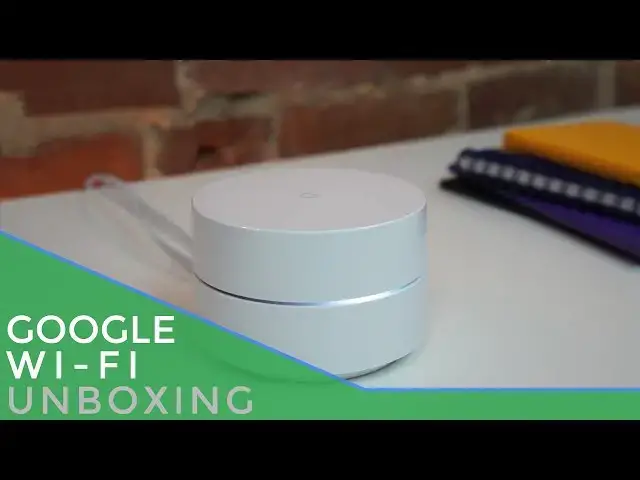
In this video, we unbox and set up the new Google Wifi! The process doesn't disappoint and is insanely simple. We captured the whole process and think just about anyone could do this. Check out more over at https://chromeunboxed.com
Show More Show Less View Video Transcript
0:01
[Music]
0:08
[Music]
0:14
[Applause]
0:28
yeah
0:45
[Music]
0:58
yeah
1:01
hey folks Robbie pay with chrome unbox
1:03
coming at you today with an unboxing and
1:05
quick setup of the Google Wi-Fi and you
1:08
can see right in front of me this device
1:10
is simplistic it's beautiful looks
1:12
nothing like pretty much any other
1:13
router you're going to see we're going
1:15
to actually set it up here on camera to
1:17
show you how quickly you can go about
1:18
doing this and I would dare say that any
1:21
of your non- Tey friends or relatives
1:23
could probably set this thing up with
1:24
ease and you're going to see how quick
1:26
and easy this is right
1:28
now all right so we are going to go in
1:32
and launch Google Wi-Fi obviously if you
1:34
don't have that you're going to need to
1:37
install that
1:43
app fun little animation there let's get
1:46
started great so it's finding the Google
1:49
Wi-Fi device now why it's doing this
1:51
every once in a while you'll see a
1:53
Google Wi-Fi setup notification I'm not
1:55
sure if that's coming from Google Play
1:58
services uh or if that's coming from the
2:00
app itself uh we had someone in the
2:02
office actually get that notification
2:04
and I'm pretty sure they did not have
2:05
Google Wi-Fi installed on their device
2:07
so uh we'll see so we're going to go
2:10
scan the QR
2:12
code yes going to have to allow it to
2:14
take
2:15
pictures and you'll see how
2:19
quick and easy that is and back to
2:27
connecting and it's asking where this
2:29
thing is let's pretend it's in the
2:31
dining
2:32
room Wi-Fi
2:36
name
2:39
yes and because I'm going to reset this
2:41
thing I'm going to just set it to uh 9 8
2:44
7 6 5 4 3 two
2:55
one and again this thing is filled with
2:58
all kinds of fun animations
3:01
and the point here being using regular
3:04
terms things that everybody can
3:06
understand an app a very simple UI we're
3:09
getting our router set up and I don't
3:11
know about you all but setting up a
3:13
router is not the most fun thing in the
3:14
world I don't enjoy it I don't like
3:16
doing it I don't like messing with them
3:18
and this is a pleasure so it's going to
3:21
take it a second now that's switching
3:22
back from the local Wi-Fi that it had on
3:24
there and now we're going back uh I got
3:27
Wi-Fi points and so this is set up if if
3:29
you have uh multiple of these you can
3:32
actually set up a mesh Network where
3:33
they connect one to another we don't
3:35
have that we just have the one so we're
3:37
going to say nope we're all done and it
3:38
shows you right here Wi-Fi name Wi-Fi
3:40
password and the
3:42
name of the network that you're
3:44
connected to and all that good
3:52
stuff
3:54
and so here's the main interface of the
3:56
app shows one device connected shows
4:00
your Wi-Fi point and internet
4:02
connectivity and so if you click on any
4:04
of these and we're going to cover more
4:05
of the stuff in the full review you can
4:08
actually bounce around you can um uh
4:11
tailor how much data each device is
4:13
getting you can shut them down you can
4:15
make one a priority so if you're
4:16
streaming a Netflix video you can
4:18
actually uh set that that device to
4:20
priority and make sure that your video
4:22
that you're watching always gets full
4:24
attention and the most internet uh
4:26
bandwidth but we're going to talk about
4:27
all the different things you can do in
4:28
this app um there's there's clearly a
4:31
lot of stuff but with just a couple
4:33
minutes of setup and nothing really else
4:35
involved we are actually already online
4:38
and you can see I'm connected to the Yes
4:43
Network
4:44
and I'll run a speed test real quick
4:47
just to verify that we are
4:50
on and as you can see Wi-Fi
4:54
[Music]
4:56
easy so guys that's it for this
4:58
particular video here here like I said
5:00
we're going to spend some time with this
5:01
I'm going to install this in the office
5:02
we are going to do uh some pretty tough
5:05
testing on this device I'm going to make
5:07
sure everybody that works in our office
5:09
is set up and using this on a day-to-day
5:11
basis so that we have I don't know
5:13
somewhere in the realm of 20 to 25
5:16
devices between people's phones
5:17
computers tablets all that kind of stuff
5:19
we're going to hook them all up to this
5:20
One Singular point we're going to see
5:21
how it does um and be able to monitor
5:24
that traffic and see how all those
5:25
things go and then get back with you on
5:27
a video uh that that shows all the
5:29
potential that this particular router
5:31
has U we're excited I think it's a great
5:34
device and we can't wait to get back to
5:35
you with a review until next time though
5:38
uh if you like this video give it a
5:40
thumbs up please subscribe to the
5:42
channel and we'll see you in the next
5:46
[Music]
5:51
one
#Consumer Electronics