Up next in 10

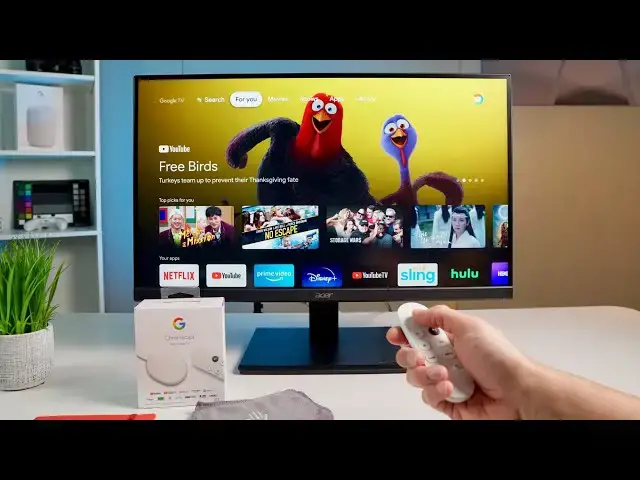
Chromecast with Google TV Unboxing and Initial Hands-On
Oct 5, 2020


Join our Patreon community for exclusive extras, an ad-free website experience, access to our private Discord server, and more: https://www.patreon.com/chromeunboxed
・・・・・・・
Today was finally the day that we were able to get our hands on the new Chromecast with Google TV. We are going in the box and getting some quick hands-on with the updated interface.
Read more: https://chromeunboxed.com/chromecast-with-google-tv-unboxing-hands-on-setup/
Join our newsletter: http://bit.ly/2WjCDm7
・・・・・・・
Shop Chromebooks on CHROME SHOP: https://chrmshop.com/
Subscribe to the channel: http://bit.ly/2xFuj6L
The Music We Use - PERFECT for YouTube: http://bit.ly/31W6PYP
Follow us: https://www.instagram.com/chromeunboxed
https://twitter.com/chromeunboxed
Show More Show Less View Video Transcript
0:01
let's unbox a chromecast shall we
0:20
look there's no reason to beat around
0:21
the bush here we've all known that this
0:23
new chromecast is coming out we all know
0:25
that it's got a ui it's got a remote
0:27
control
0:27
and everybody honestly has just been
0:29
excited to
0:31
see what it's like to use it and so what
0:33
we want to do is
0:34
now that we have one here in the office
0:36
unbox it and let you kind of see it
0:37
really quickly there's not a whole lot
0:39
here it's a dongle and a remote
0:40
but get some idea about what it looks
0:42
like and feels like and then actually
0:44
plug it in and see the ui
0:46
in action so we're going to do exactly
0:47
those things but real quick around the
0:49
box
0:50
on the back simple setup plug connect
0:53
and
0:54
stream so very clear very concise
0:57
messaging from google
0:58
while this thing can be and act as a
1:00
chromecast they're also wanting to push
1:02
the narrative that
1:03
they're hooked up with all of these
1:04
streaming services and they can help
1:07
kind of guide you through all of those
1:08
different services and help you find the
1:10
stuff that you need and stuff that you
1:12
want so on the other side
1:14
google tv puts all your entertainment in
1:16
one place it's easy to find what you
1:17
want discover 700 000 plus
1:20
movie and tv episodes get
1:21
recommendations see where they're
1:23
available to stream
1:24
hd 4k hdr and then you get quite a few
1:27
of the
1:28
actual services part of them obviously i
1:31
mean this thing is going to work with
1:32
just about any streaming service you can
1:34
imagine
1:35
so think like roku it's going to just
1:37
basically pull in services from just
1:39
about anywhere
1:40
for you to stream and actually navigate
1:42
on the ui so
1:43
it's a lot more than what we've seen in
1:46
previous uh
1:47
chromecasts and you know that's cool
1:49
because
1:50
ultimately you know they're branding
1:52
this thing a little bit differently it's
1:54
not just chromecast it's chromecast with
1:56
google tv
1:57
and we're gonna have to see how that all
1:58
shakes out because ultimately google tv
2:00
is now gonna become
2:01
google's streaming service
2:05
thing so like play movies and tv is
2:07
gonna be taken over with google tv so
2:08
it's
2:09
it's at one time you know the service
2:11
that's gonna come
2:12
compile all this stuff in one place for
2:14
you but it's also
2:15
the kind of uh skin for the os so
2:18
underneath the fact that it's running
2:20
google tv there's also
2:22
technically android tv here so the bones
2:24
of it
2:25
is an operating system they've had for a
2:27
little while but they're just rebranding
2:28
this thing and so
2:30
you can see right at the outset this
2:31
thing is very googly very googly branded
2:34
um nice packaging here remote is nice
2:38
and small
2:39
uh get underneath here and
2:42
nothing that's in there like crazy uh
2:45
you get a usb type-c
2:46
cable some batteries look they even have
2:48
white batteries how cool is that so some
2:50
batteries for
2:51
the device for the uh remotes and you
2:54
get a usb
2:55
type-c connector here and from what we
2:58
understand
2:59
you're going to have to actually hook
3:01
this thing
3:02
into power so it won't work just from
3:04
your television uh as old chromecast did
3:07
because there's a little bit more going
3:08
on here this is a
3:09
full-fledged operating system thing
3:11
going on so it's not just as simple as
3:14
the old
3:14
chromecast setup was so let's pull this
3:18
bad boy out
3:20
anything else in there nope
3:24
and here it is after all this time
3:28
very googly very pebble shaped nice and
3:31
rounded so if you've seen a third gen
3:32
chromecast so not the ultra
3:34
but the kind of rounded standard third
3:37
gen
3:37
google chromecast it feels very similar
3:40
to that do we
3:41
no magnet thing is gone it was kind of
3:44
pointless but it was a nice touch in the
3:45
older ones it would magnet itself here
3:47
it looks like you got a hard reset
3:49
button there across the bottom
3:51
and then usb type c here and again
3:53
that's going to deliver the power to the
3:54
device
3:55
but from what we've already seen online
3:57
since this is running an operating
3:59
system you can actually
4:00
hook in a dongle usb type-c dongle and
4:02
hook like keyboards and
4:03
mice and all their kind of peripherals
4:06
up to it it also has bluetooth so if you
4:09
want to hook up
4:09
a joystick so something like an xbox
4:11
controller or something like that
4:13
apparently that works we're obviously
4:15
we've been reading about this stuff
4:16
we're going to be doing all kinds of
4:17
weird experiments to see exactly what we
4:19
can get away with with this little guy
4:21
but the important thing to note is
4:23
there's no reason to
4:24
expect this thing to run all sorts of
4:27
crazy stuff because ultimately
4:29
it's a low powered processor it doesn't
4:31
have a whole lot of storage or ram
4:32
it's not like it's trying to compete
4:34
with the shield tvs of the world
4:36
you can look at the branding on the box
4:37
and realize google is just trying to say
4:39
hey here's this thing
4:41
with a remote we're gonna get that out
4:42
in just a second that you can control
4:44
and you know point this thing at your tv
4:46
and get to your content if you want but
4:47
you can also cast it as well
4:49
so obviously this part will go into the
4:50
tv uh and then hook the power in
4:53
and or some sort of peripheral or
4:55
whatever it is you want to connect into
4:57
it so
4:57
kind of cool to see there but keep that
4:59
in mind as you're setting up your
5:00
televisions and thinking about getting
5:02
this
5:02
i did love the ability to just hook to
5:04
that usb on most tvs it was enough power
5:07
to push a chromecast but
5:09
ultimately again this thing is going to
5:10
require a little bit more than what the
5:12
old chromecast
5:13
did and the main star of the show i mean
5:17
i know the chromecast is doing all the
5:19
work
5:20
but the remote we wrote about chromecast
5:23
getting a remote
5:24
and all that kind of stuff gosh it's
5:25
been over a year ago i think and that
5:26
article still gets traction
5:28
because people have loved the chromecast
5:30
but wish there was some sort of remote
5:32
and
5:32
if you know anything about the way
5:33
chromecast used to work like there's no
5:35
way for it to have a remote there's no
5:37
way for it to
5:38
actually use a remote because there was
5:39
no ui on the screen it was all based on
5:41
your device and casting to the screen
5:43
all of that still there but now you get
5:45
all this google tv stuff so you get
5:47
buttons like home
5:48
and back and the google assistant button
5:50
dedicated youtube and netflix buttons
5:52
that will launch those apps
5:54
you actually get a source button so this
5:55
thing actually has an ir blaster on the
5:57
top here
5:58
and apparently you can set this thing up
6:00
to control tvs and sound bars and all
6:02
that kind of stuff too which is a nice
6:04
touch because ultimately
6:05
if you set it up right it seems like
6:07
this can be the majority controller you
6:09
just have to have the one you know this
6:10
will turn on your tv
6:11
and all that kind of stuff so again
6:13
we're going to have to mess with all
6:15
that stuff and see how
6:16
nimble this controller is as far as
6:18
getting that kind of stuff set up but
6:19
there's nothing really
6:20
crazy going on here it's nice and light
6:22
matches the color here so it's going to
6:24
match whatever color chromecast you get
6:26
you've got some direction buttons and
6:28
then you've got a select button so
6:29
that's going to move you around the
6:30
interface
6:31
and there are a handful of very
6:32
simplistic android tv games
6:35
that that will probably work with this
6:36
just fine you'll be able to play a
6:37
couple simple games on your
6:39
on your tv with this remote and you've
6:42
got a volume rocker here on the side so
6:44
not sure if that's going to be able to
6:45
be mapped to like a sound bar the
6:47
television or if it's just going to turn
6:48
the volume of the actual chromecast up
6:50
and down again
6:51
some of that stuff we're just going to
6:52
figure out as we actually spend time
6:55
with this device but
6:56
here's the chromecast here's the remote
6:58
everything you get in the box
6:59
and so now we're going gonna get a
7:01
monitor of some sort up here on the desk
7:03
and actually plug it in and just move
7:04
around the interface real quick
7:05
so you can kind of see that on camera
7:08
all right so we are loading in
7:09
uh we've gone through all the setup
7:11
stuff there's some updates you gotta
7:12
take obviously you've gotta sign in with
7:14
your google account and
7:16
get all that kind of stuff set up and we
7:17
opted even to do all of that setup with
7:19
the remote
7:20
i don't know that i would recommend that
7:21
it's just cool that you can do that
7:23
and you can see all these neat
7:24
animations as you boot in a much nicer
7:26
overall experience
7:27
uh from what you normally see on a
7:29
chromecast but like i said
7:31
we use this to actually poke around the
7:33
keyboard to put in wi-fi passwords and
7:35
google account passwords
7:37
it's time-consuming and aggravating just
7:38
like it is on any other
7:40
uh setup where you've got to push you
7:42
know move and highlight letters
7:44
but it works so out of the box we did
7:46
the entire setup with just the remote
7:48
so that's that's an important fact that
7:50
since this one includes a remote and
7:51
there's some setup processes needed it's
7:53
nice that you can do everything with
7:54
just the remote
7:55
i would say use your phone it offers you
7:58
to do that right up front i would say
7:59
that would be a much easier way
8:01
to go about using this thing but what we
8:03
wanted to show you is just a quick
8:05
overview of what the ui looks like
8:07
because again this isn't just a
8:09
chromecast we're not just talking about
8:11
uh being able to cast up on the screen
8:13
we're talking about being able to move
8:14
through an interface and so this is the
8:16
for you
8:17
uh section so you're gonna see a bunch
8:19
of stuff in here we're using our chrome
8:21
unboxed account so there's no real
8:23
content tied to this this particular
8:25
gmail account and yet
8:27
we're already populated with all sorts
8:29
of stuff to go check out and and look at
8:31
because
8:32
ultimately it's pulling from services
8:33
i've never used all them
8:35
i don't know oh that's the name of the
8:37
the movie so some of these are showing
8:39
yeah so the service vicky viki i'm not
8:41
sure
8:42
so it's saying dramas hey here's some
8:43
dramas to watch 2btv
8:45
i don't have any of these accounts set
8:47
up but you know i do have a hulu account
8:49
but i don't have a hula account with
8:50
this particular google account so it's
8:52
already starting to pull
8:53
and trying to figure out kind of what i
8:54
like there's not a whole lot of info
8:56
on this account for me personally so
8:58
it's it's kind of guessing at this point
9:00
but you can already see down here
9:02
recommended videos it put a chrome unbox
9:04
video there so let's let's just click it
9:05
and see
9:07
again we've signed in our account here
9:09
so it should just take us to the video
9:11
and i'll apologize oh there we go get an
9:14
ad because we don't have premium on this
9:15
account either
9:16
skip ad um i think that works
9:23
click the thing once and it looks like
9:25
we can
9:26
yeah you can scrub and then we can move
9:29
around
9:30
closed captioning look at the channel
9:33
4k um do different qualities here i
9:37
think this is a 1440 monitor
9:40
thumbs up thumbs down all that kind of
9:41
stuff
9:45
but we hit it again and you just get to
9:46
play pause we can jump forward in the
9:48
video
9:51
pretty nice again if you're sitting down
9:52
on the couch and you're wanting to watch
9:54
something
9:54
bring this up boom go into your
9:56
interface hit home
9:58
good to go so let's try this out
10:02
show me videos from chrome unboxed
10:09
and boom there we got videos from chrome
10:11
unboxed now i can just navigate and
10:12
choose which one i want to see
10:14
pretty awesome there presumably you'll
10:17
be able to play video
10:18
music all that kind of stuff just from
10:20
using the assistant but you can see up
10:22
top here
10:22
you also have a breakdown of just movies
10:24
of just shows
10:26
then you have apps this is android tv
10:28
skinned android tv after all so
10:30
when we start going down we'll probably
10:32
went into some games
10:33
uh yeah so let's uh let's give red ball
10:37
four a go
10:38
[Music]
10:44
and again red ball 4 isn't pushing any
10:46
extremes when it comes to
10:48
uh running video games so again don't
10:50
expect too much we're obviously going to
10:52
test it and see what we can get away
10:54
with on this thing
10:55
but red ball 4 is something that runs on
10:57
like the the fire tv sticks and stuff
10:59
like that it does not require a whole
11:01
lot of processing power
11:02
so i wouldn't uh i wouldn't read too
11:05
much into this here
11:06
but you know runs like you'd expect
11:11
so for fans of uh of red ball you can
11:13
get your red ball on
11:15
with google tv uh and it runs like you'd
11:18
expect
11:19
so we'll go back home and again you're
11:21
just in this oops
11:23
did not mean to click that sorry uh you
11:25
know you're in this interface that you
11:27
can move around so quickly
11:28
uh and so fluidly it's it's running
11:31
really really well
11:32
and so that's a very encouraging thing
11:35
um one other note i've noticed already
11:37
is moving around
11:38
so the volume rocker buttons and stuff i
11:40
think all of that stuff is going to be
11:42
tied to the ir blaster until we go
11:43
through and you know kind of prepare
11:45
this for a review
11:46
i won't i won't be able to tell you that
11:48
for sure but uh like the source change
11:50
button down here and power button and
11:51
all that stuff
11:52
i think that stuff for in the early
11:54
setup you can choose to set up some
11:55
other things like your tv your sound bar
11:57
stuff like that so
11:59
as it stands right now there's no system
12:01
audio it doesn't seem on the chromecast
12:03
which
12:03
some people love that some people hate
12:04
that i know it can be really frustrating
12:06
if
12:07
you've got your tv turned up but the
12:08
chromecast wasn't turned up and
12:10
the cast session was down and the tv
12:12
like it can get confusing so
12:13
it seems like the chromecast is
12:15
outputting one signal here's our audio
12:17
at full blast it's a flat signal and you
12:20
know your your television or whatever
12:21
can handle the volume i think that's
12:23
probably a better way to go about it but
12:25
obviously as we go through and spend
12:26
some more time with this thing and try
12:27
to figure out okay how do all these
12:29
buttons work
12:30
how's it going to work with televisions
12:32
and sound bars
12:33
what games can you get away with playing
12:35
on it what's it going to be like trying
12:36
to side load stadia on here
12:38
until it's official and g-force now
12:40
there's a ton of questions and a ton of
12:41
things that
12:42
i think we might be able to do with this
12:44
thing but ultimately what google wants
12:46
you to do is pick this remote up
12:47
move around your interface pick stuff
12:49
and watch it and use the assistant to
12:51
call up things and
12:52
we can go and tell you already right now
12:54
it does a great job of those things and
12:56
for that
12:57
the chromecast with google tv looks like
13:00
it's going to be a really really
13:01
promising piece of hardware from google
13:03
and i think at a 50
13:04
price point they're really going to kill
13:07
it uh this
13:08
this fall as we move into the holiday
13:10
season but for now
13:11
that's it for this one if you liked it
13:13
give it a thumbs up go down there and
13:14
hit that subscribe button make sure and
13:16
hit the notification bell as well if
13:17
you'd like to be alerted when we make
13:19
future videos
13:20
like the full review of this thing or
13:22
all kinds of other stuff that we're
13:23
going to try
13:24
and test with the chromecast with google
13:26
tv but guys that's it
13:28
until next time we'll see
13:34
you