Up next in 10

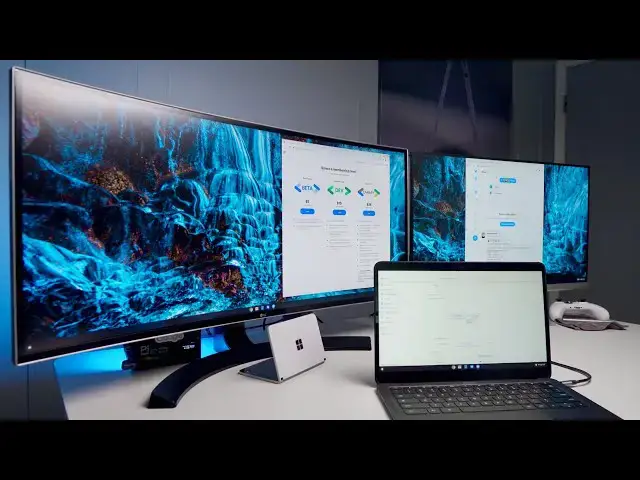
Chromebook Multi-Monitor Extended Display Setup
Sep 15, 2020


Join our Patreon community for exclusive extras, an ad-free website experience, access to our private Discord server, and more: https://www.patreon.com/chromeunboxed
Shop USB Type C Mulit-monitor Docks on Chrome Shop: https://chrmshop.com/multi-monitor-usb-c-docks-for-chromebooks/
・・・・・・・
Chromebooks have handled extended displays quite well for some time now. The hangup for many, however, has been in the lack of ability to properly extend your Chromebook to multiple monitors at once. Sure, getting a second screen in addition to my Chromebook's built-in display is highly productive and still my go-to method for getting work done, but in today's work/school environments, more Chromebook users are looking for even better, more productive setups than before.
Read more: https://chromeunboxed.com/chromebook-chrome-os-multi-monitor-display-usb-c-dock/
Join our newsletter: http://bit.ly/2WjCDm7
・・・・・・・
Shop Chromebooks on CHROME SHOP: https://chrmshop.com/
Subscribe to the channel: http://bit.ly/2xFuj6L
The Music We Use - PERFECT for YouTube: http://bit.ly/31W6PYP
Show More Show Less View Video Transcript
0:00
chromebook adoption has grown by leaps
0:02
and bounds over the last few months and
0:03
more and more people are working from
0:05
home
0:06
or maybe even working from offices doing
0:08
schoolwork on chromebooks and that has
0:10
led to
0:11
more people wanting to be able to extend
0:13
to multiple monitors and
0:15
we're not really sure exactly when the
0:17
change took place but over the
0:18
probably last 12 months or so at some
0:21
point chrome os gained the ability to
0:23
finally be able to extend to multiple
0:25
displays
0:26
over a variety of usb type-c docs so
0:29
we wanted to actually show this to you
0:31
on camera and show you how to get up and
0:33
running with more than just one extended
0:36
[Music]
0:42
monitor
0:49
so here's our setup three monitors all
0:51
of them extended so what that means if
0:53
you're not familiar with it is that
0:55
each monitor can kind of do its own
0:57
thing so i can drag from this one
0:59
over to this one over to this one
1:02
and each one can have its own stuff on
1:05
it and that's an
1:06
important difference between mirroring
1:07
because that's all chrome os could do
1:09
before is
1:10
mirror one display extend to another and
1:13
so even if you had four or five monitors
1:14
up you're gonna mirror all of them
1:16
and you're gonna have one extended
1:17
display and so extended displays help in
1:19
productivity because obviously you can
1:21
have
1:21
different stuff kind of laid out on each
1:23
screen and that's what people are after
1:24
at some point chrome os made the
1:26
transition in the last 12 to 18 months
1:28
since we started tracking
1:30
uh some of this stuff and we really
1:32
thought that
1:33
the code editions that were coming in
1:34
chrome os were really more about
1:37
daisy chaining so hooking to one display
1:39
and then allowing that display to hook
1:40
to another and then to another to
1:41
another
1:42
and while that is the case we don't have
1:44
any daisy chaining monitors around but
1:46
it can do that now mst allows for
1:49
chromebooks to move to multiple monitors
1:52
from one single dock now
1:54
so we have the plugable usb type-c dock
1:57
here so we got just one usbc
1:58
cord running to this chromebook and it
2:00
just understands that there are multiple
2:02
monitors
2:02
for fun we actually hooked in another
2:04
usb type-c
2:06
external monitor over on the side and it
2:08
picked up and understood that just as
2:10
well so
2:10
let's take a look at what the settings
2:11
look like when you hook all of this up
2:14
okay so in your settings we're going to
2:15
head to device and displays and you'll
2:17
see
2:18
all three displays and you can drag
2:20
these around as you see fit so if i'm
2:21
really
2:22
going to drag it to the way that this is
2:23
set up i'm going to have this one above
2:25
and just to the left
2:26
and this and above and to the right and
2:29
then kind of
2:30
move that one there so then i can just
2:31
kind of jump up to each
2:33
individual screen and then you can go
2:35
down here and set different orientations
2:36
for each one you can change the
2:38
resolution
2:39
you can change the refresh rate so this
2:41
hp actually has a 75 hertz mode so we
2:43
can change that as well
2:44
and so all of this just works i mean
2:46
just plug it in and all of it works
2:48
right out of the box now i will say
2:50
while the plugable usb
2:51
c dock has worked just perfectly with
2:54
this
2:55
that's not necessarily been the case
2:57
like with docks like this one from a
2:58
company called vava
3:00
you know it looks nice and it's got dual
3:02
hdmi out and it's got mst
3:05
support on it and it worked on some
3:07
chromebooks but it didn't work on all of
3:09
them so
3:09
please understand your mileage may vary
3:11
depending on the dock if you're going to
3:13
pick up one of these docks and try to
3:14
set up something like this i would
3:16
recommend going with something like the
3:18
plugable dock or something from
3:20
hp or dell who both have dual hdmi out
3:23
docks they're not cheap and that's just
3:26
part of what you're paying for to get
3:27
the tech that's going to work across
3:29
multiple displays
3:30
but i would definitely go with a name
3:32
brand one especially the one that you
3:34
know you can return in the event that
3:35
for some reason it just doesn't quite
3:36
work because like i said with the vomit
3:38
was kind of hit or miss between
3:39
different chromebooks finally before we
3:41
wrap all of this up
3:42
i just want to show you how quickly and
3:44
how well this works
3:45
on multiple different chromebooks so
3:47
this is the acer spin 713.
3:49
this is a current generation's a 10th
3:51
gen intel chip
3:53
it's a core i5 with 8 gigs of ram it's
3:55
it's kind of a monster of a device so
3:57
of course you would expect this to all
3:58
work right with a device that's this
4:00
powerful
4:01
but what i want to show you is it works
4:03
with other devices that aren't nearly as
4:05
powerful
4:07
[Music]
4:10
all right so let's take one step down so
4:12
this is a last gen chromebook this is
4:13
the pixel book goes the core i5 version
4:16
and i'm just gonna plug this in and see
4:18
what happens
4:20
it's already got the ultra wide and it's
4:22
got the hp you'll get a little bit of a
4:24
blink
4:25
and everybody should come up boom ready
4:27
to go
4:28
full resolution and again we have the
4:31
ability to change the hertz rate and
4:32
everything
4:33
just like you would expect thumbs up on
4:35
pixelbook go
4:36
[Music]
4:40
now we'll take a further step down this
4:42
is the acer 314 it's the current gen so
4:44
it's the pentium silver that is the most
4:46
current gen of the small core intel
4:48
processors
4:49
so kind of a step up from the uh n4000
4:52
like the gemini light processor so we're
4:54
gonna plug it in see what happens
4:57
and as expected full resolution on
4:59
everybody and working exactly like you'd
5:02
expect
5:06
all right let's take another step down
5:08
so this is an n4000 powered so again
5:10
current gen small core intel but this is
5:12
just the n4000 so this is the entry
5:14
level kind of guy
5:16
that you're going to get for that 250
5:18
300
5:19
price range this is the point where you
5:21
stop thinking
5:22
you know you're gonna get multi-monitor
5:25
high-resolution setups and yet here we
5:27
go
5:27
everything just working the way it
5:29
should and you can see i can
5:30
open up stuff on the screen it doesn't
5:32
matter and 4000 processor pushing three
5:36
separate displays
5:40
and finally we have set up the asus c223
5:44
which is a
5:45
generation and a half ish old chromebook
5:47
that's got the
5:49
lowest in n3350 apollo lake processor
5:52
and four gigs of ram so
5:54
this is not just not a powerhouse this
5:56
is a slow chromebook that we had a
5:58
really hard time
5:59
recommending to anybody and yet we
6:01
plugged this plugable usbc
6:03
dock into it and it's pushing the 1440p
6:07
widescreen display over here a full hd
6:10
screen over here and its internal
6:12
hd screen as well again if you start
6:15
moving stuff around i'm sure we're going
6:17
to run into some problems
6:18
but i'm able to drag between all the
6:20
displays and
6:22
use all of the displays if i have them
6:24
and want to do it from
6:25
even an entry level probably sub 200
6:28
chromebook at this point so we showed
6:29
you all of these not to say oh these are
6:32
the exact chromebooks that this will
6:33
work with but instead to say
6:35
i think that this is going to work with
6:37
most chromebooks you come across
6:39
even ones that are a couple generations
6:40
old so if you're curious whether or not
6:43
your chromebook can get this setup going
6:44
you have a couple monitors sitting
6:46
at home and are trying to find the right
6:48
dock that's going to work again i can
6:50
tell you that
6:50
plugable's usb type-c dock works we know
6:54
that it works we have it we've tested it
6:56
but we've tried a couple others and they
6:58
don't work quite as well so we don't
6:59
know for sure exactly which ones
7:01
have the right protocols in place to
7:03
work we can't test every single dock
7:05
what i would recommend is buying it from
7:07
a place that has a good return policy
7:09
buy that dock see if it hooks up see if
7:11
it works if it does great if not return
7:13
the thing
7:13
and maybe you might have to spend a
7:15
little bit more money on again a name
7:17
brand device that's going to make sure
7:19
and get
7:20
all of your displays extended to all the
7:22
monitors that you have around the house
7:24
but guys
7:25
that's been it for this one if you like
7:26
this video give it a thumbs up go down
7:28
there and hit the subscribe button and
7:29
be sure and hit that notification bell
7:31
as well if you'd like to be alerted when
7:33
we make future videos just like this one
7:34
till next time
7:35
we'll see you
#Consumer Electronics