0:00
have you ever picked up an accessory and
0:03
will this work with my chromebook well
0:05
i've told people for years if you wonder
0:07
if it works on a chromebook just
0:08
plug it into a chromebook and see a lot
0:10
of stuff actually does but
0:12
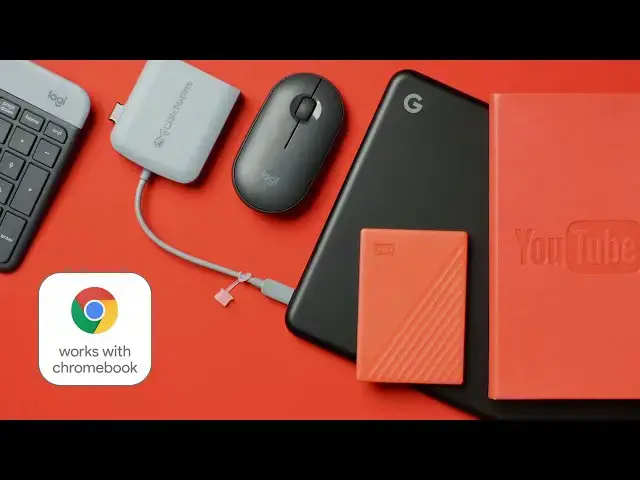
google's taking this a step further and
0:15
works with chromebook initiative that
0:17
aims to help users understand
0:19
which peripherals have been tested and
0:20
certified to work seamlessly on their
0:24
let's check it out and test some of this
0:30
but before we get into all that a big
0:32
shout out and thanks to western digital
0:34
for sponsoring this video
0:35
and providing a handful of certified
0:37
works with chromebook devices for us to
0:39
test and show you later in this video
0:41
they've even provided a few of these for
0:42
us to give away so make sure you stick
0:44
around to the end to get details on how
0:46
you can get entered to win from the time
0:47
that i began using chromebooks i have
0:49
long been a fan of saying to other
0:52
will this work on a chromebook sure yeah
0:55
just plug it in and see and honestly
0:57
about six to seven times out of ten it
0:59
seems like that's just the case you can
1:00
just plug stuff into a chromebook and it
1:03
that's not true across the board not
1:05
everything just works on a chromebook
1:08
and for a lot of users especially new
1:10
users coming into the chrome os
1:12
it may not be quite as clear as it feels
1:14
like it should be which peripheral
1:17
and won't work on your chromebook and so
1:19
google has come up with this new
1:21
initiative that's launched in the past
1:23
works with chromebook and it does
1:25
exactly what you would think it does
1:27
these certified peripherals things like
1:29
storage devices charging bricks
1:31
cables docks mice keyboards are tested
1:34
and proven to meet google's own
1:35
chromebook compatibility standards and
1:37
they're sold at lots of different stores
1:40
what we're going to end up seeing is a
1:42
bunch of accessories that have a sticker
1:43
on them that makes it very clear to end
1:46
that they're built to work with their
1:47
chromebook and sure these accessories
1:49
will work with other things too
1:51
but there's just this assurance that
1:52
they'll function properly the way you
1:54
expect the minute you plug them into
1:56
your chromebook so now that you know
1:58
what works with chromebook is
1:59
and to be looking for it on shelves at
2:01
best buys and walmarts and those kind of
2:03
stores when you're out picking up
2:05
let's actually take a handful of these
2:06
things that are already tested
2:08
already certified to meet the standards
2:10
google is set and just
2:11
see how they do all these devices
2:15
works with chromebook sticker on the
2:16
outside of the box so
2:18
we're just going to start plugging some
2:19
of this stuff in so you can see how
2:21
quickly and how seamlessly these types
2:23
of accessories work with a chromebook
2:25
okay so here's how we're going to do
2:26
this a little bit kind of unboxing style
2:28
we actually have three different
2:30
chromebooks here so we wanted to make
2:33
the fact that you know it doesn't matter
2:35
what type of chromebook or what
2:38
if it works with chromebook it works
2:39
with chromebook so i've got the acer
2:42
a 10th gen intel processor
2:46
i've got the pixelbook go which is an
2:49
intel processor and then we've got the
2:51
lenovo c13 thinkpad yoga
2:53
which is one of the newer amd ryzen
2:56
processors so we've got a nice little
2:58
assortment of devices here and we've got
3:01
a handful of accessories
3:03
um so first up we've got the wd my
3:07
and you can see right on the outside
3:08
they've affixed the sticker here
3:10
uh kind of as a after thought kind of
3:13
thing like hey we got it tested we got
3:15
slap the sticker on but then you've got
3:17
devices like this cable matters
3:19
that instead of having a sticker affixed
3:22
to it it's part of the packaging like
3:23
this is something they thought about
3:26
shipping this particular box in this
3:27
particular dock and it works with
3:29
chromebook and they've got it certified
3:31
and they've got it right there on the
3:32
box which is kind of cool
3:33
same thing goes with this sandisk ultra
3:35
it's just an sd card nothing special
3:38
but again right on the outside of the
3:39
packaging works with chromebook so
3:41
all really cool to see and then we went
3:44
not that we haven't tested or messed
3:46
with these before heck we made a whole
3:48
uh the logitech uh k580
3:52
keyboard and then the three 355 m355
3:56
uh mouse and these again the packaging
4:00
works with chromebook and just like we
4:03
i'm not going to go to great links here
4:04
on this but whether you're using this
4:06
with bluetooth or the usb
4:08
dongle that goes with these keyboards
4:12
it works so well in either mode that
4:16
uh we've if you've used chromebooks
4:17
before you know bluetooth accessories
4:19
can really be a pain in the butt
4:20
and even on bluetooth these things work
4:23
better than just about any other
4:24
accessory that we've used that
4:26
utilizes bluetooth to connect with all
4:28
right so let's just start plugging some
4:30
the sandisk ultra micro sd xc
4:35
this is just a decently fast micro sd
4:38
and it comes with an adapter which is
4:41
for certain devices most chromebooks
4:43
though just take the micro sd card so
4:45
we're just gonna pop it in the slot here
4:49
and this lenovo actually has it nice and
4:53
handy pop the chromebook open
4:56
and boom i mean it it was ready to go
4:58
before i even had the lid open
5:00
uh shows sd card right here and just
5:04
any other removable storage i can eject
5:06
it i can format the device i can start
5:08
moving files to and from it
5:10
no big deal works exactly like you'd
5:12
expect well cool so there's a
5:14
amd chromebook working well with a works
5:16
with chromebook thing so let's pop open
5:19
10th gen device now and let's go with
5:22
the cable matters here so this is a usb
5:24
type-c dock and it is made again
5:28
to work specifically with chromebooks it
5:29
doesn't mean it's the only thing it's
5:32
but idea being usb type-c
5:35
you place it in the port and you can
5:36
plug basically anything else you want to
5:39
into that dock you would use something
5:40
like this at a desktop that you would
5:43
for most days so you just have this
5:45
connected to your monitor connected to
5:46
your storage peripherals all that kind
5:49
and you know you can see it's got a usb
5:51
type-c passthrough you're getting
5:53
you're getting hdmi you're getting a
5:57
ports so you're getting a nice extension
5:59
of your port selection on your
6:00
chromebook and again it's one thing
6:02
that you plug in i use a dock very
6:04
similar to this on a day-to-day basis
6:06
it's not labeled works with chromebook
6:08
but it's a very similar dock to this
6:11
and so uh let's just plug this thing in
6:15
okay light came on so now that we have
6:17
this plugged in let's plug something
6:19
into it so we'll take this
6:21
usb dongle that we have with this
6:25
and it is set to work it's already set
6:29
but i'm going to plug it in right there
6:31
again no further setup needed
6:33
and just like that mouse is on the
6:34
screen and you know for kicks and
6:37
this uh this keyboard actually works
6:39
over that same dongle
6:40
and so right away you can see keys
6:45
right there on the screen so just plug
6:48
boom works so we didn't plan on doing it
6:52
there's this working on this chromebook
6:54
without really any setup there's this
6:55
keyboard and mouse working on this
6:57
without really any setup either it just
7:00
things just work okay so let's move on
7:04
my passport from wd and for that one
7:07
what do we have under here we've got the
7:09
pixelbook go so this this presents uh
7:13
for us to find something that works
7:15
plugs and plays with the chromebook so
7:18
the reason being this device this
7:20
particular device only has usb type a
7:23
or usb type c i'm sorry and so whenever
7:28
accessory for a chromebook that's only a
7:31
device which is like this it's actually
7:34
going to plug in with usb type a
7:36
if your chromebook doesn't have usb type
7:37
a ports that's really the only asterisk
7:40
here i mean it's not like
7:41
this works with most chromebooks but
7:43
some chromebooks with these processors
7:46
that's not really the case but if the
7:47
hardware doesn't line up obviously
7:49
you're going to need something
7:51
to get you to the right type of usb so
7:54
here's this wd my passport really
7:57
slim cool looking design nice and
8:00
pocketable this is going to go in your
8:01
bag no problem whatsoever
8:02
so we're going to plug that bad boy in
8:05
and again if the hardware doesn't line
8:07
doesn't mean it won't work you just need
8:08
something to change it so i've got type
8:11
cables here and only type c import
8:14
inputs here so we're going to go back
8:18
guy we'll plug him in and again there
8:21
are adapters that are much smaller than
8:23
this that you could use for this case
8:25
again if you've got the adapter why not
8:28
we're going to plug that right into the
8:32
removal device detected same thing
8:34
applies here i can right click i can
8:37
eject the device start moving files to
8:40
it works exactly like it's supposed to
8:44
heck if i put this in here um we've got
8:48
all of our peripherals this doesn't have
8:50
an sd card reader if i had an sd card
8:51
reader i put the sd card in there and we
8:53
just kind of have this frankenstein
8:54
going on here but basically we've got
8:57
our mouse our dock our external storage
9:01
all working together all working on this
9:04
no previous setup was done here i'm
9:06
opening this stuff up out of the box
9:08
plugging it in and boom it just works so
9:11
there you have it stuff marked works
9:12
with chromebook does exactly what it
9:15
it just works we've shown you that we
9:17
can plug this stuff into multiple
9:18
chromebooks and get the exact same
9:20
result across the board doesn't matter
9:22
what kind of processors we're talking
9:24
for users we really hope and we're sure
9:26
that google hopes this as well that it's
9:27
going to be something that makes buying
9:29
peripherals for chromebooks
9:30
so much simpler because you can just
9:32
know as i pick something up off the
9:35
if i see that sticker on it i am good to
9:37
go it's going to work
9:38
with my chromebook again huge thanks to
9:41
western digital for providing a lot of
9:43
these peripherals that we tried out in
9:45
as a part of that promotion they're
9:47
actually giving us three wd
9:49
my passports to give away completely
9:51
free there's a five terabyte version
9:53
and two two terabyte versions all
9:54
certified works with chromebook and all
9:57
available to win if you enter the
9:58
giveaway that's linked down in the
10:01
but guys that's it for this one if you
10:02
enjoyed this video be sure to give us a
10:05
go down there and hit that subscribe
10:06
button and make sure and hit that
10:07
notification bell as well if you'd like
10:09
to be alerted when we make future videos
10:11
just like this one till next time we'll